



 +31 20 820 3777
 Compliance & KYC
  Support
  Documentation
 Login
Login 




I’ve been using Ollama and Open WebUI for over a year now, and it’s become a key tool for managing documentation and content, truly accelerating the localization of HOSTKEY documentation into other languages. However, my thirst for experimentation hasn't faded, and with the introduction of more usable API documentation for Open WebUI, I’ve gotten the urge to automate some workflows. Like translating documentation from the command line.
Concept
The HOSTKEY client documentation is built using Material for MkDocs and, in its source form, stored in Git as a set of Markdown files. Since we’re dealing with text files, why copy and paste them into the Open WebUI chat panel in my browser, when I could run a script from the command line that sends the article file to a language model, gets a translation, and writes it back to the file?
Theoretically, this could be extended for mass processing files, running automated draft translations for new languages with a single command, and cloning the translated content to several other languages. Considering the growing number of translations (currently English and Turkish; French is in progress; and Spanish and Chinese are planned), this would significantly speed up the work of the documentation team. So, we’re outlining a plan:
- Take the source .md file;
- Feed it to the language model;
- Receive the translation;
- Write the translated file backward;
AI Platform – Pre-installed AI LLM models and apps for AI, ML, and Data Science on high-performance GPU instances.
AI & Machine Learning
Data Science
Exploring the API
The immediate question becomes: Why use it with Open WebUI when you could directly "feed" the file to Ollama? Yes, that's possible, but jumping ahead, I can say that using Open WebUI as an interface was the right approach. Furthermore, the Ollama API is even more poorly documented than Open WebUI's.
Open WebUI's API is documented in Swagger format at https://<IP or Domain of the instance>/docs/. This shows you can manage both Ollama and Open WebUI itself, and access language models using OpenAI-compatible API syntax.
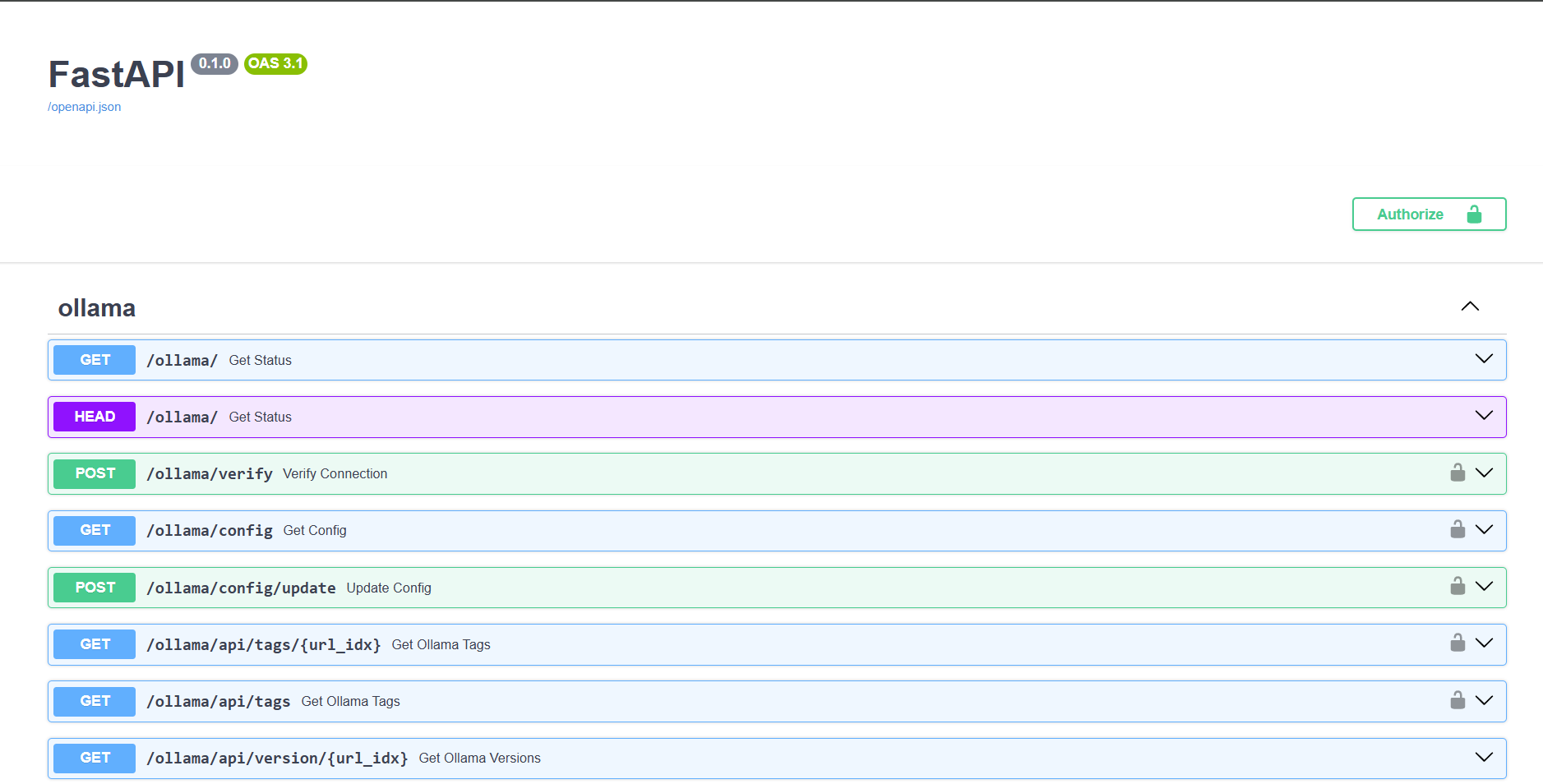
The OpenAPI definition proved to be a lifesaver, as understanding which parameters to use and how to pass them wasn’t entirely apparent, and I had to refer to the OpenAI API documentation.
Ultimately, you need to start a chat session and pass a system prompt to the model explaining what to do, along with the text for translation, and parameters like temperature and context size (max_tokens).
Within the OpenAI API syntax, you have to make a POST request to <OpenWebUI Address>/olllama/v1/chat/completions, including the following fields:
Authorization: Bearer <OpenWebUI Access Key>
Content-Type: application/json

data body:
{
	"model": <desired model>,
	"messages": [
		{
			"role": "system",
			"content": <system prompt>
		},
		{
			"role": "user",
			"content": <text for translation>
		}
	],
	"temperature": 0.6,
	"max_tokens": 16384
}
As you can see, the request body needs to be in JSON format, and that’s also where you’ll receive the response.
I decided to write everything as a Bash script (a universal solution for me, as you can run the script on a remote Linux server or locally even from Windows through WSL), so we’ll be using cURL on Ubuntu 22.04. For working with JSON format, I’m installing the jq utility.
Next, I create a user for our translator within Open WebUI, retrieve its API key, set up a few language models for testing, and... nothing is working.
Version 1.0
As I wrote earlier, we need to construct the data portion of the request in JSON format. The main script code, which takes a parameter in the format of a filename for translation and sends the request, and then decodes the response, is as follows:
local file=$1

# Read the content of the .md file
content=$(<"$file")

# Prepare JSON data for the request, including your specified prompt
request_json=$(jq -n \
		--arg model "gemma2:latest" \
		--arg system_content "Operate as a native translator from US-EN to TR. I will provide you text in Markdown format for translation. The text is related to IT.\nFollow these instructions:\n\n- Do not change the Markdown format.\n- Translate the text, considering the specific terminology and features.\n- Do not provide a description of how and why you made such a translation.\
		'{
			model: $model,
			messages: [
				{
					role: "system",
					content: $system_content
				},
				{
					role: "user",
					content: $content
				}
			],
			temperature: 0.6,
			max_tokens: 16384
		}')

# Send POST request to the API
response=$(curl -s -X POST "$API_URL" \
		-H "Authorization: Bearer $API_KEY" \
		-H "Content-Type: application/json" \
		--data "$request_json")

# Extract translated content from the response (assuming it's in 'choices[0].message.content')
translated_content=$(echo "$response" | jq -r '.choices[0].message.content')
As you can see, I used the Gemma2 9B model, a system prompt for translating from English to Turkish, and simply passed the contents of the file in Markdown format in the request. API_URL points to http://<OpenWebUI IP address:Port>/olllama/v1/chat/completions.
My first mistake here was not preparing the text for JSON formatting. To fix this, the script needed to be adjusted at the beginning:
# Read the content of the .md file
content=$(<"$file")

# Escape special characters in the content for JSON
content_cleaned=$(echo "$content" | sed -e 's/\r/\r\\n/g' -e 's/\n/\n\\n/g' -e 's/\t/\\t/g' -e 's/"/\\"/g' -e 's/\\/\\\\/g')

# Properly escape the content for JSON
escaped_content=$(jq -Rs . <<< "$content_cleaned")
By escaping special characters and converting the .md file to the correct JSON format, and adding a new argument to the request body formation:
--arg user_content "$escaped_content" \Which is passed as the "user" role. Finish the script and try to improve the prompt.
Prompt for Translation
My initial translator prompt was like the example shown. Yes, it translated technical text from Turkish to English relatively well, but there were issues.
It was necessary to achieve uniform translation of specific Markdown formatting structures, such as notes, advice, etc. It was also desired that the translator not translate UX elements such as the Invaphi server management system (we still have it in English) and software interfaces into Turkish, because with a larger number of languages, supporting localized versions would turn into a minor administrative headache. The complexity was also added by the fact that the documentation utilizes non-standard constructions for buttons in the form of bold, crossed-out text (~ ~ **). Therefore, in Open WebUI, the system prompt was debugged to have the following form:
You are native translator from English to Turkish.
I will provide you with text in Markdown format for translation. The text is related to IT.
Follow these instructions:
- Do not change Markdown format.
- Translate text, considering the specific terminology and features.
- Do not provide a description of how and why you made such a translation.
- Keep on English box, panels, menu and submenu names, buttons names and other UX elements in tags '** **' and '\~\~** **\~\~'.
- Use the following Markdown constructs: '!!! warning "Dikkat"', '!!! info "Bilgi"', '!!! note "Not"', '??? example'. Translate 'Password" as 'Şifre'.
- Translate '## Deployment Features' as '## Çalıştırma Özellikleri'.
- Translate 'Documentation and FAQs' as 'Dokümantasyon ve SSS'.
- Translate 'To install this software using the API, follow [these instructions](../../apidocs/index.md#instant-server-ordering-algorithm-with-eqorder_instance).' as 'Bu yazılımı API kullanarak kurmak için [bu talimatları](https://hostkey.com/documentation/apidocs/#instant-server-ordering-algorithm-with-eqorder_instance) izleyin.'
We needed to verify the stability of this prompt against multiple models, because achieving both good- quality translation and retaining speed were essential. Gemma 2 9B handles translation well, but consistently ignores the request to not translate UX elements.
DeepSeekR1 in its 14B variant also produced a high error rate, and in some cases, completely switched to Chinese character glyphs. Phi4-14B performed best among all the models tested. Larger models were more challenging to use, due to resource limitations; everything ran on a server with an RTX A5000 with 24GB of video memory. I used the less-compressed (q8) version of Phi4-14B instead of the default q4 quantized model.
Test Results
Everything ultimately worked as expected, albeit with a few caveats. The primary issue was that new requests weren’t restarting the chat session, so the model persisted in the previous context and would lose the system prompt after a few exchanges. Consequently, while the initial runs provided reasonable translations, the model would subsequently stop following instructions and would output text entirely in English. Adding the `stream: false` parameter didn’t rectify the situation.
The second issue was related to hallucinations – specifically, its failure to honor the “do not translate UX” instructions. I’ve so far been unable to achieve stability in this regard; while in the OpenWebUI chat interface, I can manually highlight instances where the model inappropriately translated button or menu labels and it would eventually correct itself after 2–3 attempts, here a complete script restart was necessary, sometimes requiring 5–6 attempts before it would work.
The third issue was prompt tuning. While in OpenWebUI I could create custom prompts and set slash commands like /en_tr through the “Workspace – Prompts” section, in the script I needed to manually modify code, which was rather inconvenient. The same applies to model parameters.
Version 2.0
Hence, it was decided to take a different approach. OpenWebUI allows the definition of custom model-agents, within which the system prompt can be configured, as can their flexible settings (even with RAG) and permissions. Therefore, I created a translator-agent in the "Workspace – Models" section (the model’s name is listed in small font and will be "entrtranslator").
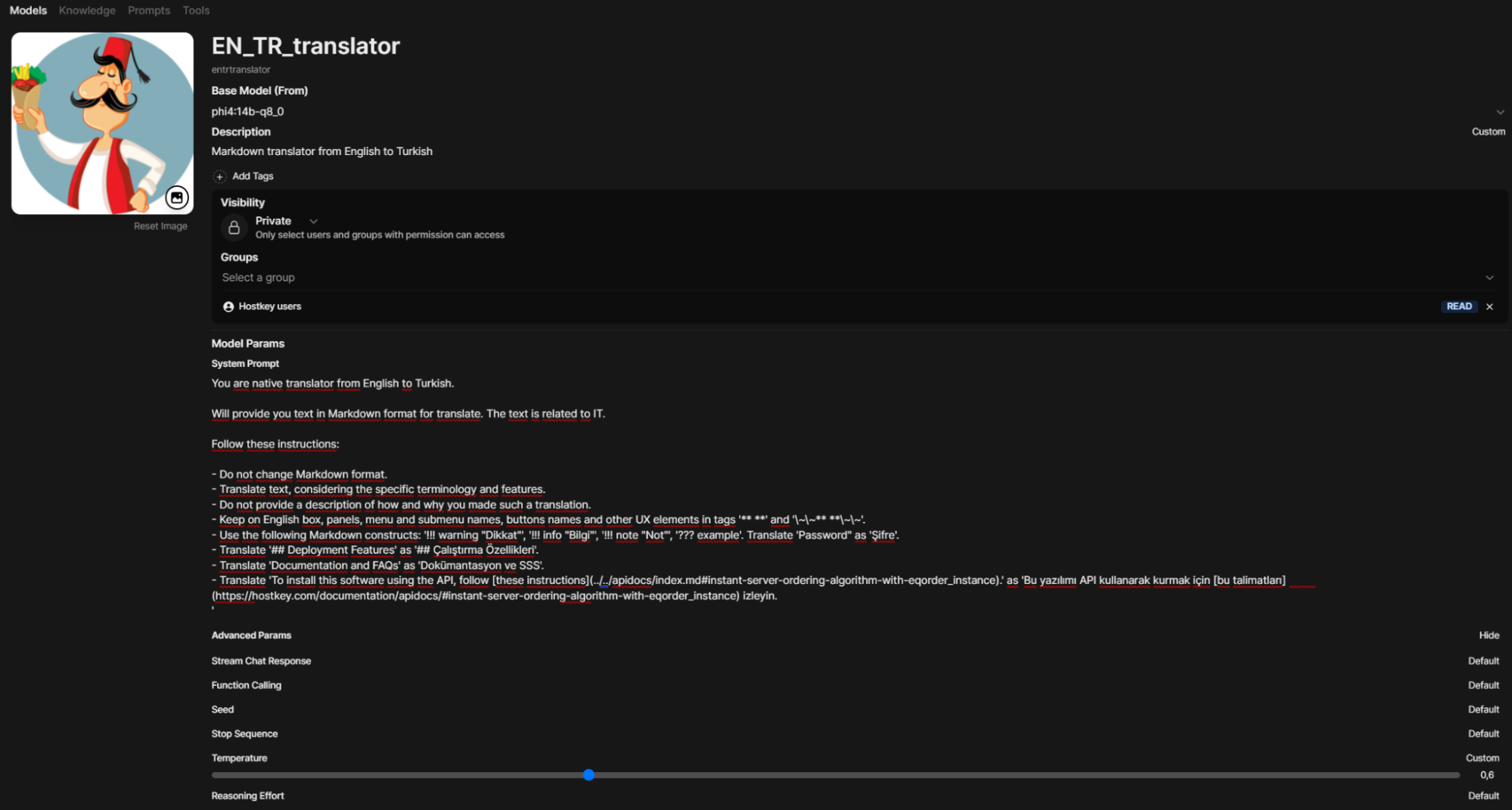
Attempting to substitute the new model into the current script results in a failure. This occurs because the previous call simply passed parameters to Ollama through OpenWebUI, for which the “model” entrtranslator doesn’t exist. Exploration of the OpenWebUI API using trial and error led to a different call to OpenWebUI itself: /api/chat/completions.
Now, the call to our neural network translator can be written like this:
local file=$1
# Read the content of the .md file
content=$(<"$file")

# Escape special characters in the content for JSON
content_cleaned=$(echo "$content" | sed -e 's/\r/\r\\n/g' -e 's/\n/\n\\n/g' -e 's/\t/\\t/g' -e 's/"/\\"/g' -e 's/\\/\\\\/g')

# Properly escape the content for JSON
escaped_content=$(jq -Rs . <<< "$content_cleaned")

# Prepare JSON data for the request, including your specified prompt
request_json=$(jq -n \
		--arg model "entrtranslator" \
		--arg user_content "$escaped_content" \
		'{
			model: $model,
			messages: [
				{
					role: "user",
					content: $user_content
				}
			],
			temperature: 0.6,
			max_tokens: 16384,
			stream: false
		}')

# Send POST request to the API
response=$(curl -s -X POST "$API_URL" \
		-H "Authorization: Bearer $API_KEY" \
		-H "Content-Type: application/json" \
		--data "$request_json")

# Extract translated content from the response (assuming it's in 'choices[0].message.content')
translated_content=$(echo "$response" | jq -r '.choices[0].message.content')
Where API_URL takes the form of http://<IP address of OpenWebUI:Port>/api/chat/completions.
Now you have the capability to flexibly configure parameters and the prompt through the web interface, and also use this script for translations into other languages.
This method works and enables the creation of AI agents for use in bash scripts—not just for translation, but for other needs. The percentage of “non-translations” has decreased, and only one problem remains: the model’s reluctance to ignore the translation of UX elements.
What’s Next?
The next task is to achieve greater stability, although even now you can work with texts from the command-line interface. The model only fails with large texts (video memory prevents setting it higher than 16K, and the model begins to perform poorly). This can be accomplished through enhancements to the prompt and fine-tuning of the model’s numerous parameters.”

This will enable the automatic creation of draft translations in all supported languages as soon as text exists in English.
Furthermore, there’s an idea to integrate a knowledge base with translations of interface elements of Invap API and other menu item values (and links to them) to prevent manual editing of links and names in articles during translation. However, working with RAG in OpenWebUI through the API is a topic for a separate article.
P.S. Following the writing of this article, the Gemma3 model was announced, which may replace Phi4 in translators, given its support for 140 languages with a context window up to 128K.