



 +31 20 820 3777
 Compliance & KYC
  Support
  Documentation
 Login
Login 



Many users prioritize privacy and distrust cloud services. Despite its popularity, Discord doesn't guarantee that no one can read or listen to your messages. This leads users to seek alternatives, with TeamSpeak being one option, offering "military-grade" communication privacy. Yes, it's not a complete replacement, yes, in the free version without registration on company servers you can't set up more than one virtual server with only 32 slots for connection, and yes, it's proprietary. But to get your own private server that you control entirely, it's one of the most optimal solutions offering maximum quality communication without recurring payments.
There are also many instructions for setting up such a server (specifically, TeamSpeak 3 Server), which is relatively simple in different ways. However, users also value a convenient web interface for working with the server on a VPS. Over TeamSpeak's lifespan, numerous projects of varying degrees of completion and functionality have emerged: TS3 Web, TSDNS Manager, MyTS3Panel, TS3 Admin Panel (by PyTS), and TS3 Manager. The last one is relatively active (the last commit was 5 months ago), the author updates it as much as possible, so we decided to include it in our TeamSpeak deployments on our servers. But as usual with open-source projects, it suffers from very sparse documentation.
Since we spent some time troubleshooting issues preventing TS3 Manager from working properly (from being unable to log in to problems displaying servers), we decided to make things easier for those who follow our path.
Here are the prerequisites: Debian 11+ or Ubuntu 20.04, 22.04, TeamSpeak 3 Server deployed as a docker container from mbentley/teamspeak and Nginx with Let’s Encrypt (jonasal/nginx-certbot image). This configuration deploys and works, allowing you to connect to it from TeamSpeak clients and manage them using an administrator token.
TeamSpeak is pre-installed on servers in Europe, the US, and Turkey.
Rent a virtual (VPS) or dedicated server with TeamSpeak — a free popular voice communication system for online gaming. Choose the right license, configure your server, and get started in just 15 minutes.
- Setup is complete: We've handled all the technical details.
- Optimized server: High performance for smooth TeamSpeak operation.
- 24/7 Support: We're here to help whenever you need us.
docker pull joni1802/ts3-manager
docker run -p 8080:8080 --name ts3-manager joni1802/ts3-manager
For enhanced security, you can add the -e WHITELIST=<server_ip>,myts3server.com parameter to the launch command, listing the servers you want to manage. This is particularly useful if you have a version beyond the free one and can set up multiple TS3 servers on your VPS (for example, by requesting an NPL license that allows for up to 10 virtual servers with 512 slots). This way, you can create, delete, and configure them all through TS3 Manager, which operates via ServerQuery.
Afterward, visiting http://<server_ip> (TeamSpeak runs on port 8080, remember this), you'll see:
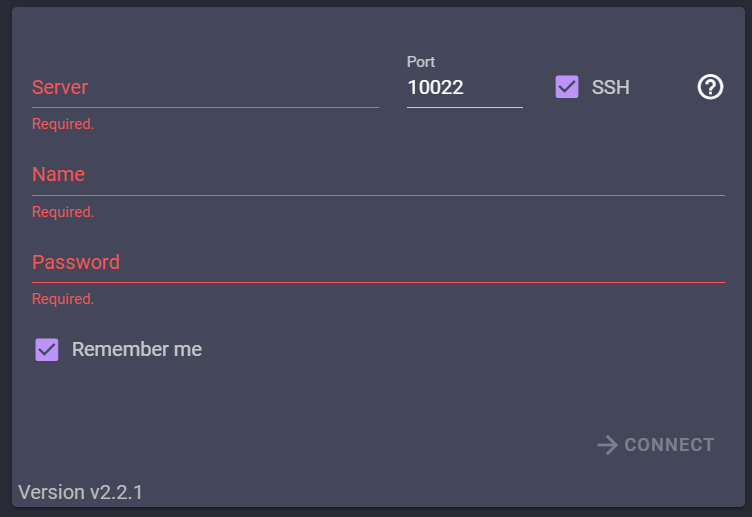
What to enter? The funniest part is that if you have SSH access to your VPS (which you probably do), entering its IP address in the Server field, "root" (or another of your user names) in name, your server password in Password, and setting Port to 22... you'll log into TS3 Manager. But you'll be met with an endless loading screen for the server list.

Exiting the manager will leave you with a blank white screen displaying "...Loading" in the browser's top-left corner. The only solution to fix this is to clear your browser cookies.
Are we doing something wrong? Where do we get the login and password to log in? Well, you need to find them in the TeamSpeak server launch logs within Docker. To do this, you'll have to SSH in (using the credentials you tried entering into TS3 Manager) and execute the following command:
docker logs teamspeak | tail -n 50
This will give you the following output:
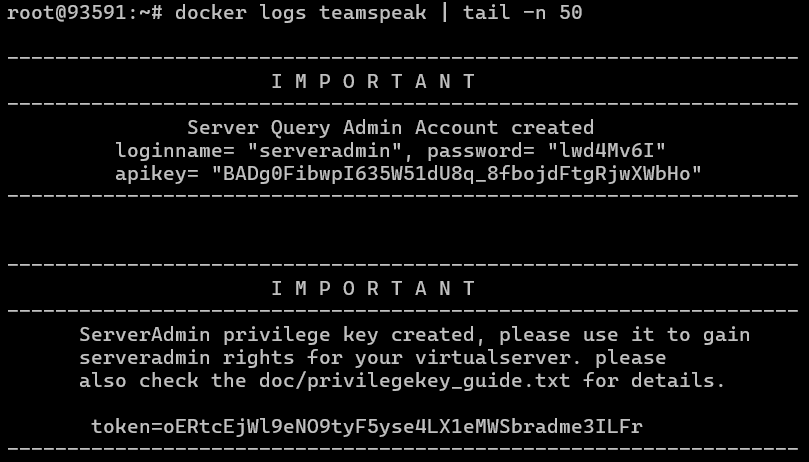
You'll be interested in loginname and password . These will remain the same even after a restart, but they will change if you stop and delete the Docker image and start it again. You'll need the token if you ever decide to connect your TeamSpeak server.
Let's go back to the browser and enter the remembered login and password for the server. Click CONNECT, and you'll get a message saying "Error..." What should we do?
If you look at the log that appeared when we looked up the server administrator's password, you can see the following:

It turns out that the server listens on 3 ports for requests: 10011 for regular (unsecured) connections, 10022 for SSH, and 10080 for HTTP requests.
Let's try entering the server's IP address, port 10011 , and unchecking "SSH." Success! We're in. But it's not very secure, although the method works. We want to be able to log in and manage the server via SSH.
Let's check if there's anything helpful in the documentation:
We have servers deployed with an SSL certificate, and this problem should resolve automatically, but something's still not working right. Checking the server output shows that port 10022 is listening, but if we run:
netstat -tulpn | grep -E '9987|10011|10022|30033|41144'
...Then we'll see that port 10022 is missing from the output. What does this mean? We forgot to forward this port in Docker (face palm emoji here). To be precise, this detail is overlooked in the documentation for the TeamSpeak Docker image we used for deployment because its author deemed this management method unworthy of attention.
Let's add port forwarding for 10022 to the Docker launch command:
-p 9987:9987/udp -p 30033:30033 -p 10011:10011 -p 41144:41144 -p 10022:10022
Then, stop, delete, and restart the TeamSpeak Docker image (and correct this in our deployment). Success! Now we can log into TS3 Manager via SSH and use a domain name instead of an IP address.
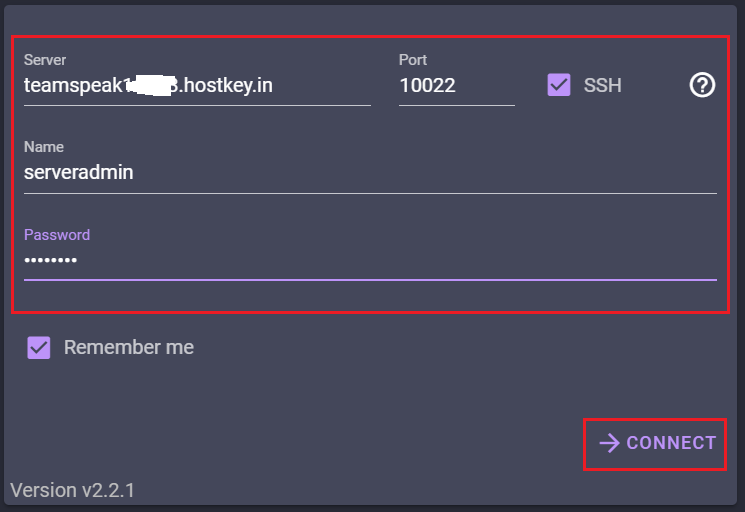
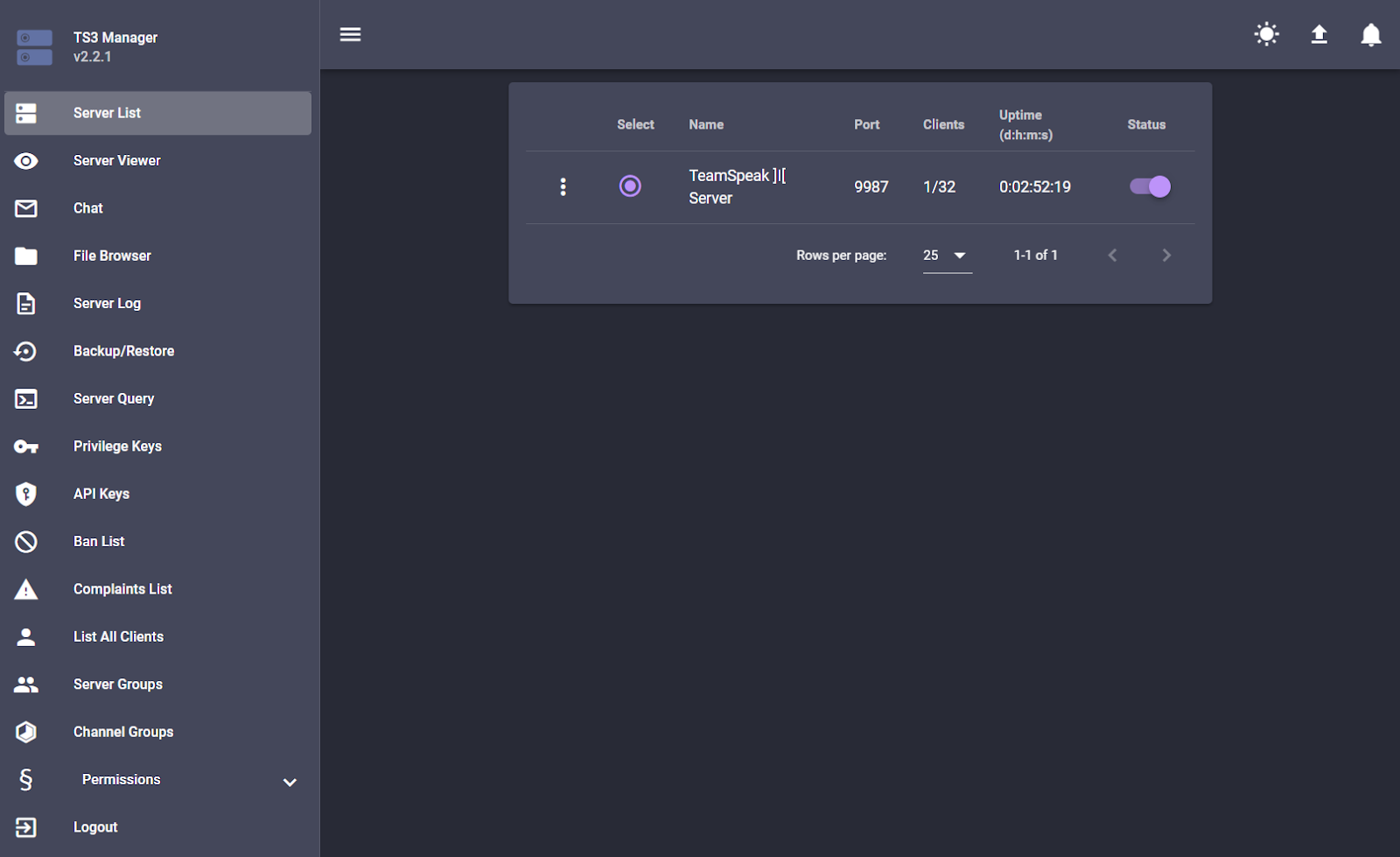
And from there, you can create servers and channels on them, work with users and their groups, generate administrative and API keys, ban users, transfer files, create text chats, and use other features previously accessible through console commands. Let's be clear upfront — this tool isn't designed for creating new user accounts. It's specifically for managing existing servers and users.
TeamSpeak is pre-installed on servers in Europe, the US, and Turkey.
Rent a virtual (VPS) or dedicated server with TeamSpeak — a free popular voice communication system for online gaming. Choose the right license, configure your server, and get started in just 15 minutes.
- Setup is complete: We've handled all the technical details.
- Optimized server: High performance for smooth TeamSpeak operation.
- 24/7 Support: We're here to help whenever you need us.