



 +31 20 820 3777
 Support
  Documentation
 Login
Login 



Author: Ivan Bogdanov, Technical Writer
Radio is not dead; According to the World Radio Alliance and egta, radio reaches up to 90% of the population weekly in key global markets, maintaining its position as the world's most consumed audio format. Smart speakers are a key growth driver: approximately 35% of U.S. adults aged 12+ now own a smart speaker, and household penetration is forecast to reach ~30.8% globally by 2026.
Simultaneously, the internet radio sector is expanding as a distinct industry: in 2024, there were 67,000 active stations globally. The monthly audience in the US reached 284 million (+23% over two years), with a combined global listenership of 1.2 billion. Streaming service revenue has surpassed $8.2 billion (according to 2025 analytics from AMWorldGroup).
One might ask: why deploy your own infrastructure when Spotify, Apple Music, and VK Music already exist?
These platforms share a critical limitation: you lack control over the platform, the content, and the audience. Algorithms dictate rotation, licensing restrictions define availability, and subscription models determine whether the service remains operational and accessible tomorrow.
If you require a station featuring your own content, schedule, and branding—without recurring platform fees and with streamlined setup—AzuraCast is the solution.
Deploying AzuraCast
This section skips the dry theory. We'll focus on a real-world installation on a Hostkey VPS with a pre-configured AzuraCast image: detailing exactly what happens at each step, where issues arise, and how to resolve them.
Provisioning the Server
Hostkey offers AzuraCast as a ready-to-use image; Docker is pre-configured, and all containers are already running. The minimum system requirements are 2 CPU cores and 2 GB of RAM. Upon payment, you will receive the server's IP address and SSH credentials via email.
The first step after gaining access is to verify that the containers are running:
root@Asura:~# docker ps

CONTAINER ID   IMAGE                           STATUS
6a205f4e0025   azuracast/azuracast:latest      Up 19 minutes
64ad03952afa   azuracast/updater:latest        Up 19 minutes (healthy)
Hostkey deploys AzuraCast as a "single-container" build, meaning Liquidsoap, Icecast, Nginx, and MariaDB all run within a single container. A second container, Watchtower, monitors for and applies image updates. Ports 80, 443, and 8000 are mapped, ensuring all necessary services for broadcasting are already exposed.
Initial Setup Wizard
Open your web browser and enter the server's IP address. The setup wizard consists of three steps. The first step involves creating an administrator account; we will skip the detailed explanation here as it only requires an email address and password. On the second step, create your first radio station:
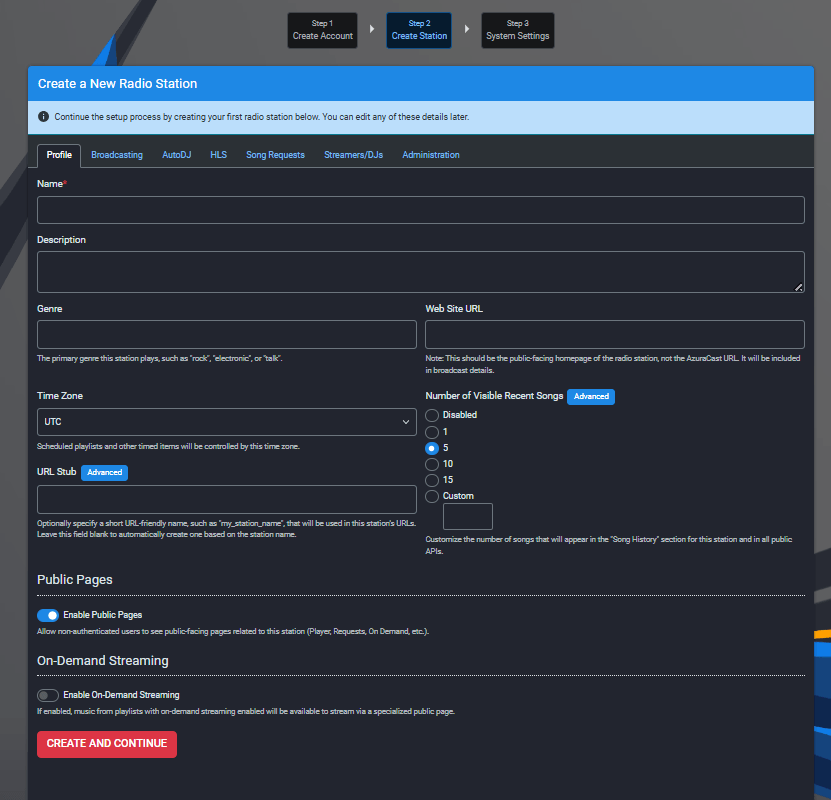
Step 2: Station Creation. The Autodj, HLS, and Streamers/DJs tabs are configured directly during station creation.
Note the tabs located at the top of the form. You can configure the following immediately:
- Autodj (Liquidsoap): Parameters for automated broadcasting;
- HLS: HTTP Live Streaming protocol for Apple devices;
- Streamers/DJs: Access for live DJ streaming.
Step 3: System Settings. The most critical field here is the Site Base URL (website address):
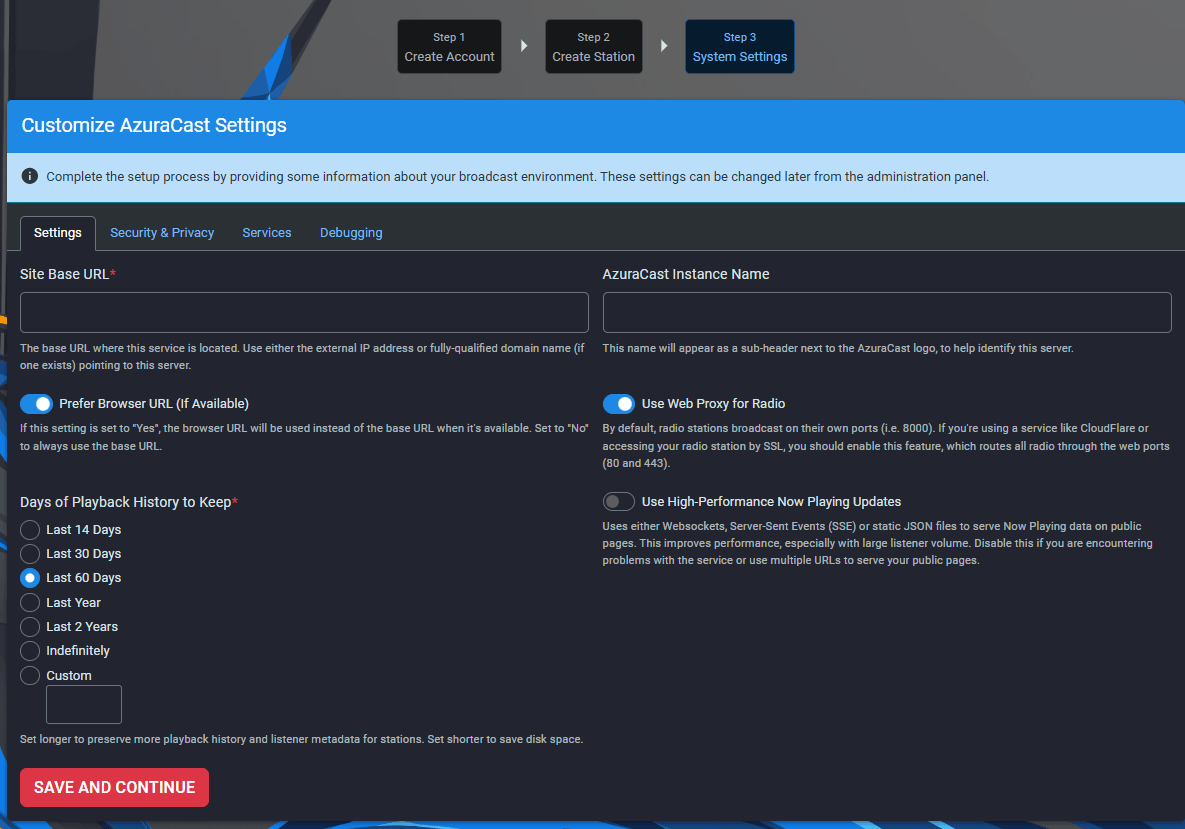
Step 3: System Configuration. The URL can be updated later via Administration → System Settings.
Enter the server IP address (in this case, http://82.38.70.6) and save. We are accessing the server by IP address because, although the domain name may have been assigned, it might not yet be active due to pending DNS record propagation or certificate updates.
Control Panel and Internal Architecture
Upon completing the setup wizard, you will be directed to the main control panel:
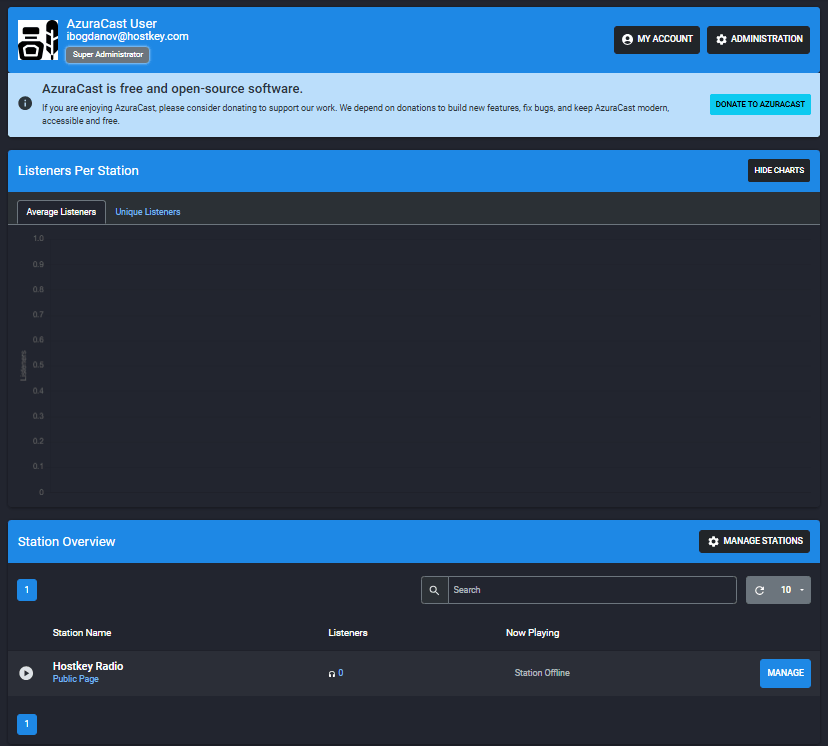
Main Dashboard: Displays the listener graph and station list. Currently empty as the station has not yet been launched.
Navigate to the Station Management section; here, the entire architecture is visible at a glance:
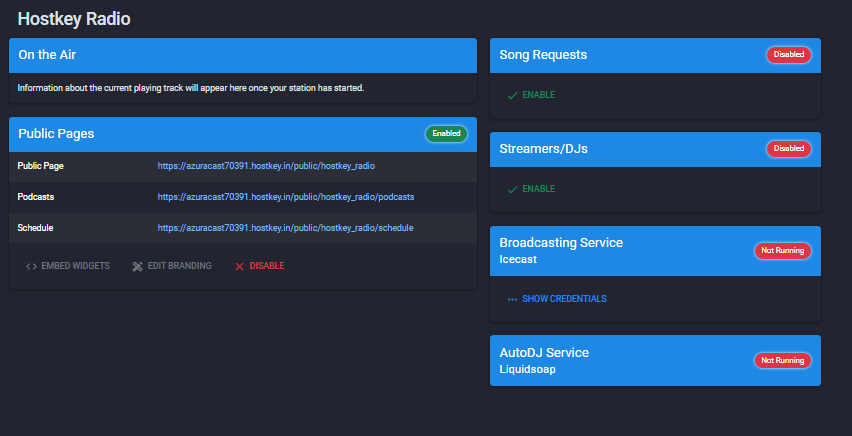
Station Management Page. The two services on the right represent the core of the system.
Two status blocks appear on the right:
- Broadcasting Service (Icecast) – Delivers the audio stream to listeners.
- Auto-DJ Service (Liquidsoap) – Manages playlists, scheduling, and crossfading.
Both currently display "Not Running," indicating that the station has not yet started. This is expected, as we will initiate the services in the next step.
Upload Content and Start Broadcasting
Navigate to Media Files and upload your tracks. The interface supports drag-and-drop functionality, SFTP for bulk uploads, and standard file selection. AzuraCast will automatically extract metadata and generate album artwork:
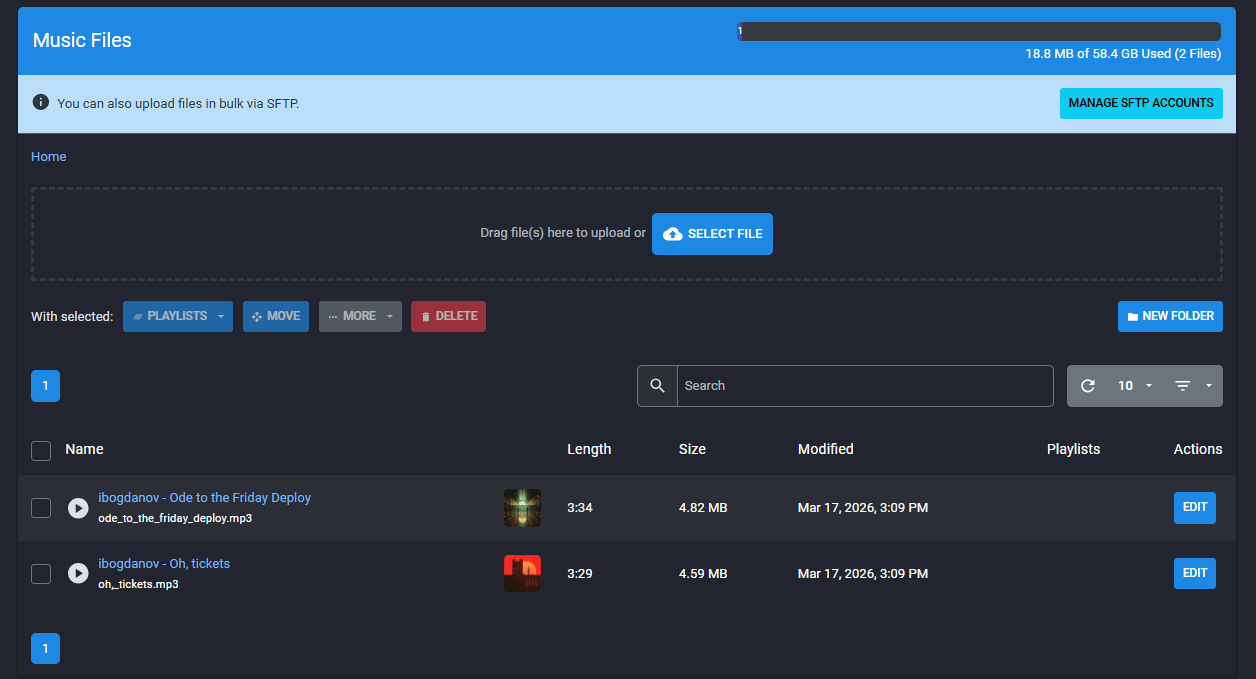
Media library after uploading two tracks. Covers were automatically generated from metadata.
A critical yet easily overlooked detail: uploaded tracks must be added to a playlist. Without this step, Liquidsoap has no content to stream, leaving the station offline.
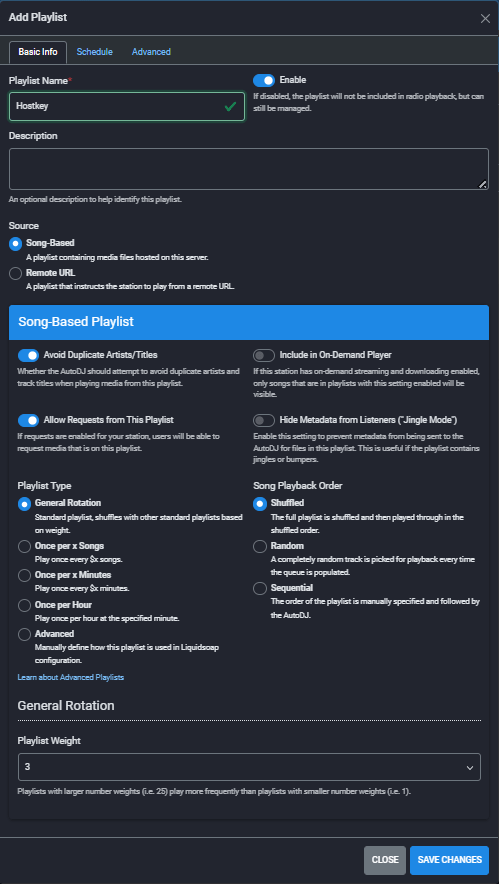
Creating a Playlist. Type "Standard Rotation" – tracks are shuffled with other playlists based on their weight.
Create a playlist, select tracks in the media library, and assign the playlist via the Playlists button. Then, click Restart Broadcasting on the station management page.
Within a few seconds, the statuses will update to "Running":
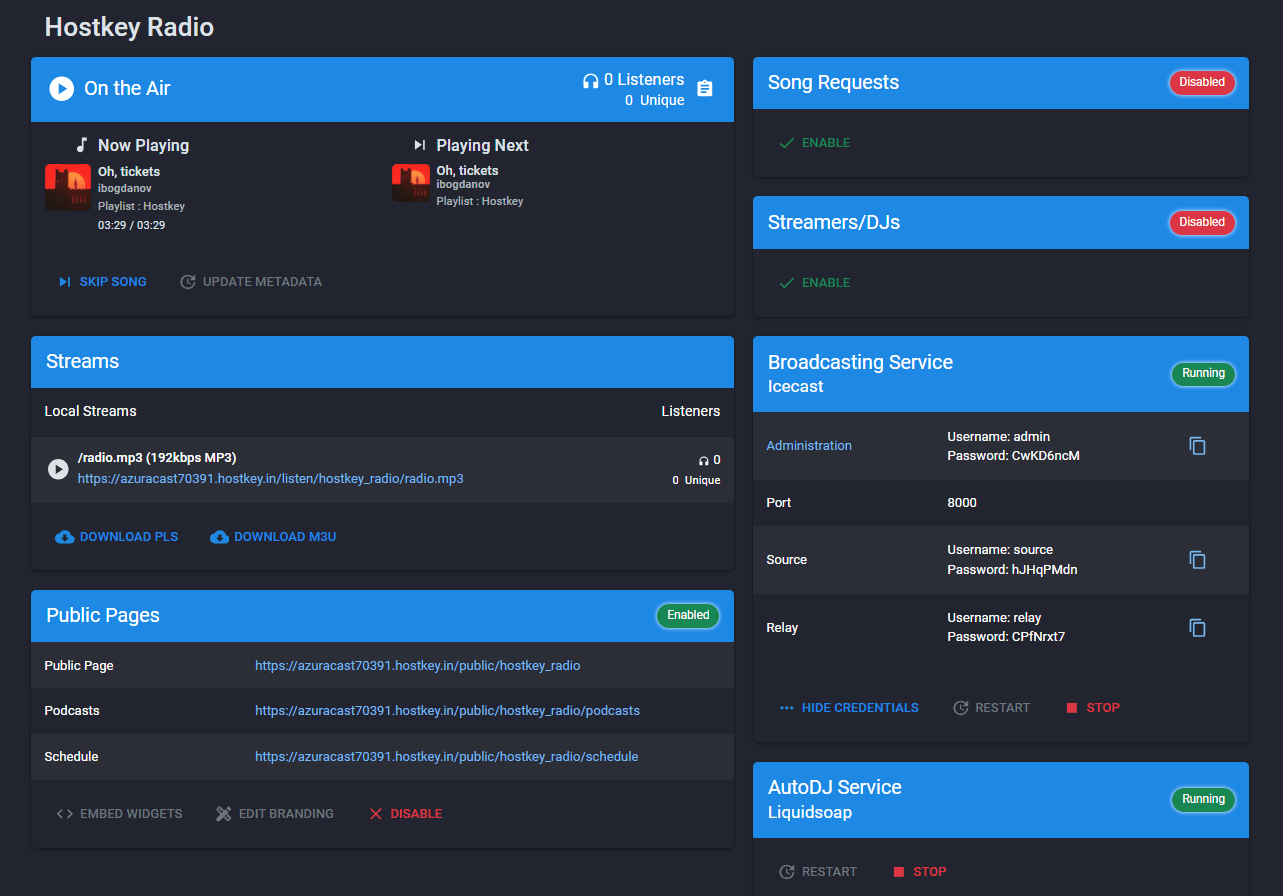
Icecast and Liquidsoap are running. The stream is available at /listen/test/radio.mp3.
Open the public page and verify that the station is broadcasting:
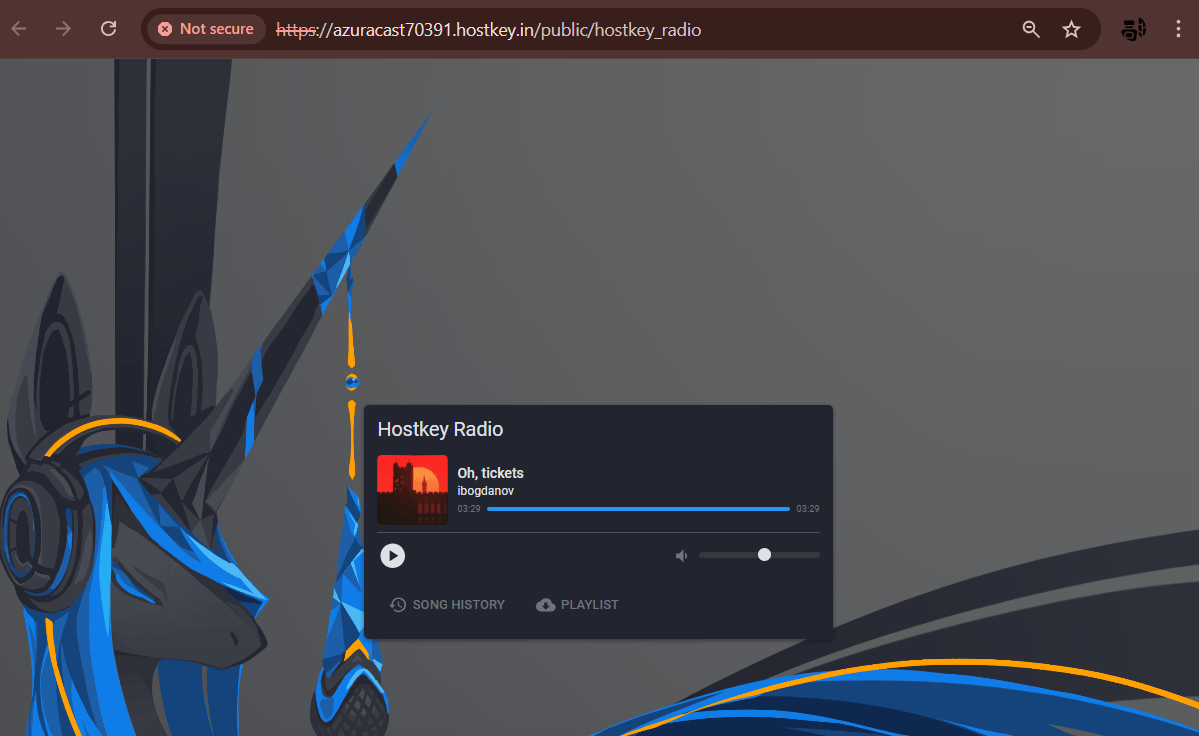
Public Player: Currently playing "Oh, tickets" — a track generated in Suno AI specifically for this demo.
In total, the installation process—from obtaining an IP address to launching a live broadcast—took less than 15 minutes. Of that time, 10 minutes were spent understanding the playlist configuration.
Out of the box, without writing a single line of configuration code, you get:
- Icecast (broadcasting software) for stream distribution, plus Liquidsoap (audio processing software) for control;
- A public player accessible at
/public/station-name; - A REST API providing data on the current broadcast;
- SFTP support for bulk media file uploads;
- Automatic updates via Watchtower (container auto-update utility).
If you require a custom domain and a Let's Encrypt certificate, you can configure both directly through the AzuraCast interface. A domain is essential for any serious broadcasting setup, as modern browsers block media streams served over HTTP when accessed from HTTPS pages.
Playlists and Scheduling: Managing the Broadcast
While installing AzuraCast takes just five minutes, configuring playlists is where real broadcast programming begins. Here, Liquidsoap receives instructions on what to play, when to play it, how frequently, and in what order.
In AzuraCast, a playlist is not merely a sequenced list of tracks; it is a set of rules for Liquidsoap defining when to include a specific group of tracks in rotation, their priority, frequency, and applicable days of the week.
One playlist might contain thousands of tracks running 24/7. Another could hold a single jingle inserted hourly. A third might be a Christmas's compilation activated only on December 31st.
All station playlists are visible from a single centralized interface:
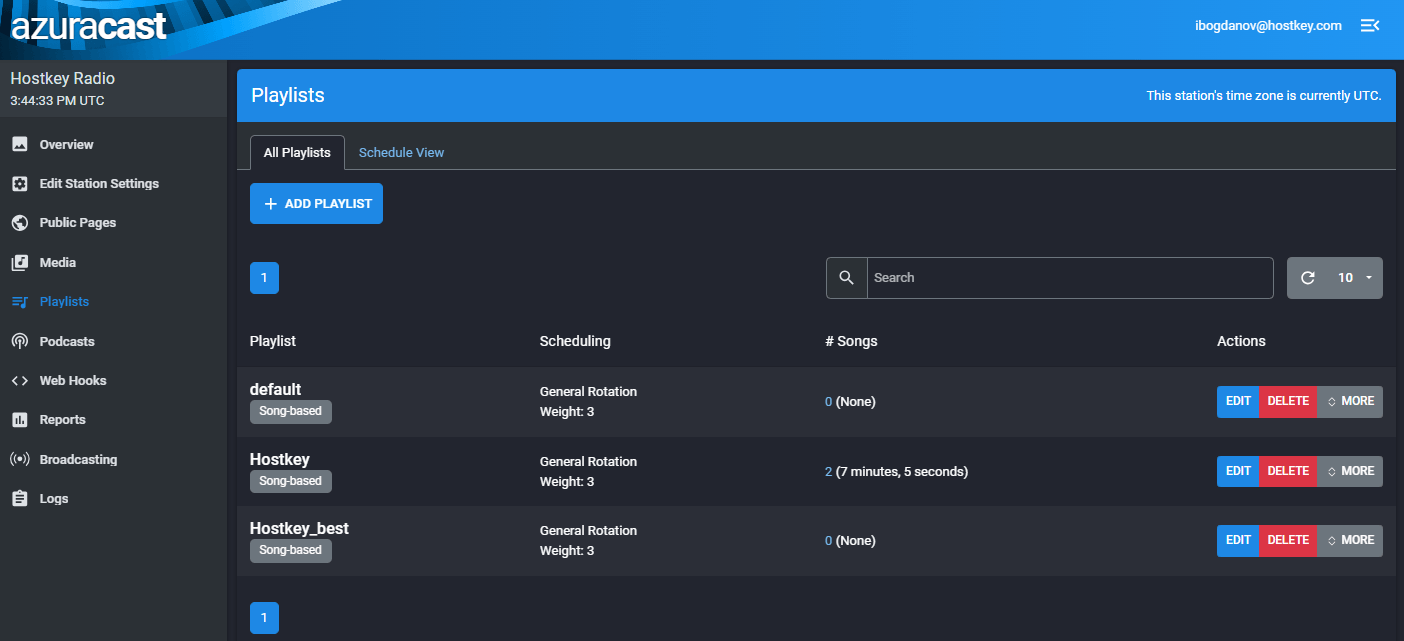
Station playlist listing. Two playlists are visible: the system default (empty) and "Weekday" containing two tracks.
The "default" playlist is automatically generated by AzuraCast during installation. This serves as a fallback playlist; if all other playlists are silent, Liquidsoap will activate this one. You may leave it empty or populate it with placeholder tracks.
Playlist Types
When creating or editing a playlist, the most critical step is selecting the appropriate type. There are five distinct playlist types:
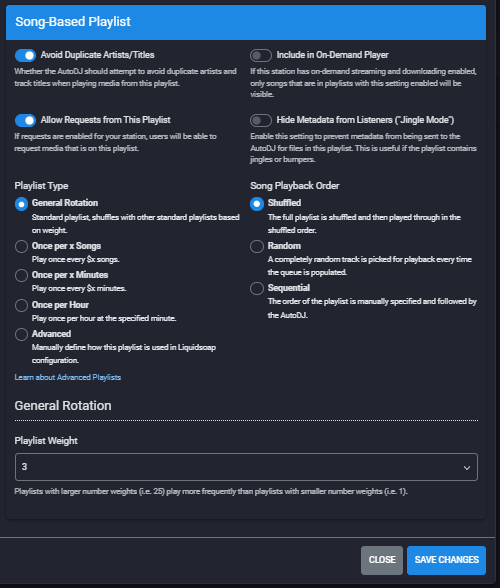
Playlist Settings: Type, Playback Order, Weight, and Additional Parameters
-
Standard Rotation
This is the primary rotation type for most use cases. Tracks from this playlist are mixed with tracks from other "Standard Rotation" playlists based on their assigned weight.
The "Weight" parameter (default: 3) determines how frequently this playlist plays relative to others. A playlist with a weight of 6 will play twice as often as one with a weight of 3. This is useful for making a specific genre dominant without excluding other content.
Example of a typical rotation scheme for an IT-focused radio station:
|
Main Rotation |
Weight 5 |
Wordless work music, 500 tracks |
|---|---|---|
|
Evening Jazz |
Weight 2 |
Instrumental jazz, 200 tracks |
|
Holiday |
Weight 1 |
Thematic tracks, 50 tracks |
Liquidsoap automatically calculates the proportions: for every 8 plays, 5 will come from the Main Rotation, 2 from Evening Jazz, and 1 from Holiday.
-
Every N Songs
This playlist is inserted into the broadcast every N tracks from the main rotation. Ideal for jingles and stingers: create a playlist containing a single file such as "You're listening to Hostkey Radio," set it to "Every 5 songs," and the station will automatically announce itself.
-
Every N Minutes
Similar to the previous type, but based on time rather than track count. Useful for news segments or weather updates: insert a pre-recorded file every 30 minutes, regardless of how many tracks have played.
-
Once Per Hour
A specific case of the previous type, triggering exactly once per hour at a specified minute. This is the classic format for hourly station IDs: the station bumper plays at the 00-minute mark of every hour.
-
Advanced
Direct control over the Liquidsoap configuration. For users familiar with the Liquidsoap language, this allows implementation of custom logic. This option is rarely required.
Scheduling
Each playlist includes a "Schedule" tab. By default, a playlist without a defined schedule plays continuously, which is suitable for main rotation content. However, you can specify an exact time slot for playback.
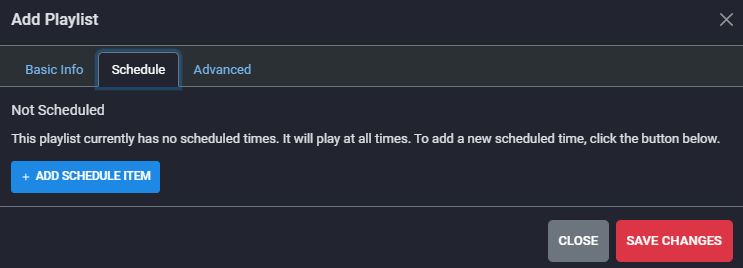
Schedule Tab: In the absence of a schedule, the playlist plays continuously. At the bottom, two playlists are already visible in the consolidated summary.
Click "Add Schedule Item" to open the detailed configuration form:
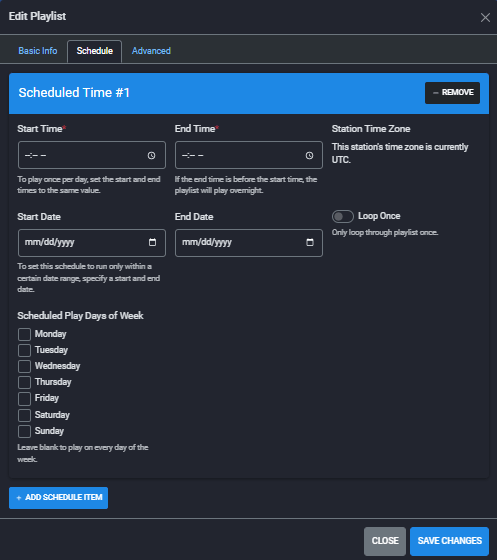
Schedule Form: Start/End Time, Date Range, Days of the Week, and the "Play Once" Option
Schedule Parameters:
- Start and End Time: Defines the time slot for playback. If the end time is earlier than the start time (e.g., 23:00–02:00), the playlist will span across midnight.
- Start and End Dates: Specifies the date range during which the playlist is active. Ideal for seasonal content, such as a Christmas playlist running from December 25 to January 5.
- Days of the Week: If no days are selected, the playlist plays daily. You can restrict playback to specific days, such as Fridays only.
- Play Once: The playlist plays a single full cycle and then stops. This option is intended for special broadcasts or one-time events.
A single playlist can include multiple schedule entries. For example: a weekday morning block from 07:00 to 10:00 and an extended weekend block from 09:00 to 13:00 can both be configured within the same playlist.
Advanced Settings
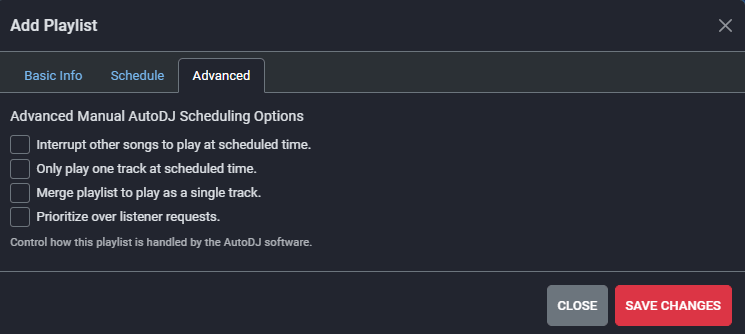
"Advanced" Tab: Managing playlist behavior within the Liquidsoap queue
Four checkboxes that are rarely needed but essential to understand:
- Preempt other tracks — The playlist interrupts the current track and inserts itself immediately. Ideal for urgent announcements.
- Play a single track only — One random track is selected from the playlist, after which control returns to the main rotation. Suited for occasional inserts.
- Concatenate playlist as a single track — All tracks in the playlist play sequentially without interruption, treated as one long file. Best for mixes and podcasts.
- Prioritize listener requests — Requests submitted via the public page take precedence over this playlist.
Practical Example: A Typical IT Radio Station
We construct a schedule using multiple playlists for 24/7 broadcasting:
|
Playlist |
Type |
Schedule |
Weight |
|---|---|---|---|
|
"Workday" |
Standard Rotation |
08:00–19:00 |
5 |
|
"Evening" |
Standard Rotation |
19:00–23:00 |
5 |
|
"Night" |
Standard Rotation |
23:00–08:00 |
5 |
|
"Ode to Friday Deploys" |
Standard Rotation |
Friday |
3 |
|
"Jingle" |
Every 5th Track |
- |
- |
|
"Christmas" |
Standard Rotation |
Dec 25 – Jan 5 |
2 |
Liquidsoap stitches these elements into a continuous stream: work-appropriate music plays during the day, switching to a different tempo in the evening, while ambient background tracks fill the night. A station ID jingle plays every five tracks. On Fridays, the "Ode to Friday Deploys" playlist is added to the rotation. From December 25th, the station transitions to holiday content.
Domain and HTTPS: From IP Address to a Proper Resource URL
The station is running and broadcasting, but an address like http://82.38.70.6 is not listener-friendly. Furthermore, modern browsers block media streams served over HTTP when embedded on HTTPS pages. Therefore, a domain name and SSL certificate are not optional; they are a necessity for production use.
The entire setup process takes approximately 30 minutes, with the majority of that time spent waiting for DNS propagation.
Configuring DNS
We need to point the domain or subdomain to our server's IP address. We will use the subdomain radio.skaz.online to keep the main domain available.
Where to add the A record depends on where the domain's Name Servers (NS) are hosted. There are two scenarios:
- The domain is delegated to Hostkey Name Servers (ns1.hostkey.com, ns2.hostkey.com): Add the A record in Invapi via the DNS Hosting menu.
- The domain uses the registrar's Name Servers: Add the A record directly with the registrar.
In the Invapi panel, navigate to: User Profile > DNS Hosting > Select Zone > Add DNS Record > Type A:
Title:  radio
TTL:   	3600
Data:	82.38.70.6
Result: The radio.skaz.online record now resolves to the server at 82.38.70.6 within the domain zone. Verify the propagation after 15–60 minutes:
ping radio.skaz.onlineOnce the response returns our server's IP address, you can proceed.
Step 2: Change the Base URL in AzuraCast
Log in to AzuraCast and navigate to: Administration > System Settings. Update the value for the Site Base URL field:
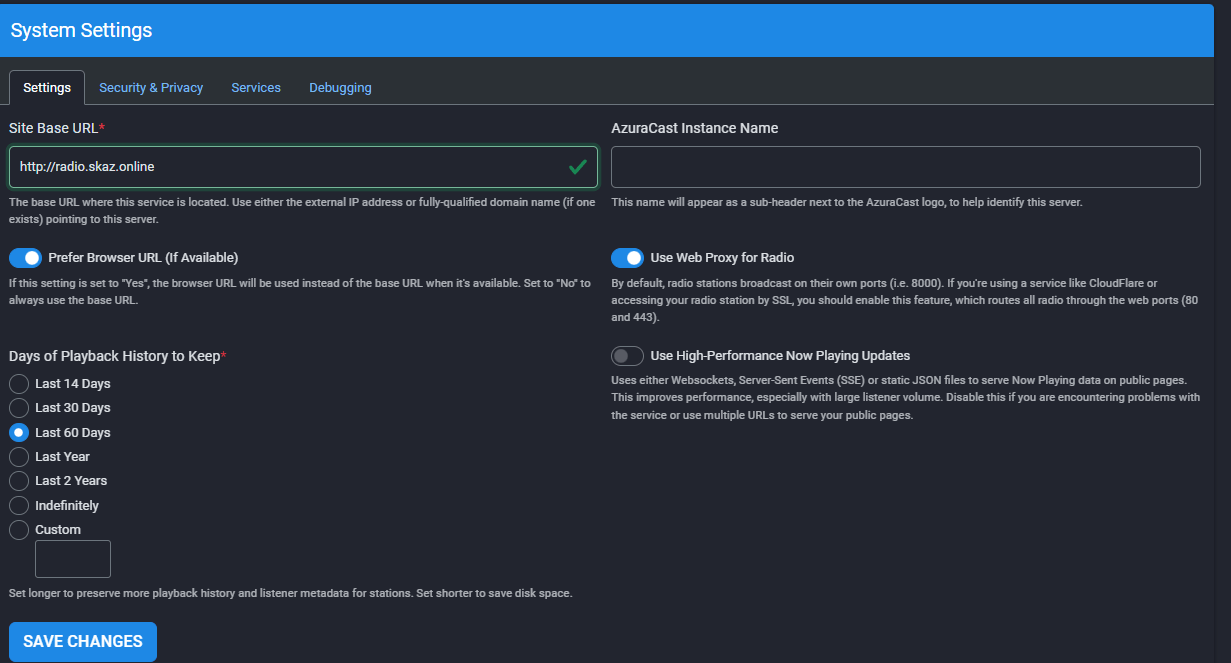
System Settings: The Base URL has been updated to http://radio.skaz.online. Save the configuration before issuing the certificate.
Always save the Base URL first, then request the certificate. Otherwise, Let's Encrypt will issue a certificate for the previous URL.
Issue a Certificate via Let's Encrypt
Navigate to the Maintenance tab within the same System Settings section.
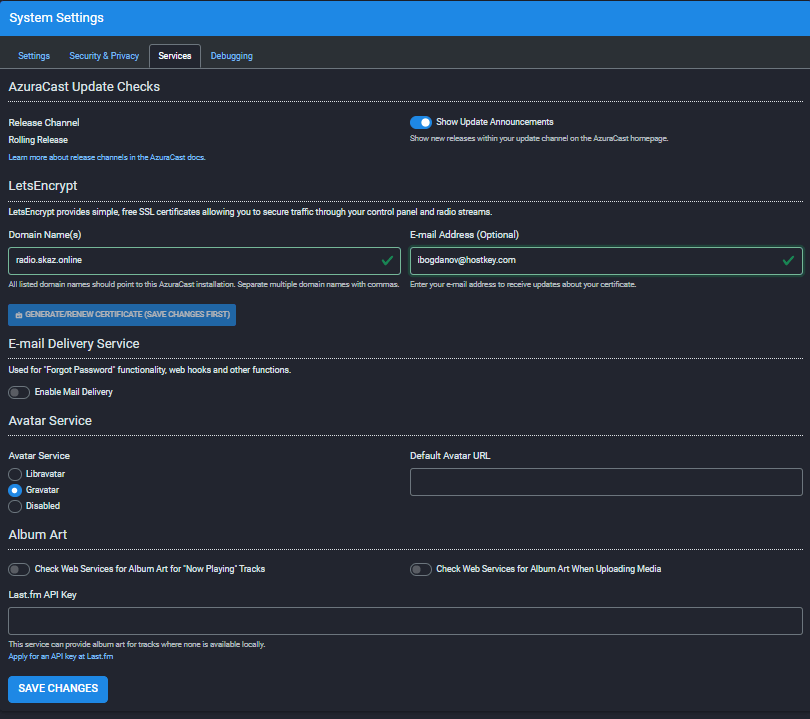
In the Let's Encrypt section: Enter the domain and email address, then click "Create/Update Certificate".
Fill in the two fields:
- Domain Name:radio.skaz.online;
- Email Address: Your email address (for certificate expiration notifications).
Click Create/Update Certificate. AzuraCast will contact the Let's Encrypt servers, perform the HTTP domain validation challenge, and retrieve the certificate. The entire process takes 10–30 seconds.
If the button is disabled and displays the message "Save changes first," then—unsurprisingly—save the Settings page first, then return to the Maintenance tab.
You can verify the result from the command line using the following command:
dockerexecazuracastazuracast_cliazuracast:acme:get-certificateThe response Certificate does not need renewal indicates that the certificate has already been issued and is valid. This is the desired outcome.
As a result of these steps, the website operates over HTTPS without any security warnings.
Open https://radio.skaz.online to view the login page displaying the secure padlock icon:
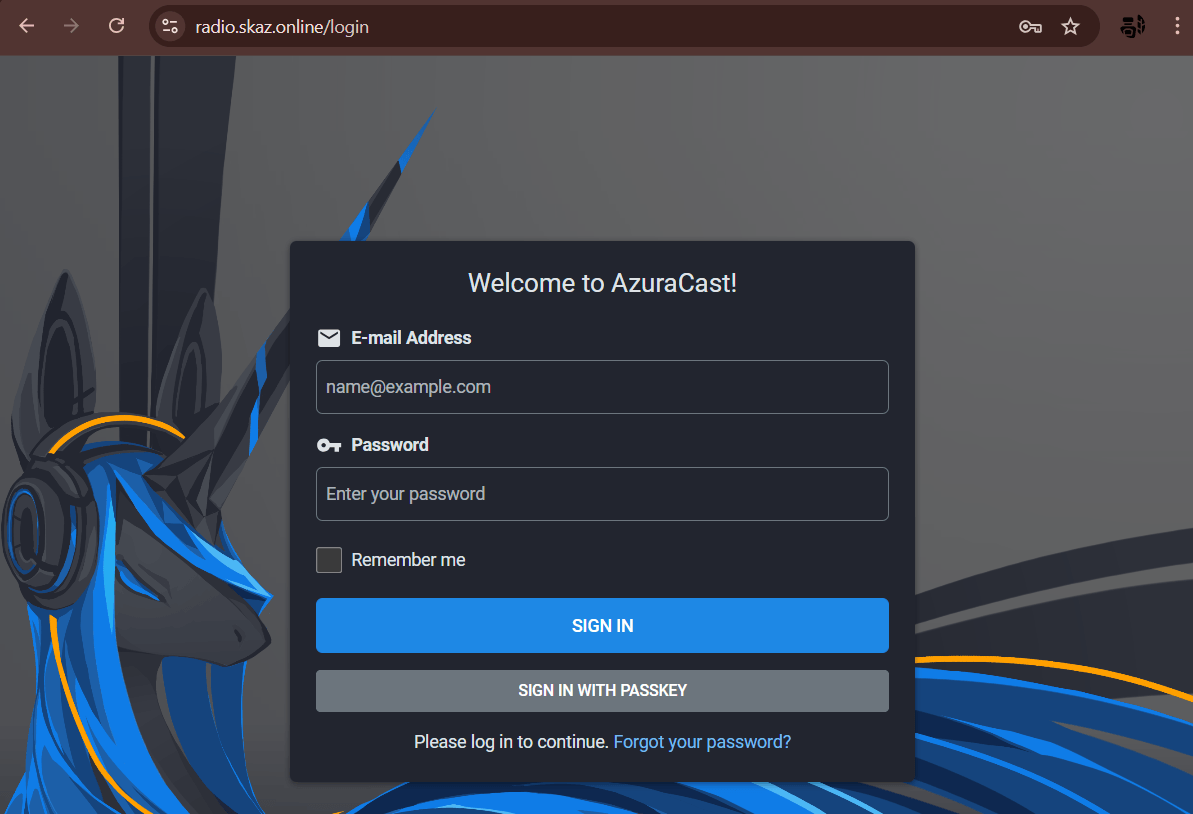
The HTTPS login page. The "padlock without warnings" indicates that the Let's Encrypt certificate has been issued and is trusted by the browser.
The public listener page is accessible at https://radio.skaz.online/public/test, confirming that the stream is delivered over a secure connection:
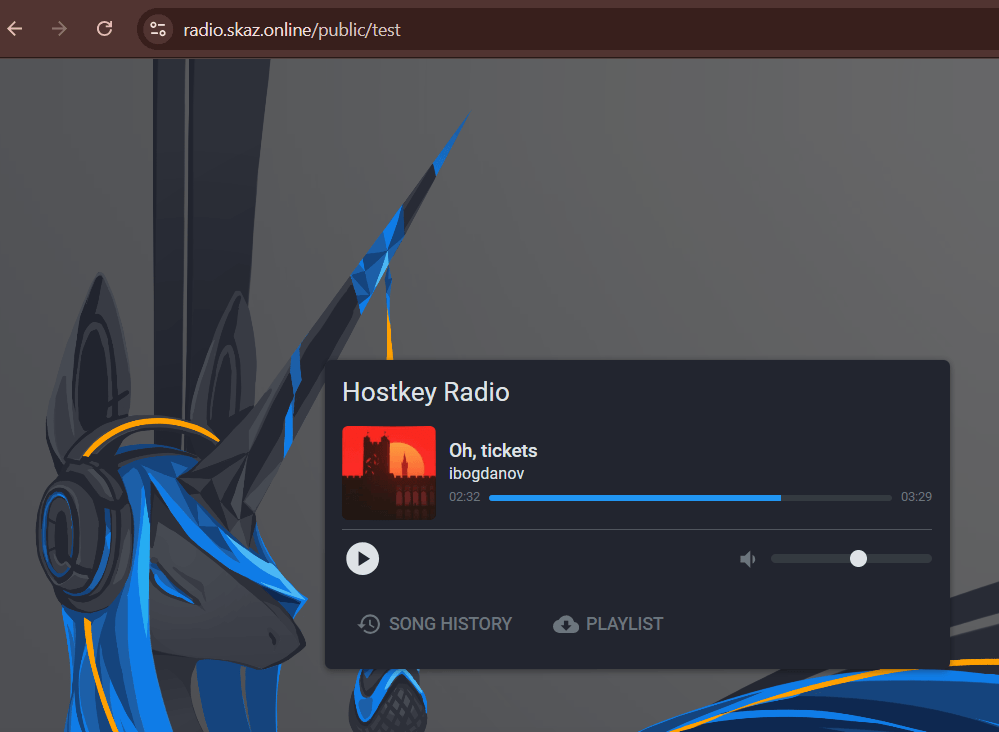
Public HTTPS Player: "Oh, Tickets!" is playing, the lock icon is green, and there is no mixed content.
The radio stream URL can now be embedded in any website using a secure HTTPS connection without triggering browser warnings.
Automatic Certificate Renewal
Let's Encrypt issues certificates valid for 90 days. AzuraCast automatically renews them via its built-in scheduler, requiring no manual intervention thereafter. Should automatic renewal fail for any reason, a notification will be sent to the specified email address.
Final Architecture
The resulting configuration:
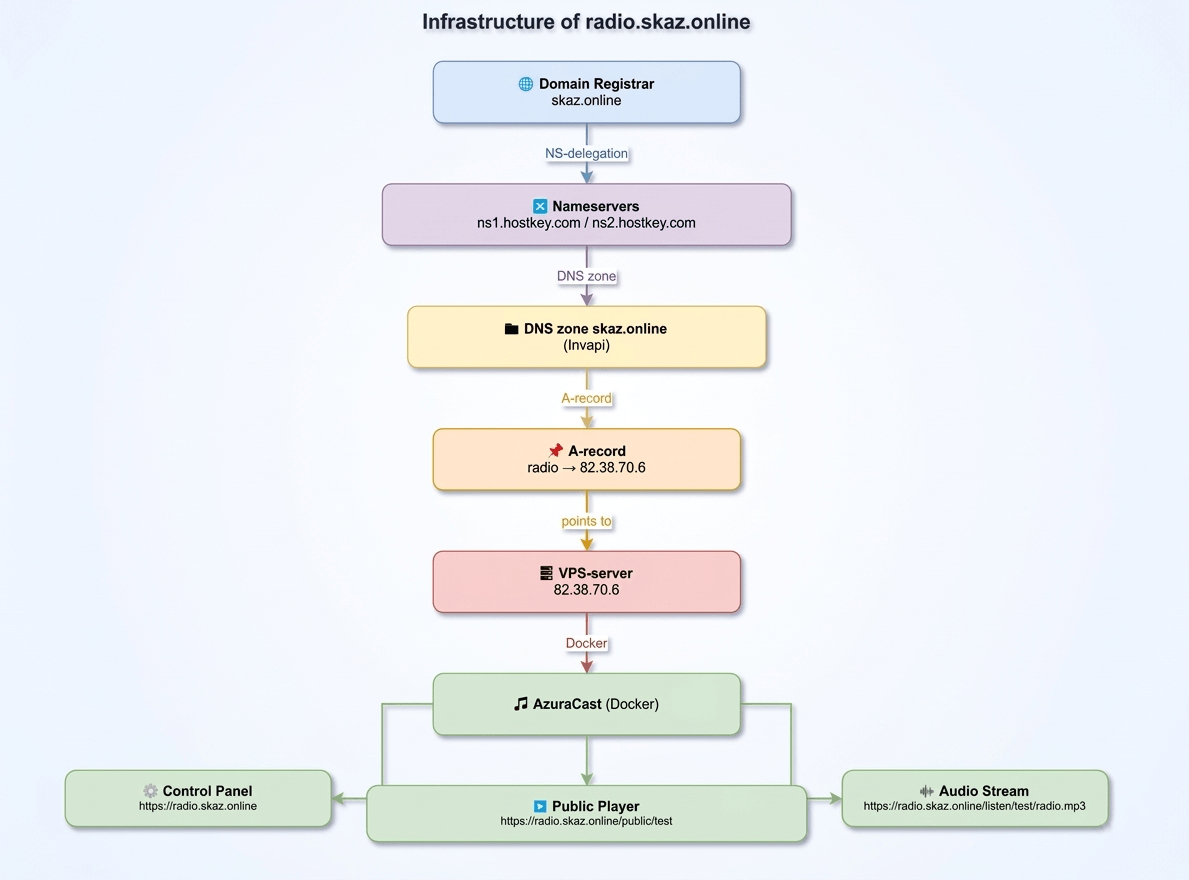
API and Embedding: Connecting Your Radio to the Outside World
A fully operational station is a solid foundation. However, true value emerges when your radio becomes an integral part of a broader ecosystem: a website, a chatbot, a control panel, or a mobile application. AzuraCast facilitates this integration through two primary tools: a REST API and a customizable embedded widget builder.
Broadcast Streams
Before delving into the API, let's examine the streams AzuraCast provides directly. On the station management page, all available streams are listed:

Broadcast streams and station public pages. All URLs are HTTPS.
Three types of public URLs are available out of the box:
- https://radio.skaz.online/listen/test/radio.mp3 – Direct audio stream at 192 kbps in MP3 format (MPEG-1 Audio Layer 3). Compatible with any Icecast-supported player.
- https://radio.skaz.online/public/test – Public landing page featuring an embedded web player.
- https://radio.skaz.online/public/test/podcasts – RSS (Really Simple Syndication) feed for podcasts.
Additionally, PLS and M3U playlist files are provided for seamless integration with Winamp, VLC, foobar2000, and other desktop media players.
REST API: Real-Time Data
AzuraCast includes a fully functional REST API requiring no additional configuration. Public endpoints are accessible without authentication, while administrative endpoints require an API key obtained from the My Account section.
Primary endpoint: /api/nowplaying
The most useful endpoint provides the current status of all stations:
GET https://radio.skaz.online/api/nowplaying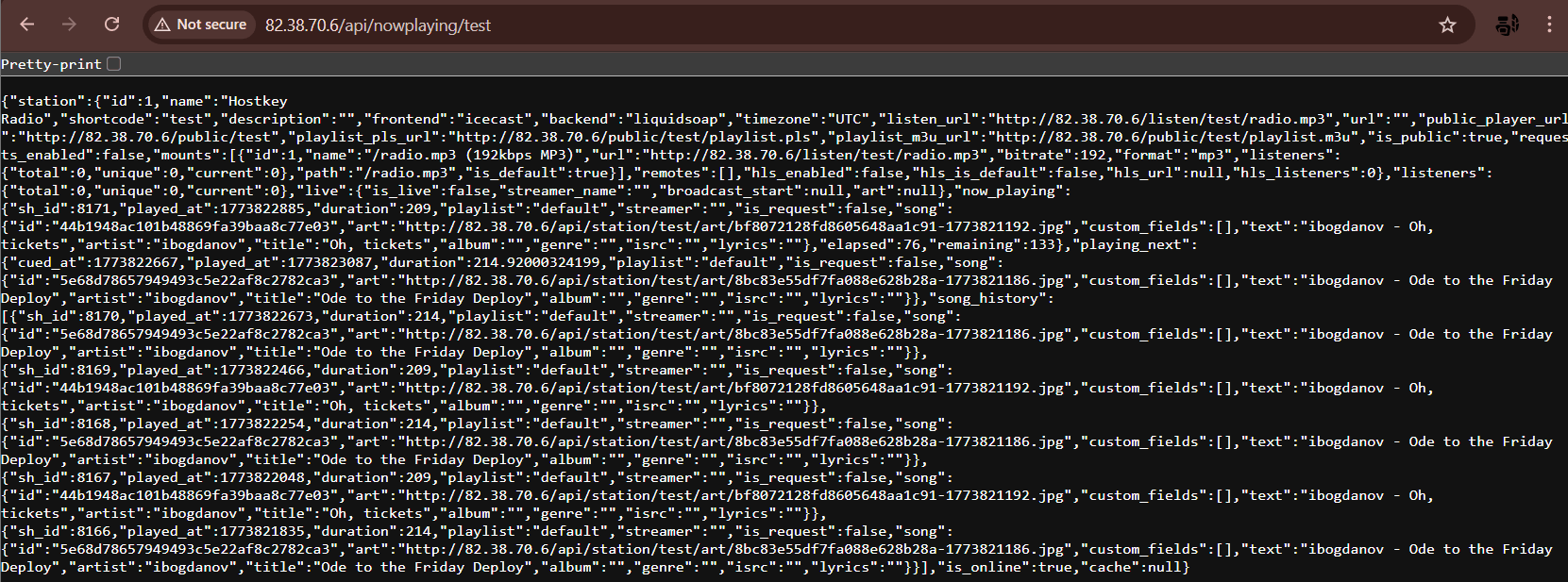
The response contains:
{
  "station": {
    "name": "Hostkey Radio",
    "frontend": "icecast",
    "backend": "liquidsoap",
    "listen_url": "https://radio.skaz.online/listen/test/radio.mp3"
  },
  "now_playing": {
    "song": {
      "artist": "ibogdanov",
      "title": "Ode to a Friday Deploy",
      "art": "https://radio.skaz.online/api/station/test/art/..."
    },
    "elapsed": 46,
    "remaining": 168
  },
  "playing_next": {
    "song": { "title": "Oh, Tickets!" }
  },
  "listeners": { "total": 0, "unique": 0 },
  "is_online": true
}
To query a specific station, include the shortcode parameter in the path:
GET https://radio.skaz.online/api/nowplaying/testOther Useful Endpoints
- /api/station/test/history – Playback history with metadata;
- /api/station/test/listeners – Listener details (requires API key);
- /api/station/test/requests – Accept song requests from listeners;
- /api/station/test/status – Status of Icecast and Liquidsoap;
- /api/admin/stations – List of all stations (requires administrator API key).
Complete API documentation for our implementation is available at https://radio.skaz.online/api. There, you will find interactive documentation (Swagger) that allows you to test requests directly in your browser.
If you prefer not to write code, a ready-made widget builder is available. Click the Embed Widget button on the station management page to open the visual editor.
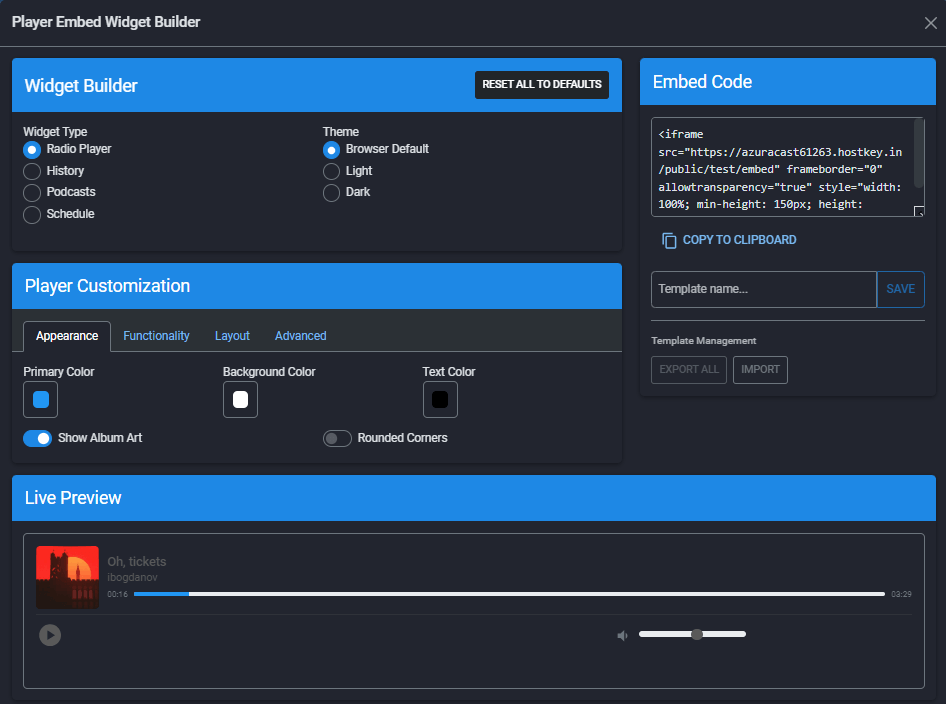
Widget Builder: Four widget types, color customization, and live preview. The ready-to-use iframe embed code is displayed on the right.
Four Widget Types:
- Radio Player – A full-featured player featuring album art, a progress bar, and volume controls.
- Recently Played – Playback history displaying album art and timestamps.
- Podcasts – A list of podcast episodes.
- Schedule – A weekly broadcast grid.
The Functionality tab allows you to configure behavior:
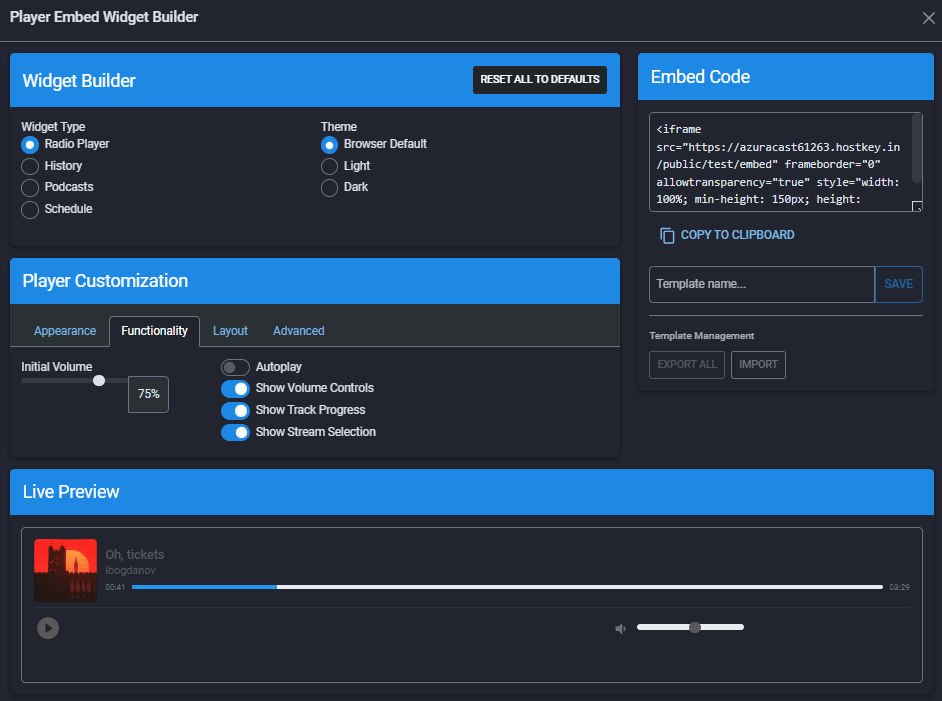
Functionality: initial volume, autoplay, progress indication, and stream selection.
On the Layout tab, you can adjust the dimensions and orientation:
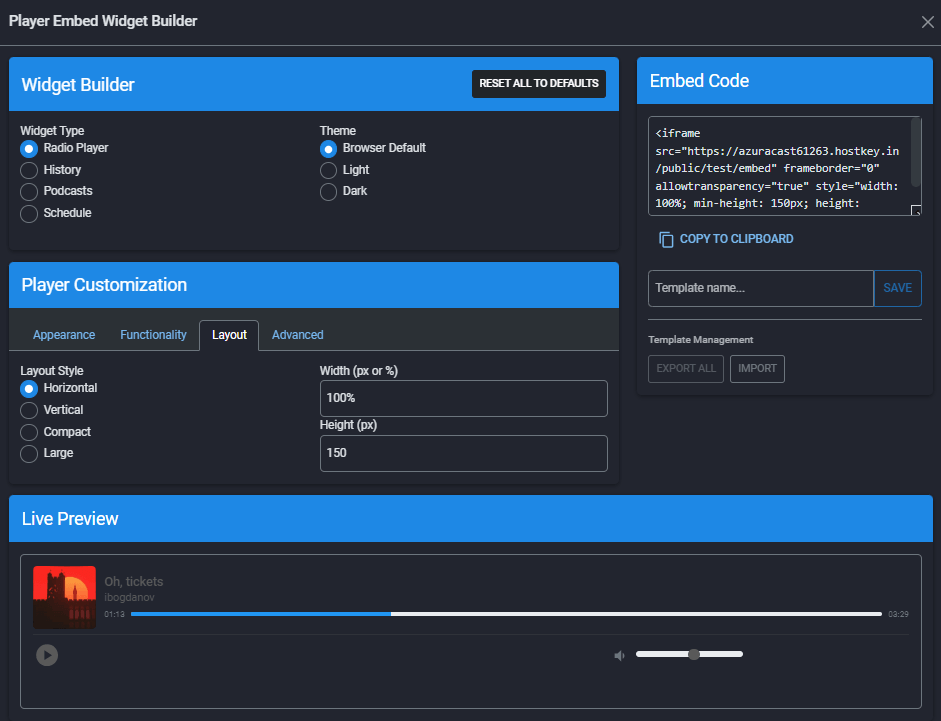
Layout: horizontal, vertical, compact, or large. Width and height specified in pixels (px) or percentages (%).
The Playback History widget serves as a live demonstration of data accumulated during testing:
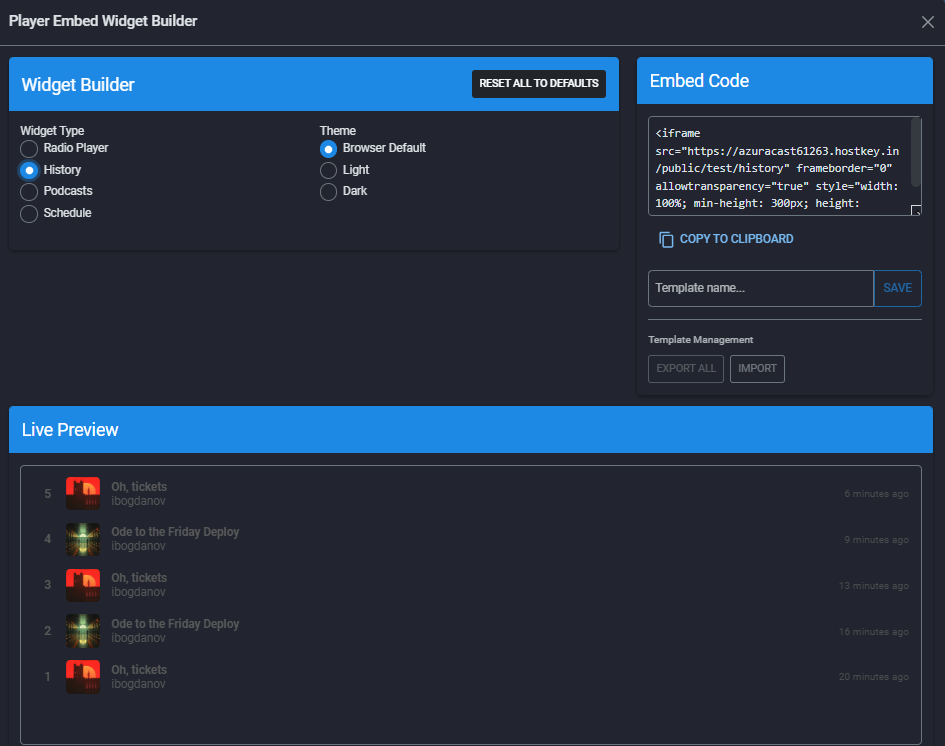
The "Played Previously" widget shows two tracks alternating for 19 minutes, with the history being logged automatically.
The embed code is generated automatically and updates whenever settings are modified:
<iframe
  src="https://radio.skaz.online/public/test/embed"
  frameborder="0"
  allowtransparency="true"
  style="width: 100%; min-height: 150px; height: 150px; border: 0;">
</iframe>
This code functions on any website, ranging from WordPress and Tilda to static HTML sites with no backend or dependencies. Widget settings can be saved as a template and reused. As shown in the screenshot, the Hostkey radio template has already been saved.
Results and Costs
We navigated the entire journey from an empty virtual private server (VPS) to a fully operational radio station featuring HTTPS, a public player, and a RESTful API. The following features work out of the box without additional configuration:
- Automated DJ software (Liquidsoap) supporting playlists, scheduling, and crossfading.
- Stream delivery via an Icecast server in MP3, OGG, and AAC formats.
- HTTPS secured via Let's Encrypt with automatic certificate renewal.
- Public player featuring album artwork.
- REST API providing real-time data on the current broadcast.
- Embedded widget builder with live preview.
- Playback history and listener statistics.
- SFTP (Secure File Transfer Protocol) for bulk media uploads.
- Automatic updates via Watchtower.
- Automated backups.
There are also certain limitations:
- Horizontal Scaling: This single-container deployment is not designed for clustering. Serving thousands of concurrent listeners requires a different architecture or a Content Delivery Network (CDN) fronting the Icecast server.
- Monetization: No built-in tools are provided. Donations, subscriptions, and advertising must be integrated via third-party services.
- Music Copyright: AzuraCast does not address legal copyright compliance. Commercial broadcasting requires licensing from RAO/VOIS (or equivalent rights organizations).
- Mobile App: Not included out of the box. Listeners must access the stream via a web browser or third-party players using the direct stream URL.
Cost Overview
Approximate figures as of the time of writing:
|
VPS (2 CPU, 2GB RAM, Ubuntu 22.04) |
Starting at $4; discounts may be available for annual billing. |
|---|---|
|
Domain |
Starting at $2. |
|
SSL Certificate |
Free (via Let's Encrypt). |
|
AzuraCast |
Free (open-source, MIT license). |
|
Minimum Total |
Starting at $6. |
For comparison, monthly subscriptions for commercial internet radio hosting services typically start at $20–30 USD per month, often with restrictions on listener capacity and content. Furthermore, you are operating on a third-party platform subject to their terms and policies.
At $6 per month—roughly the cost of cups of coffee, depending on luck—you gain full control over your station, listener data, and content.
Who Should Consider This
Internet radio isn't for everyone. However, it delivers tangible value in specific scenarios:
- Educational Institutions: School and university radio stations serve as media platforms for students, offering hands-on experience for journalists, IT specialists, and content creators. A monthly cost of $6 is negligible within an institutional budget.
- Niche Thematic Stations: Hosting content that never makes it to FM, such as audiobooks, genre-specific music, lectures, and local history. This approach cultivates a small but highly loyal audience.
- Corporate Radio: Providing background music for offices or production facilities without relying on Spotify or its geographic restrictions, while also facilitating internal announcements.
- Streamers and Podcasters: Maintaining a continuous stream between episodes to retain audience engagement. The Application Programming Interface (API) enables seamless integration with OBS Studio, Discord bots, and websites.
- Event Radio: Dedicated stations for conferences, hackathons, and festivals. These temporary broadcasts create atmosphere, deliver announcements, and provide musical accompaniment for the duration of the event.
Conclusion
We intentionally used the pre-built image from Hostkey to demonstrate a realistic scenario requiring rapid deployment without deep technical immersion. While manual Docker installation offers greater flexibility, the ready-made image is more than sufficient for most use cases.
Every step described in this article was validated through a real-world installation on a production server. The station at https://radio.skaz.online/public/test may still be broadcasting live. The tracks featured were generated specifically for this article using Suno AI: "Oh, Tickets!" and "Ode to Friday Deployment," both composed in the style of classical choral music.