Setting the IP in VMware ESXi
In this article
Information
The terms of free VMware ESXi (vSphere Hypervisor) licensing have changed several times, so check the availability of the free version on the vendor's website. How to obtain and activate a license is described in How to activate a free VMware ESXi license.
Setting the IP address in the console
If the server is connected to network with a DHCP server, it will automatically get the IP address displayed in the DCUI - the hypervisor console.
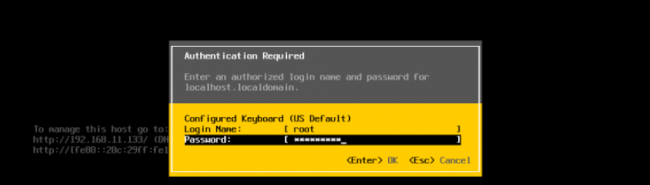
To access the Hypervisor settings management via DCUI, press the F2 key and enter the login (root by default) and the password that was set during the installation of VMware vSphere.
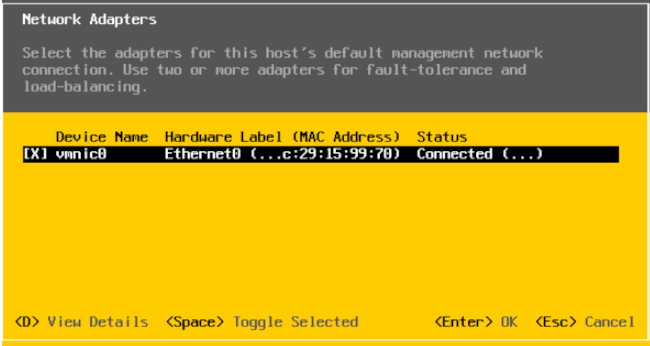
The setting of network adapters options for managing the host is configured in the Configure Management Network section:
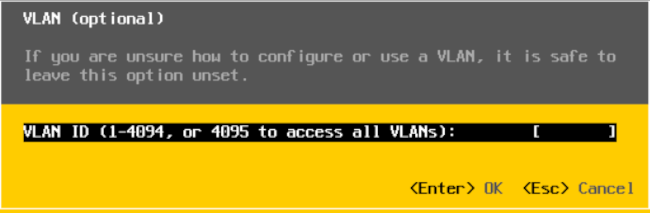
In this section, it is possible to specify the VLAN where the server's management interface is located:
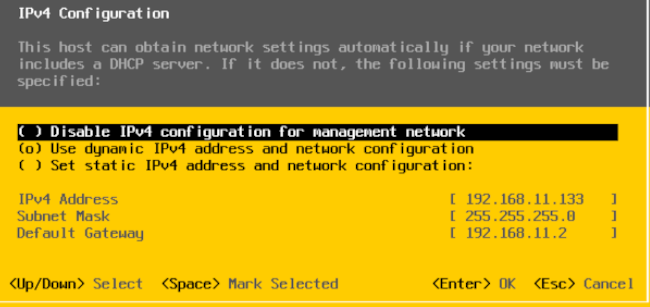
And also configure the IPv4 and IPv6 interfaces: disable, assign dynamic or static IP. Generally, the IP address, subnet and gateway address are specified manually:
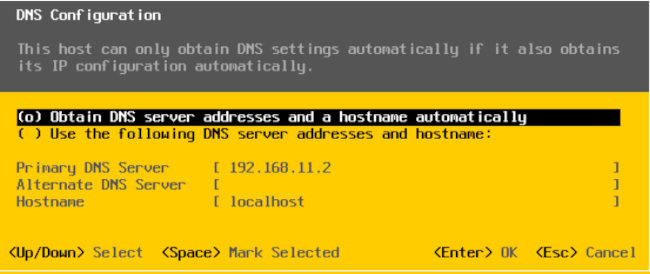
DNS Configuration - you can specify DNS servers and set the host name here:
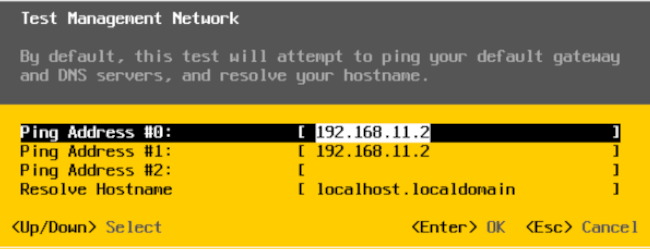
To check the correctness of the network settings, use the Test Management Network menu:
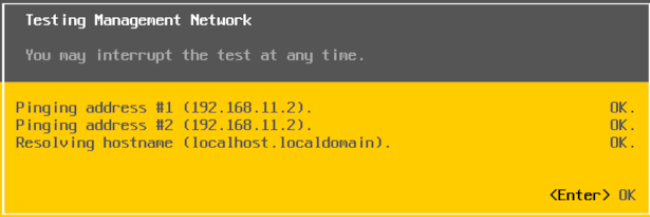
An example of testing results:
Setting the IP address using the command line
You must enable SSH for remote access to the ESXi server (or ESXi Shell in DCUI) to configure VMware ESXi IP address using the command line.
Attention
Changing the address of the vmk0 management interface while connected via SSH will drop the connection. If the address is set incorrectly, you can restore access through DCUI using the remote access console in Invapi.
Review of the current configuration of VMware ESXi IP address:
How to configure DHCP
Attention
Active DHCP services on external Ethernet interfaces are forbidden by the Terms and Conditions of services and the use of the site.
How to set up a static IP address
esxcli network ip interface ipv4 set -i vmk0 -I "IP" -N "Subnet" -g "Gateway" -t static
esxcli network ip interface ipv4 get
An example of a static IP configuration:
esxcli network ip interface ipv4 set -i vmk0 -I 192.168.0.50 -N 255.255.255.0 -t static -g 192.168.0.1
esxcli network ip interface ipv4 get
Check and application of the configuration
Changes made with the esxcli command are applied immediately and saved in the host configuration; no reboot is required. You can check the current settings with the command:
If you put the server into maintenance mode before changing the settings, exit it: