Adding a New User
In this article
Adding users in Linux is a fundamental system administration task.
For security reasons, it is not recommended to work in Linux directly as the root user, as even a minor mistake in a command can lead to irreversible damage to the system or critical files.
A safer and more appropriate approach is to create a separate regular user (for example, vdsuser) and grant them the ability to run administrative commands via sudo. This allows root‑level tasks to be performed only when necessary, maintaining protection against accidental or malicious actions.
Creating a sudo User
There are several ways to add a user, but the most common commands are useradd and adduser.
-
Connect to your server via SSH
-
Create a new user
On Ubuntu/Debian, you will then be prompted to set the user’s password immediately. Enter it twice; note that the characters are not displayed as you type.
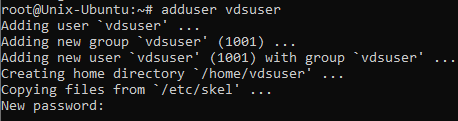
On CentOS / AlmaLinux / Rocky Linux, the
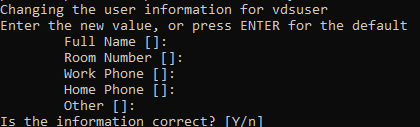
addusercommand works asuseraddand does not prompt for a password. To set the password, run:Then, on Ubuntu/Debian, provide additional user information (you can leave fields blank).
-
Grant the user sudo privileges by adding them to the sudo group
On Ubuntu/Debian, run:
On CentOS / AlmaLinux / Rocky Linux, run:
-
Verify that the user can use sudo
Switch to the new user’s session:
Run a command with sudo privileges (for example, list the
/rootdirectory):If the directory contents appear, the configuration is correct.
Adding a User Using an SSH Key
If your server uses an SSH key, password-based login is disabled. To allow a new user to log in successfully, copy your local public key (~/.ssh/authorized_keys) into the new user’s account.
-
Copy the entire
.sshdirectory into the new user’s home -
Set
vdsuseras the owner of that directory usingchown -
After completing the above steps, connect to the server using the SSH key
Note
For Added Security, Disable Remote Access for the Root User
- Open the file
/etc/ssh/sshd_config, for example in thenanoeditor:sudo nano /etc/ssh/sshd_config. - Change the
PermitRootLoginsetting tono. In modern distributions (Ubuntu 22.04+, Debian 12+, AlmaLinux / Rocky Linux 9+), also check the files in the/etc/ssh/sshd_config.d/directory — values set there may override the main file. - Press Ctrl‑x, then y, then Enter to save changes and exit the editor.
- Restart the SSH service:
On Ubuntu/Debian:
On CentOS / AlmaLinux / Rocky Linux:Before closing the current session, make sure you can log in to the server as the new user in a separate terminal window.
Useful User Management Commands
Basic User Management Commands
-
Get user information
-
Change a user’s password
-
Add a user to a supplementary group (the
-aflag is required — without it, the user will be removed from all other supplementary groups) -
Change a user’s primary group
-
Change a user’s home directory (moving its contents)
-
View all created users
-
List users currently logged in and their activity
-
Delete a user
Basic Group Management Commands
-
Create a group
-
Delete a group