IP KVM connection and OS installation from your own ISO
Information
If your server is not equipped with a remote management module, an external IP KVM device can be connected to it on request. The connection terms and the request procedure are described in the Server without a built-in KVM module section. The login, password and address for IP KVM access will be published in the request.
-
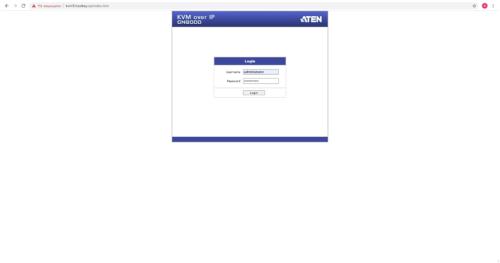
On the page that appears, enter the login and password provided:
-
Click the
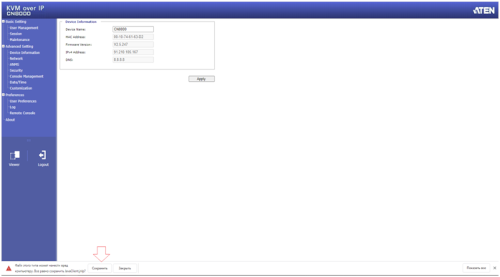
Viewerbutton to open the console, save the file and launch it (the console requires Java 7 or 8):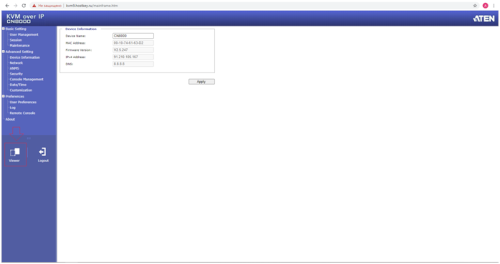
-
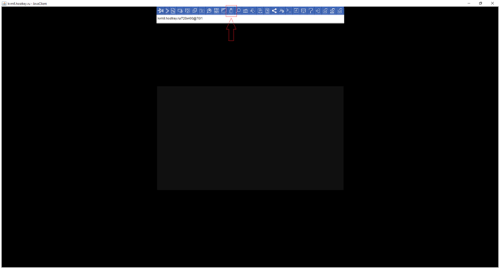
The console with the server screen will launch. At the top, there is a hidden control panel: find the USB drive icon and click it to mount the ISO:
-
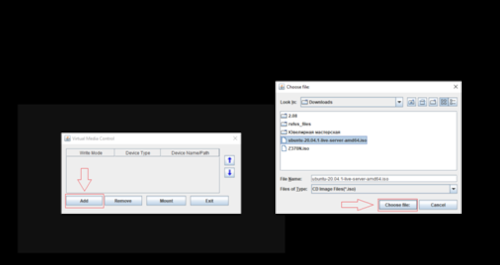
A window for adding the ISO image will appear. Press add >> ISO file, select the ISO image (Choose file) and press mount:
-
Then reboot the server, enter the BIOS or the boot device selection menu and choose to boot from the mounted ISO image.
Note
IP KVM access is provided for a limited time. See the Server without a built-in KVM module section for details.