Password reset on Windows servers
To reset the password on a server with Windows OS installed:
-
Go to the Configuration tab of the server card in the Invapi control panel;
-
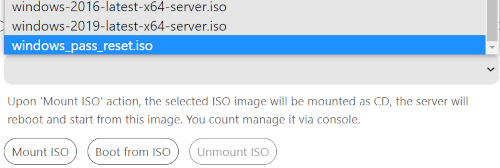
In the Mount ISO section, select the windows_pass_reset.iso option from the drop-down list (see Mounting an ISO Image on a VPS for details):
-
Press the
Mountbutton; -
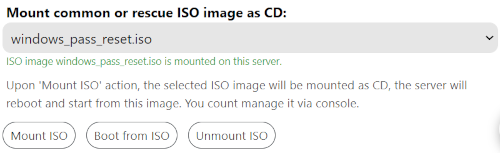
Wait until the ISO image is mounted:
-
Open the server console.
Note
Further actions depend on the type of server on which the operating system is installed.
For VPS, please follow these steps:
-
Go to the Console tab and press the
Open Native Consolebutton (see Server Management Console for details):
-
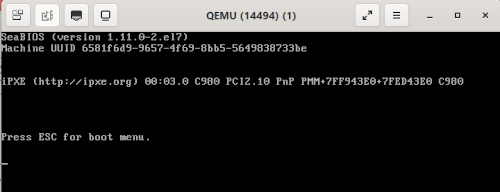
After running the console, press the Esc button to go to the Boot Menu:
For dedicated servers, you will need to complete the following steps:
-
Use access to IPMI (see Hardware remote control for details). To do this, in the IPMI/DRAC/ILO management section of the Configuration tab, fill in the IP ACL field with the IP address or network from which access will be allowed (the
My IPbutton fills in your current IP address), and click theActivate IPMI accessbutton. The system will forward the private IPMI address externally, create a temporary user and display the access address with login credentials. After that, click the link with the IP address, log in to the web interface and use the IPMI module integrated into the server. For bare metal servers, secure access via the IPMI Proxy Management section (theCreate Proxybutton) is also available: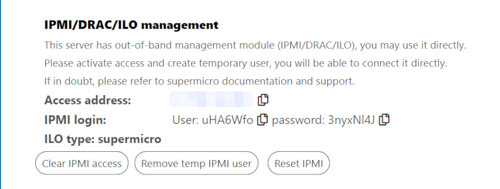
-
Go to the Virtual Media >> CD-ROM Image section and click on the
Mountbutton: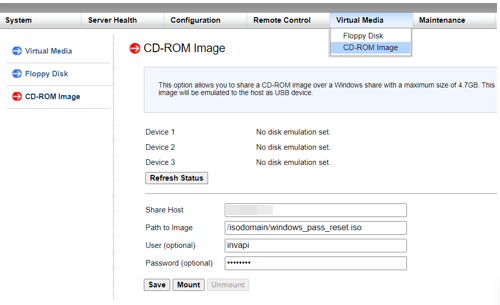
-
Go to the System tab and restart the server — the
Resetbutton: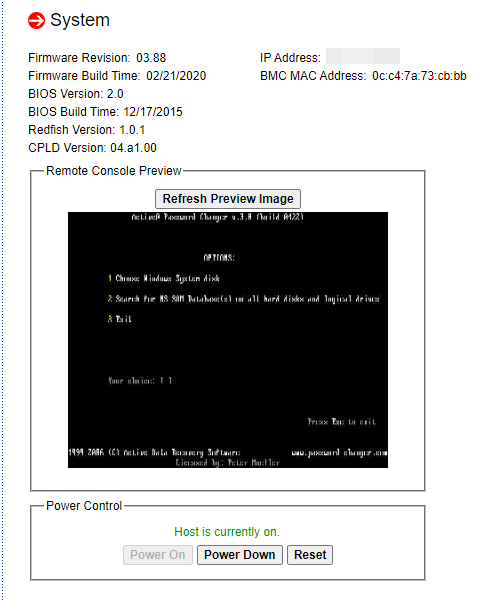
-
Go to the Remote Control tab and launch the console with the
iKVM/HTML5button.
Note
Further actions are the same for all types of servers.
-
-
Select the Clean boot with Active Password Changer option, press the 0 and ++Enter++ keys:
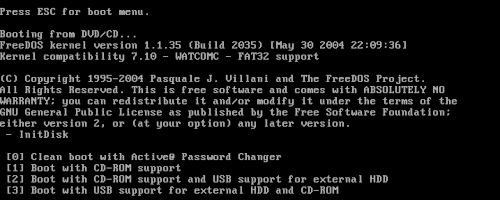
-
After transition to the Active Password Changer menu, select option 2 — Search for MS SAM Database(s) on all hard disks and logical drives, press the Enter key. This action will allow you to search for accounts. The process may take some time:
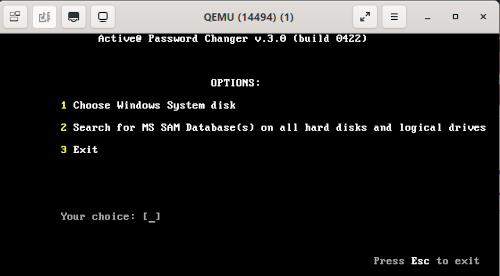
-
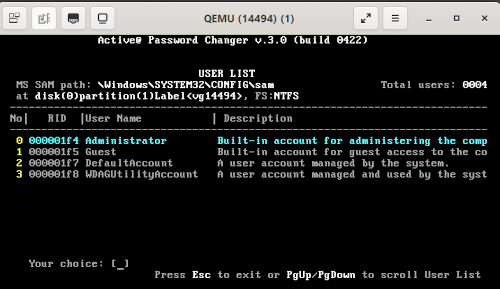
As a result of a search, a list of available accounts will be displayed. You should select the record number to reset the password and press the Enter key:
-
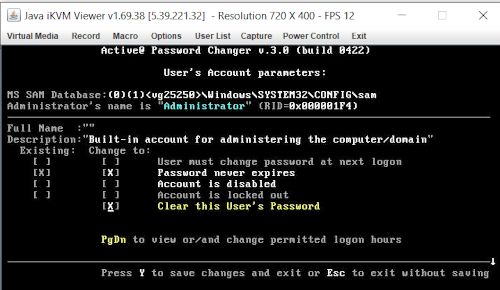
After switching to the editing mode of the selected account, select the Clear this User's Password option and press the Y key:
-
In case of successful password reset, the following inscription will be displayed on the screen:

Note
After completing these steps, the password for the selected account will be reset. Then unmount the
windows_pass_reset.isoimage in the Mount ISO section of the Configuration tab (for VPS) or in the Virtual Media >> CD-ROM Image section of the IPMI module (for dedicated servers) and restart the server. A mounted ISO image is also automatically detached 2 hours after mounting.