Connecting to a Windows Server via RDP
In this article
Introduction
Remote connection is a way to interact with a server over a network (usually the internet) without being physically present next to it. For Windows servers, the RDP (Remote Desktop Protocol) is used, which allows you to work with the graphical interface of the operating system as if you were at a local computer.
Main tasks solved through RDP:
- Installation and configuration of software
- Server administration (user management, services, updates)
- Working with databases, files, and applications on the server
- Technical support and diagnostics
Data needed for connection:
- Public IP address of the server
- Username (usually Administrator for Windows Server)
- Password for the account
Obtaining Connection Data
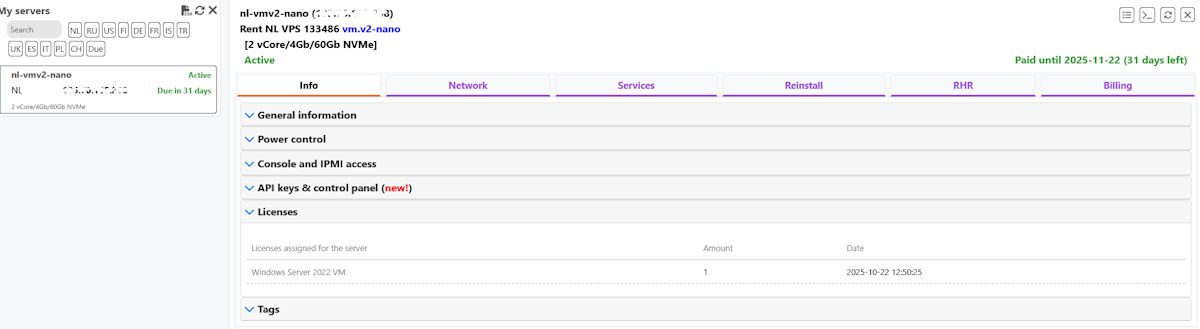
Where to Find the Server's IP Address
- Log in to Your Account on the HostKey website.
- Go to the "My Servers" section and select your server with Windows OS installed.
- The server card displays its IP address.
-
In the Licenses section of the Billing tab, you can check the license details of the installed Windows Server version.
Where to Find Account Credentials (Login/Password)
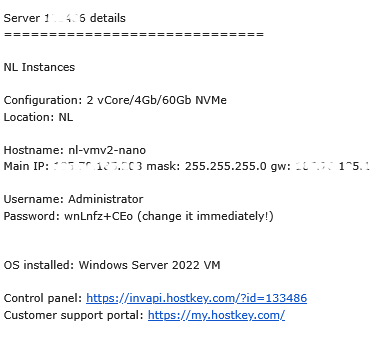
- Login and password are sent to the email specified at registration immediately after server creation.
-
By default, the username is — Administrator.
How to Change Password
-
Connect to the server via RDP.
-
Open Settings > Accounts > Sign-in options.
-
Click Password, press
Changeand enter a new password.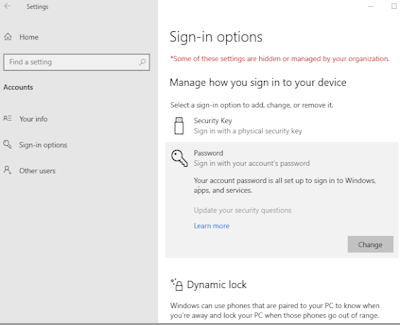
Tip
In an RDP session, you can also press Ctrl+Alt+End and select Change a password. If the password is lost, follow the Password reset on Windows servers instructions.
Certificates
When connecting via RDP, almost all clients issue a warning about the authentication of the remote computer's certificate. This is because the security certificate is generated by a separate server and is not included in the list of publicly trusted certificates. The situation does not pose a threat to the user, and upon connection, you must agree to continue the session.
Connecting from Windows
Built-in RDP Client (mstsc)
-
Press Win+R, enter
mstsc, press Enter. -
In the "Connect to Remote Desktop" window, in the Computer field, enter the server's IP address.
-
Click Show Options > tab User > specify the name (e.g.,
Administrator).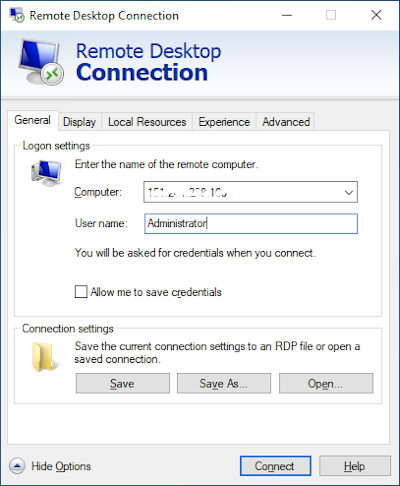
-
Click
Connect -
Enter the password from the email and press
OK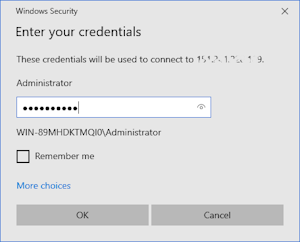
-
When a warning about the certificate appears, click
Yes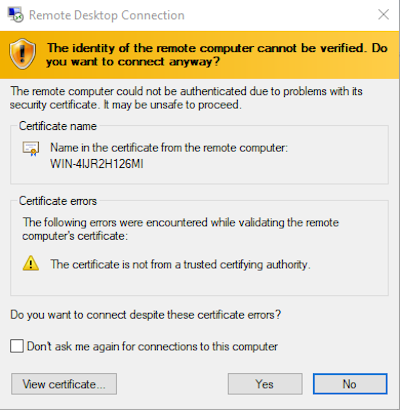
Note
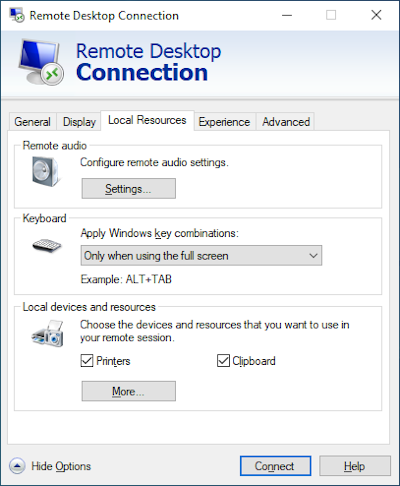
In the Local Resources tab, you can configure:
-
Access to clipboard
-
Use of local printers
-
Hotkeys and others.
Remote Desktop Connection Manager (RDCMan)
-
Download and install RDCMan.
-
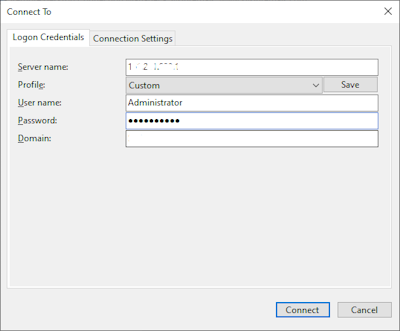
In the menu, select Session > Connect To.
-
Specify:
- Server name: IP address
- User name: Administrator
- Password: your password
-
Click
Connectand confirm the certificate (select Yes).
Connecting from macOS
Windows App (from App Store)
The official Microsoft RDP client for macOS is now called Windows App (formerly Microsoft Remote Desktop). If you have Microsoft Remote Desktop installed, it will be updated to Windows App, and your connection settings will be preserved.
-
Install the Windows App application from the Mac App Store.
-
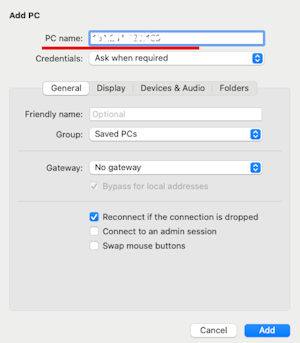
Launch the application and click
+> Add PC.
-
Fill out:
- PC name: IP address of the server
- User name: Administrator
- Gateway: leave blank
-
Click
Addthen double-click on the created connection. -
Confirm the certificate > press
Continue. -
Enter password and click
OK.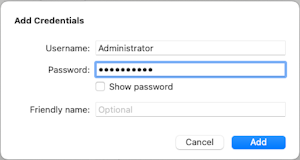
Connecting from Linux
Remmina (recommended client)
Installation:
- Ubuntu/Debian:
- Fedora/RHEL:
Information
Detailed instructions: https://remmina.org/how-to-install-remmina/
Connecting:
-
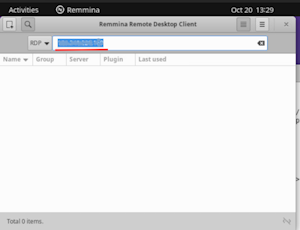
Launch Remmina.
-
In the Server field, enter the IP address.
-
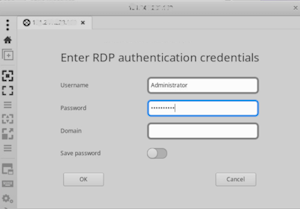
In the appearing window, specify:
- Username: Administrator
- Password: your password
-
Confirm the certificate by pressing
Yes.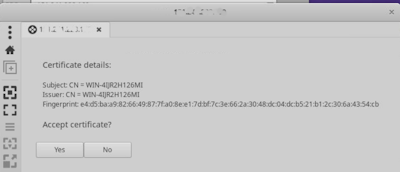
Vinagre
Attention
Vinagre is no longer developed and is missing from the repositories of modern distributions (for example, Ubuntu 22.04 and newer, Debian 12 and newer). For new systems, use Remmina, GNOME Connections or FreeRDP (xfreerdp /v:<IP address> /u:Administrator). The instructions below are kept for older distributions where Vinagre is still available.
Installation:
- Ubuntu/Debian:
- Fedora/RHEL:
Information
Detailed instructions: https://wiki.gnome.org/Apps/Vinagre
Connecting:
-
Launch Vinagre and click
Connect.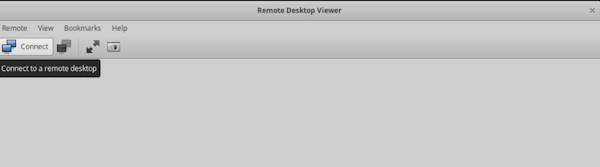
-
Select the protocol RDP.
-
Specify:
- Host: IP address of the server
- Username: Administrator
-
Click
Connect.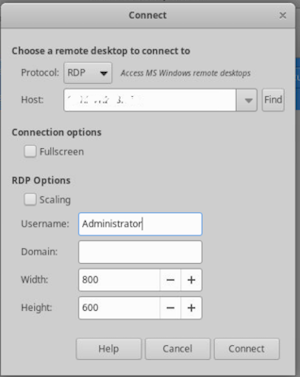
-
Enter password and click
Authenticate.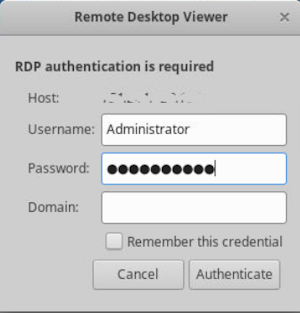
Connecting from Mobile Devices
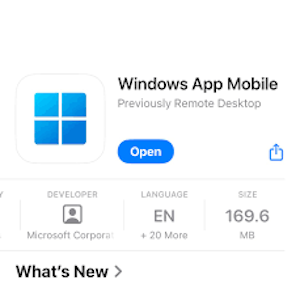
For iOS and Android, it is recommended to use the official Windows App (formerly Microsoft Remote Desktop).
-
Install the application from App Store or Google Play.
-
Click on
Connect Computer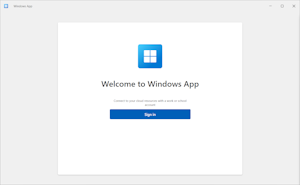
-
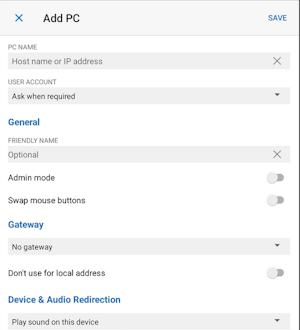
In the Computer Name field, specify the server's IP address.
-
Create an account:
- User name: Administrator
- Password: obtained when creating the server
-
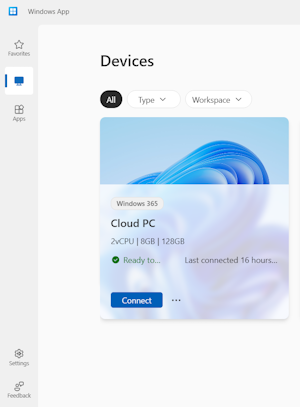
Save the connection and launch it.
-
At first connection, confirm the certificate by press
Connect.
No matter what your operating system is—Windows, macOS, Linux, or a mobile platform—you can quickly and reliably connect to a Windows server via RDP using an appropriate client. The key is to have correct connection details and consider the specific features of each client.
Information
If you cannot connect via RDP, follow the Cannot Connect via RDP: Troubleshooting instructions.