Reset root password on servers with Linux or BSD
In this article
Note
The connection via IPMI/IP KVM is used to recover a password on a dedicated server. On a virtual server, use the Native Console in the Console tab of the server card. The password reset steps vary depending on the installed operating system.
Information
A detailed description of remote control methods is located here.
Reset root password in CentOS
These instructions apply to CentOS 7 and CentOS 8. For AlmaLinux and Rocky Linux, see Reset root password in AlmaLinux and Rocky Linux.
To reset the password on the server, perform the following steps. Steps 1–3 apply only to virtual servers; on a dedicated server, open the console via IPMI and reboot the server:
- Go to the Console tab in the Invapi control panel;
-
Press the
Open Native Consolebutton; the console will open in a separate browser window: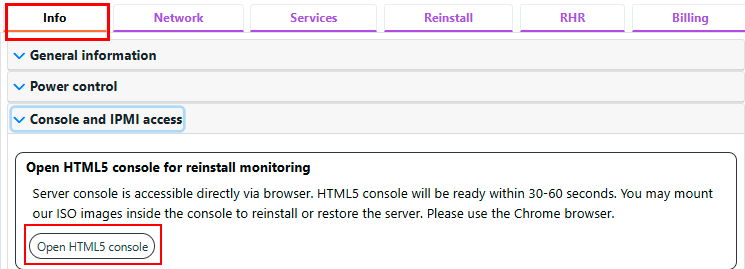
-
Reboot the server: send the Ctrl+Alt+Del key combination from the console or use the reboot option in the server card (Server Reboot):
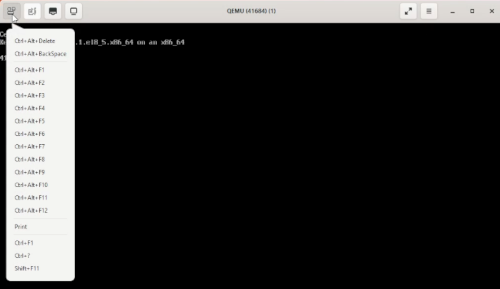
-
The server will be rebooted. If this turns off the console, you need to re-open it with the
Open Native Consolebutton. As soon as booting from disk starts and a list of kernels available for booting appears for a few seconds, you should quickly press the E button on the keyboard, which will allow you to go to the configuration of kernel boot parameters: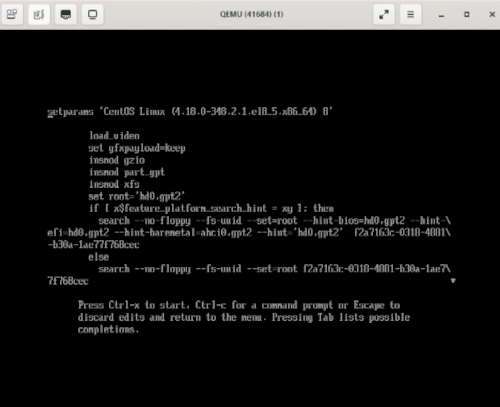
-
Scroll down to the line starting with the word
linux16(CentOS 7) orlinux(CentOS 8):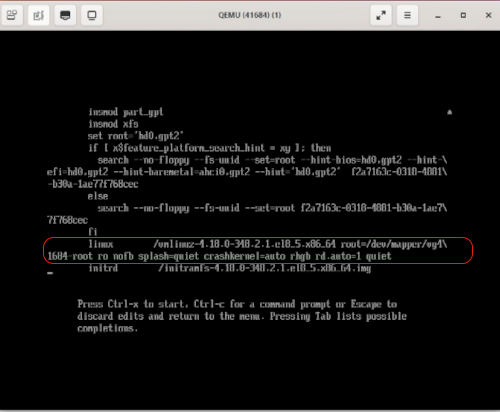
-
Go to the end of this line (End key on the keyboard);
- Replace the
roparameter in the line withrwand appendinit=/bin/bashto the end of the line (therhgb quietparameters can be removed), then press the key combination Ctrl+X. This action will boot into bash; -
After loading bash, enter the command:
which will put the file system in write mode (if you have already replaced
rowithrw, the file system is mounted in write mode and this step can be skipped).After entering the command, press Enter:

-
Enter the
passwdcommand and press Enter; -
Enter a new password and press Enter:

-
Repeat entering the new password and press Enter;
-
If SELinux is enabled on the server (it is enabled by default in CentOS), create a file to relabel the file system; otherwise, logging in with the new password may fail after the reboot:
-
Enter the
synccommand and press Enter; -
Reboot the server using the
Rebootoption in the server card (see Server Reboot) or runexec /sbin/init: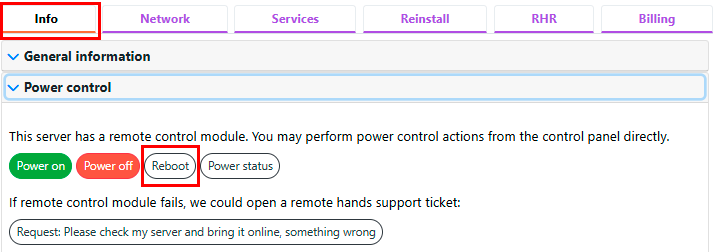
After rebooting the server, you can use the new password. If the /.autorelabel file exists, the first boot may take longer, and the system may reboot automatically.
Reset root password in AlmaLinux and Rocky Linux
These instructions apply to AlmaLinux and Rocky Linux 8, 9 and 10. Connect to the server console (Native Console for a VPS, IPMI for a dedicated server) and reboot the server.
- As soon as the GRUB menu with the list of kernels appears, press any arrow key to stop the timer, select the required kernel and press E;
- Find the line starting with the word
linuxand go to its end (End or Ctrl+E key); - Append the
rd.breakparameter to the end of the line (therhgb quietparameters can be removed to see boot messages) and press Ctrl+X; -
The system will boot into the initramfs emergency shell (
switch_root:/#). Remount the root file system in write mode and switch to it: -
Set a new password (the system will ask you to enter it twice):
-
Create a file to relabel SELinux contexts at the next boot. Without this step, logging in with the new password may fail:
-
Run the
exitcommand twice (to exit chroot and the emergency shell), and the boot will continue. The first boot after SELinux relabeling may take several minutes, and the server may reboot automatically.
Tip
If the rd.break method does not work, you can use an alternative: in the linux line, replace ro with rw and append init=/bin/bash, boot (Ctrl+X), run passwd root and touch /.autorelabel, and then exec /sbin/init.
Reset root password in FreeBSD
After connecting KVM, you need to restart the server using the Ctrl+Alt+Del key combination. While the server is loading, the following window will be displayed:
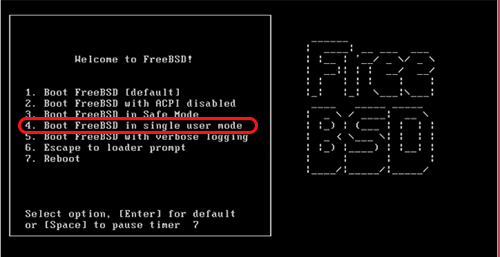
You must select option numbered 4 – Boot FreeBSD in single user mode (in newer FreeBSD versions, the Boot Single user option, S key).
Next, the system will prompt you to specify shell. It is possible to choose two options – press the Enter or type /bin/csh:
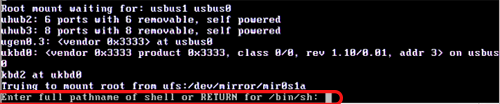
If the server was restarted forcibly using the power button, then you should check the file system for errors:
Then you should remount the file system in write mode:
Note
If the root file system is ZFS, run zfs set readonly=off zroot/ROOT/default instead of fsck and mount (the pool and dataset names may differ; check them with the zfs list command).
Next, you need to change the password (you must enter the new password twice):
At the end of the password change, you must restart the server:
Reset root password in Debian
After connecting KVM, you need to reboot the server and press the Esc key when the boot loader menu is displayed (in older versions, when the inscription Press ESC to going to menu appears) to go to the GRUB menu:
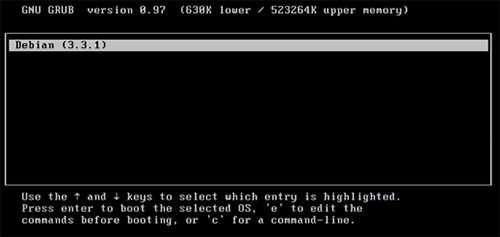
Then you should switch to edit mode – press the E key. At the end of the kernel line, you need to add a parameter:
- In older Debian versions (GRUB Legacy boot loader), select the kernel line starting with the word
kernel, press the E key again, add the parameter to the end of the line and press the Enter and B keys. - In modern Debian versions (10, 11, 12, 13 — GRUB 2 boot loader), find the line starting with the word
linux, go to its end (End key), add the parameter and press Ctrl+X or F10.
After completing the above steps, the system will be booted into single-user mode.
Further, you need to remount the root file system in write mode. In older Debian versions:
In modern Debian versions, it is enough to run:
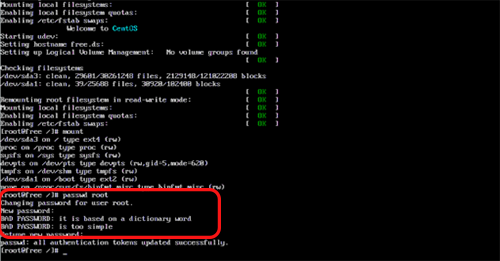
Next, you need to run passwd root and enter the new password twice. Then you should save the changes and restart the server. Since the system is booted without the init process, the regular reboot command may not work, so use a forced reboot:
Reset root password in Ubuntu
These instructions also apply to Ubuntu 22.04, 24.04 and 26.04.
To reset the root password in Ubuntu, you need to restart the server – press the key combination Ctrl+Alt+Del.
After loading the BIOS menu, but before the OS starts, you need to stop the boot timer and go to the GRUB menu. In Ubuntu, the GRUB menu is hidden by default: on servers with BIOS boot, hold down the Shift key; on servers with UEFI, press Esc several times (do not hold it down, otherwise the GRUB command line will open).
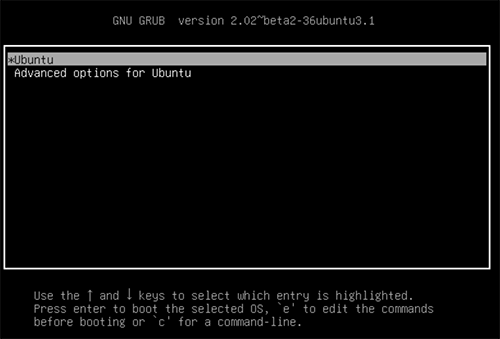
You need to boot the OS in single-user mode and edit the bootstrap line. The arrows on the keyboard are used to move between the lines. You should highlight the line Ubuntu and go into edit mode – press the E key:
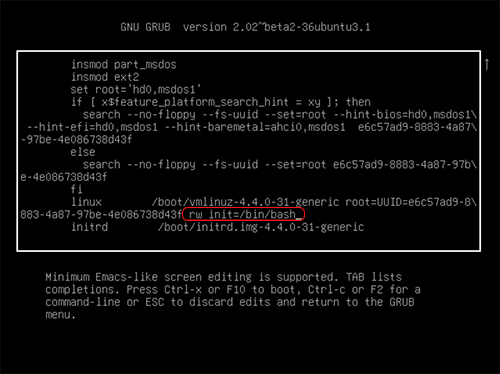
You should find the line that starts with linux /boot and replace the ro parameter with rw. You also need to add a new parameter init=/bin/bash.
Next, press the key combination Ctrl+X or F10. This action will boot the OS in single-user mode.
You need to enter the command in the console:
And enter the new password twice:
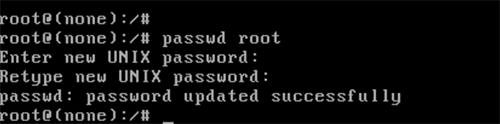
Then you should save the changes:
And reboot the system:
Password Reset via Rescue Mode (if the password is unknown)
If the current password is unknown (and you are unable to enter single-user mode or edit boot parameters), you can reset the root user password and set a new one by booting the server from a rescue disk. This method works for any Linux-based OS.
Attention
For FreeBSD, use the standard FreeBSD single-user mode (see the Reset root password in FreeBSD section).
- Boot the system in rescue mode: in the Rescue Mode tab of the server card, select the image and click
Enable Rescue and reboot. - Open the console in the control panel (the Console tab).
-
Mount the root partition. The disk name may vary depending on the platform and server type:
- for most servers with SATA/SAS drives —
/dev/sda1; - for virtual servers on virtio —
/dev/vda1; - for servers with NVMe drives —
/dev/nvme0n1p1.
First, try:
If you receive an error:
Execute:
Information
If you are unsure of the partition name, view the list of block devices using the
lsblkorfdisk -lcommand and select the root partition (usually the largest one, with your distribution's file system).If the root partition is on LVM (type
LVM2_memberin thelsblk -foutput), first activate the volume groups and mount the logical volume: - for most servers with SATA/SAS drives —
-
After that, execute the following commands:
-
At this stage, the system will prompt you twice for the new root user password; enter it.
- Upon a successful password change, you will see a notification (for example,
passwd: all authentication tokens updated successfullyorpassword updated successfully, depending on the operating system). -
For systems with SELinux (CentOS, AlmaLinux, Rocky Linux), create a file to relabel the file system at the next boot:
-
Press Ctrl+D to exit chroot.
-
Unmount the disk with the command:
-
Reboot the server in normal mode; after the reboot, the server will exit Rescue Mode.
You can now connect to the server as the root user with the new password.