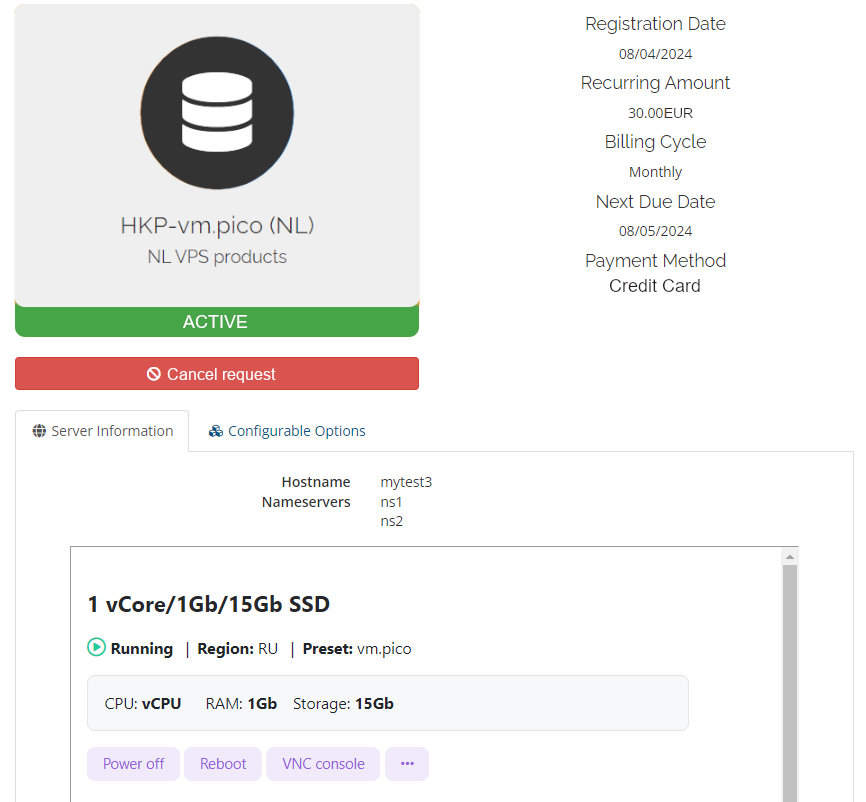
Add previously purchased servers manually to the reseller module
In this article
To add previously purchased servers to the reseller module, follow these instructions.
Obtaining the required information from HOSTKEY
- Locate the desired server in your Invapi personal account;
-
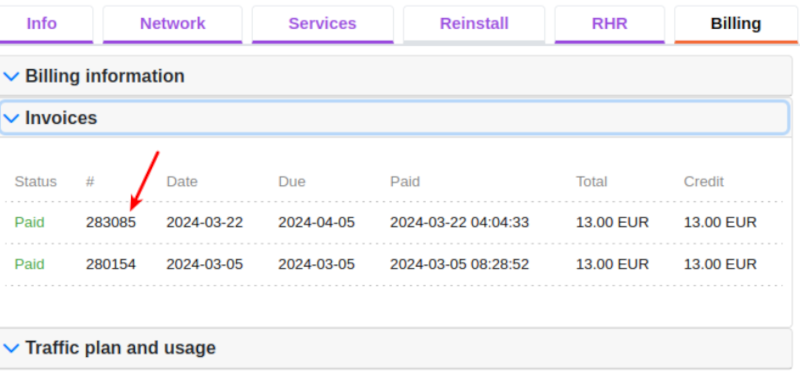
On the Billing tab, under Invoices, locate the invoice number that was issued when the server was ordered:
-
Remember or write down this information. It will be useful for you when adding the server to the billing;
-
Generate an API key:
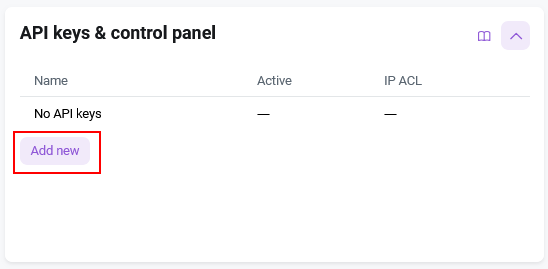
- Navigate to the Configuration tab and choose the API keys & control panel section.
- Click the
Add newbutton;
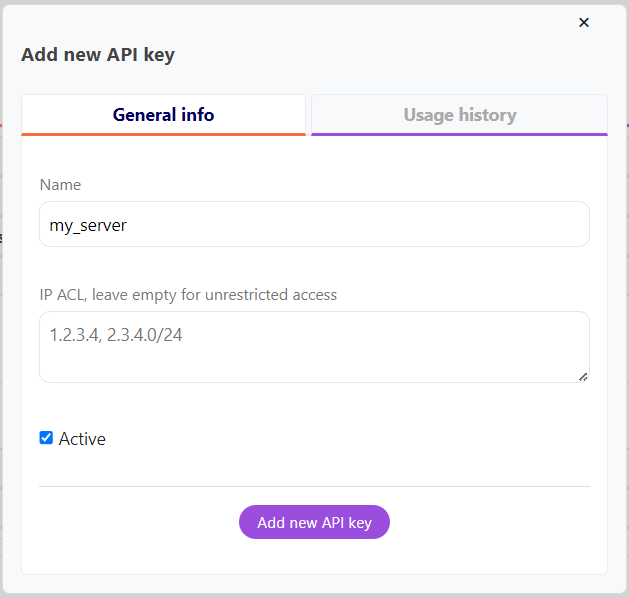
- In the Name field, enter the name of the key to identify it;
- Specify IP addresses only from which this key will be allowed access in the IP ACL field, or leave it blank for unrestricted access;
- Check the Active box to activate the key;
- Click
Add new API keybutton.
The API key will be displayed to you.
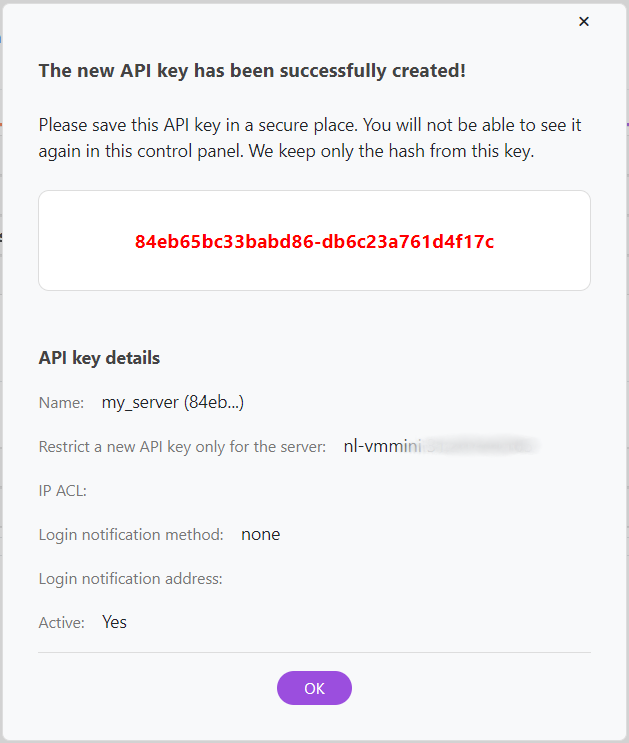
Attention
Be sure to copy and save the API key value as it will only be displayed once. Invapi stores only the hash value of the key, so if the original key is lost, it will need to be recreated.
Information
For more information on working with API keys in Invapi, please refer to the provided documentation.
Adding Required Fields to the Product in Billing
-
In the Products/Services section of Billing, open your product and add the two fields
Invoice IDandAPI Keyunder Custom Fields: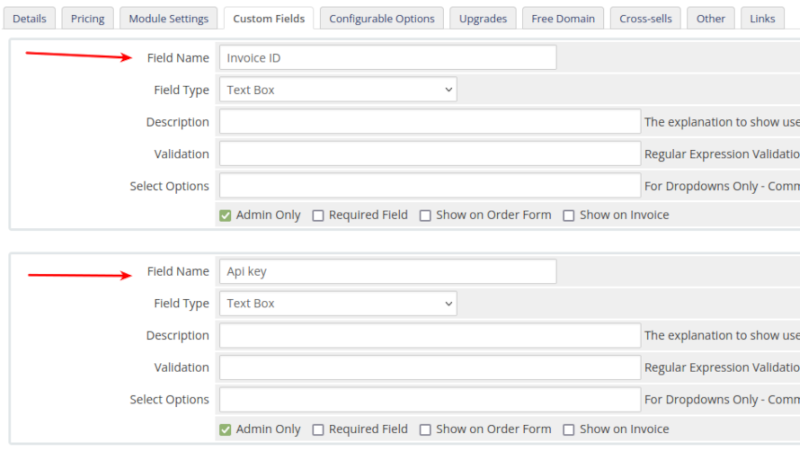
-
Under the Orders section, locate your order and then navigate to the Order Items subsection to find your server:
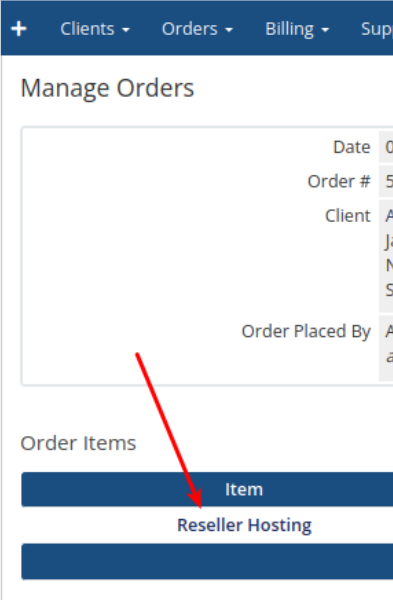
-
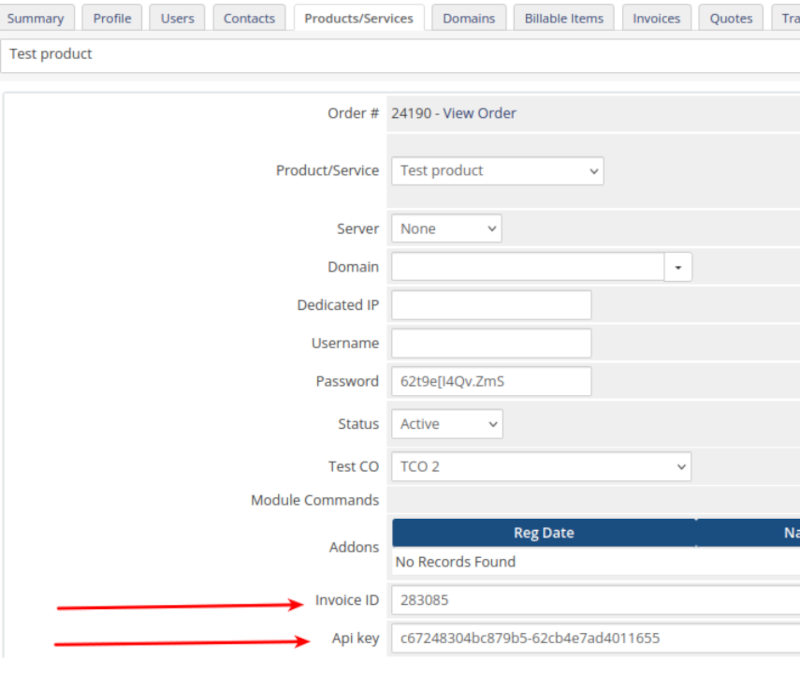
On click to Resellers Hosting go to the server settings and fill in the Api key and Invoice ID fields with the values you got in previous step:
Switching the module
-
Return to the Products/Services section and navigate to the Module settings tab. Here, select the Module Name as
HOSTKEY VPS/Dedicated: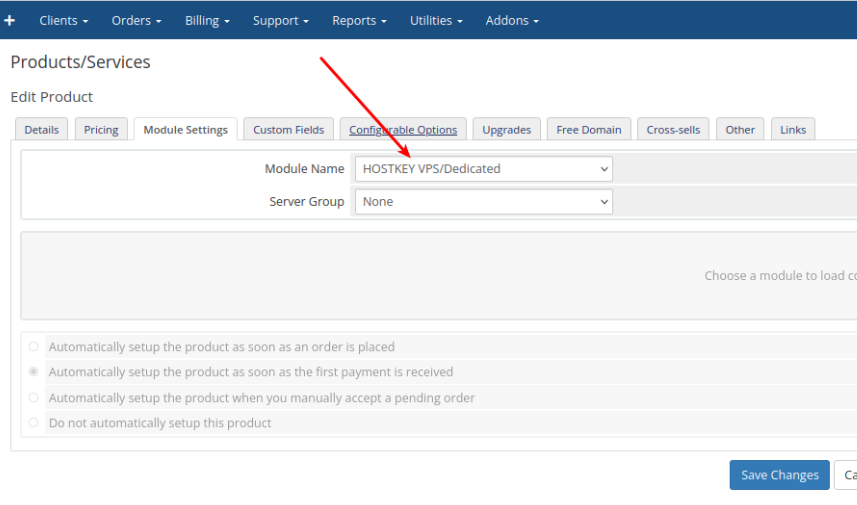
-
Click the
Save changesbutton to save your edits.
Checking the server display on the client's storefront
The HOSTKEY control panel should appear when you open this server on the client storefront: