Uptime Kuma
In this article
Note
Uptime Kuma is a popular open-source tool for monitoring the availability of websites, servers, databases, and various services. In simple terms, it is a free alternative to the Uptime Robot service that you host on your own server. It constantly "pings" your resources and, if they stop responding or encounter errors, instantly sends you a notification.
Uptime Kuma. Key Features
- Monitoring via multiple protocols: HTTP(s), TCP, Ping (ICMP), DNS, keyword checking on a page, Docker container monitoring, and even game servers (Steam).
- Notifications: Supports over 90 notification methods. You can receive alerts via Telegram, Slack, Discord, Email, SMS, Push notifications, webhooks, Gotify, Pushover, and many others.
- Status Pages: Allows you to create a beautiful public page (e.g., status.your-site.com) where your users or clients can see if your services are currently operational and view the incident history.
- Charts and Certificates: Tracks response time, generates beautiful charts, and warns about upcoming SSL certificate expirations.
Note
You can deploy Uptime Kuma as a Managed Application. To do this, select Marketplace > Managed Apps in the Invapi server control panel.
Deployment Features
| ID | Name of Software | Compatible OS | VM | BM | VGPU | GPU | Min CPU (Cores) | Min RAM (GB) | Min HDD/SDD (GB) | Custom Domain | Active |
|---|---|---|---|---|---|---|---|---|---|---|---|
| 620 | Uptime Kuma | Ubuntu 22.04 | + | + | + | + | 1 | 1 | - | No | ORDER |
Information
Deployment feature information for this software can be found at this link
Note
Unless otherwise specified, we install the latest release version of the software from the developer's website or operating system repositories by default.
Getting Started after deploying Uptime Kuma as a Managed Application
After deploying Uptime Kuma as a managed application on the My Applications tab of the server control panel, you will be able to find:
- a link to the application;
- login and password for access;
- information regarding service usage and management.
For more details on working with managed applications, read the instructions.
Getting Started after deploying Uptime Kuma from the Marketplace
After paying for your order, a notification will be sent to the email address provided during registration once the server is ready. It will contain the VPS IP address, as well as the login and password for connection. Customers can manage hardware in the server control panel and API — Invapi. Authorization data can be found in the Info >> Tags section of the server control panel or in the sent email:
- Link to access the Uptime Kuma web interface: in the webpanel tag;
- Link: in the webpanel tag;
- Username and Password for server management: sent via email once the server is ready after software deployment.
The web interface will be available at: https://uptime-kuma{Server_ID_from_Invapi}.hostkey.in
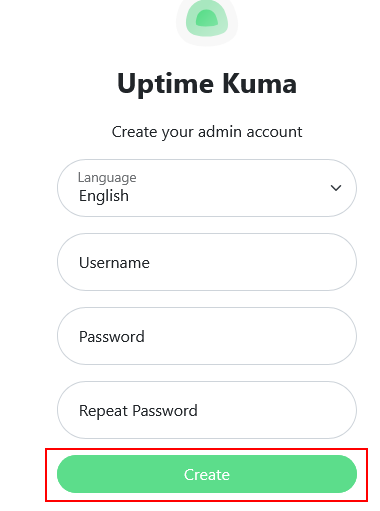
After accessing the Uptime Kuma control panel, you must set an administrator username and password. When creating a user, you can also select the interface language.
In the window that opens, enter your desired username (e.g., admin) and password. Re-enter the password in the corresponding field and click Create.
Note
Detailed information on the main Uptime Kuma settings can be found in the developer documentation.
Uptime Kuma Dashboard
After creating a user, you will be redirected to the Uptime Kuma Dashboard.
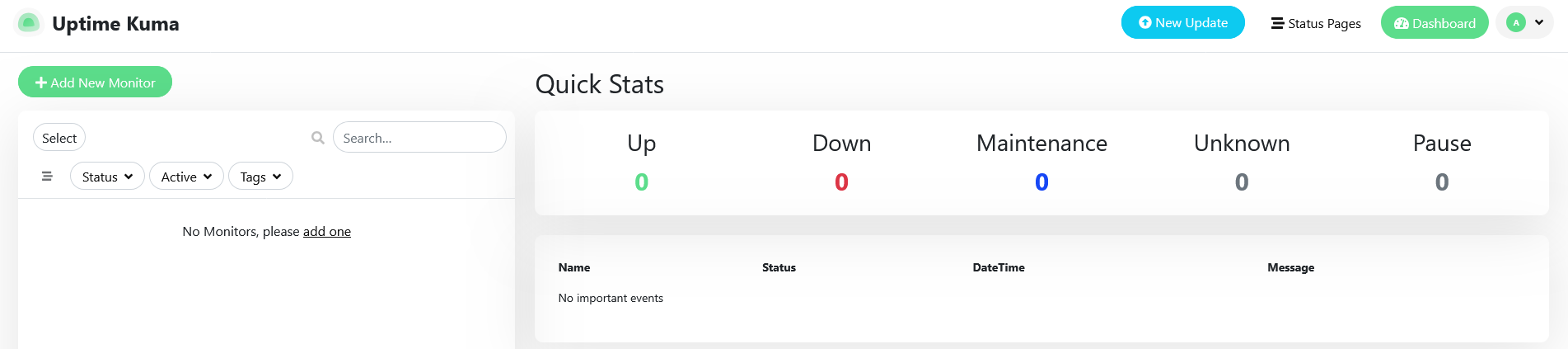
It displays resource monitoring statistics, as well as events and message status.
To add a resource for monitoring, use the + Add New Monitor button. This will open a page to set up a new monitor. Select the monitor type depending on the resource you wish to observe, and set the necessary polling parameters (frequency, number of retries, interval, etc.).
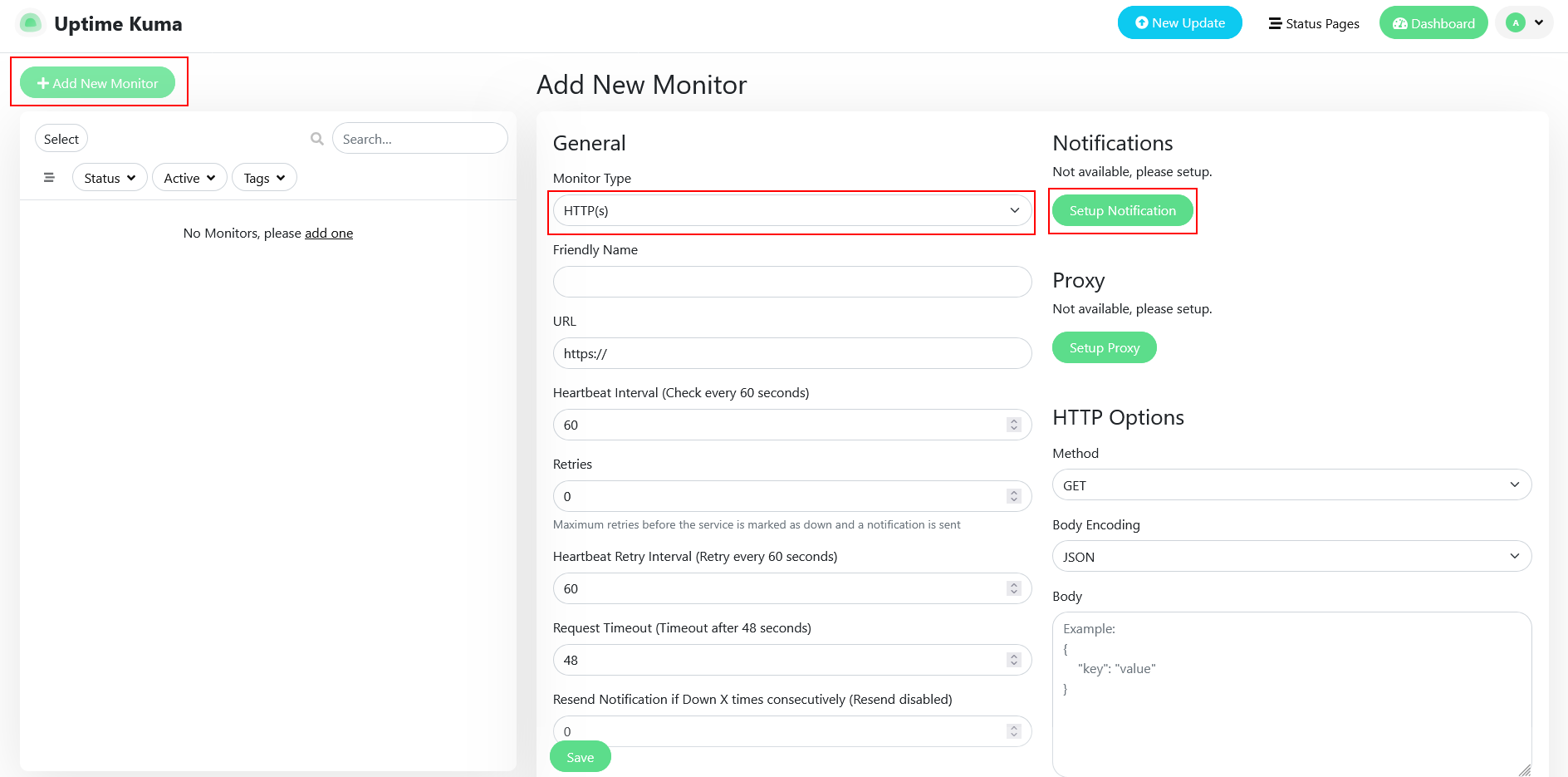
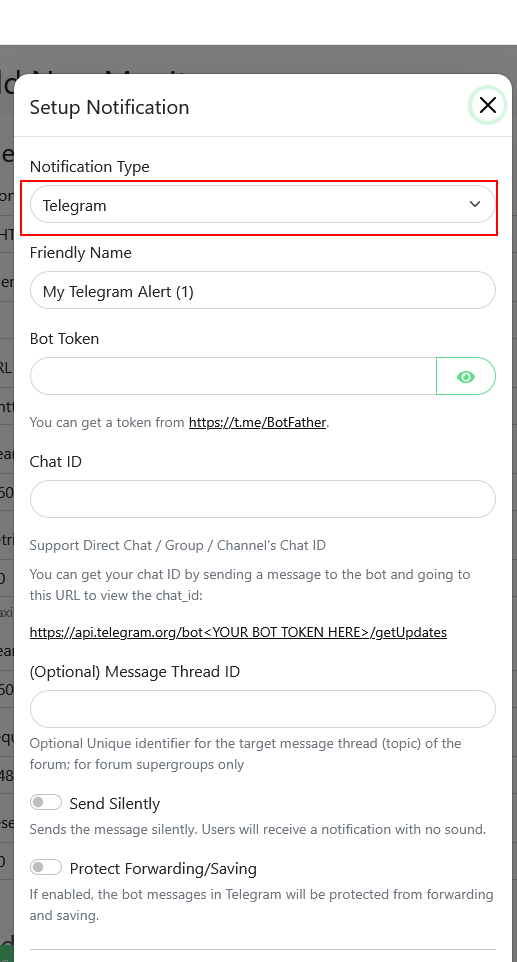
To configure notification settings, click the Setup Notification button. Select a notification channel (regional messengers are also available), and configure tokens and parameters.
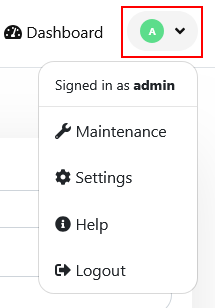
To manage settings (display, interface language, user settings), use the User Profile section in the upper right corner of the screen.
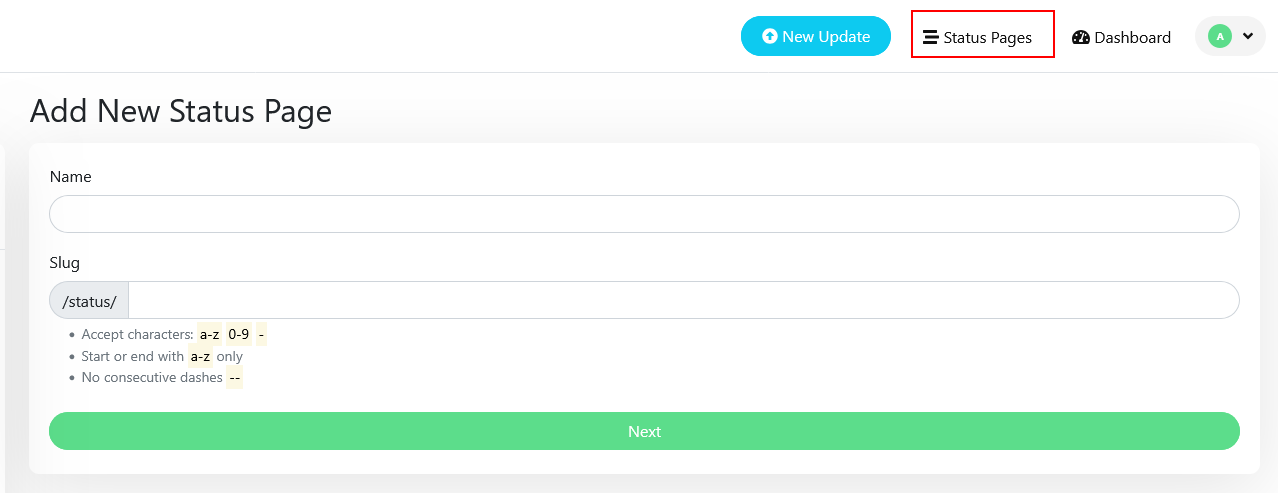
Creating a Status Page
You can create a public page that displays the status of your resource. To do this, click the Status Pages button in the upper right corner of the screen.
Ordering Uptime Kuma via API
To install this software using the API, follow these instructions.