Cloudron
In this article
Information
Cloudron is a self-hosting platform that turns a standard server (VPS/VDS or dedicated) into an analog of a private cloud. It provides a ready-made solution for installing, managing, and securing popular web applications (such as Nextcloud, WordPress, GitLab, Rocket.Chat, Bitwarden, and many others) without the need for deep system administration knowledge.
Cloudron. Key Features
- Ease of Installation and Management - application installation happens in one click through an intuitive web interface. You do not need to manually configure a web server (Nginx/Apache), databases, or runtime environments.
- Automatic Security and Updates - the platform automatically applies security updates for both the system itself and the installed applications, saving you from routine maintenance.
- Reliable Backup: Cloudron offers automatic creation of encrypted backups that can be stored either locally on the server or in external cloud storage.
- Centralized User Management: The built-in system supports LDAP and Single Sign-On (SSO). This allows you to easily create users and flexibly assign them access rights to specific applications.
- Application Isolation: Each application runs in its own isolated container. If one application fails or is compromised, it will not affect the operation of other services on the server.
Deployment Features
| ID | Name of Software | Compatible OS | VM | BM | VGPU | GPU | Min CPU (Cores) | Min RAM (GB) | Min HDD/SDD (GB) | Custom Domain | Active |
|---|---|---|---|---|---|---|---|---|---|---|---|
| 599 | Cloudron | Ubuntu 22.04 | + | + | + | + | 1 | 2 | 20 | No | ORDER |
Information
You can find information regarding the deployment features of this software at this link
Note
Unless otherwise specified, we install the latest release version of the software from the developer's website or the operating system repositories by default.
Getting Started After Cloudron Deployment
After payment is completed, a notification regarding the server's readiness will be sent to the email address provided during registration. It will contain the VPS IP address, as well as the login and password for connection. Customers can manage their hardware in the Server Control Panel and API — Invapi.
Authorization credentials can be found in the Info >> Tags section of the server control panel or in the sent email:
- Link to access the Cloudron web interface: in the webpanel tag;
- Username:
root; - Password: sent via email once the server is ready for use after software deployment.
The web interface will be available at: https://cloudron{Server_ID_from_Invapi}.hostkey.com
Authorization and Admin Account Setup
Before starting, you must complete the primary domain connection. Follow these steps:
-
Navigate to the link from the webpanel tag in the format
https://cloudron{Server_ID_from_Invapi}.hostkey.com.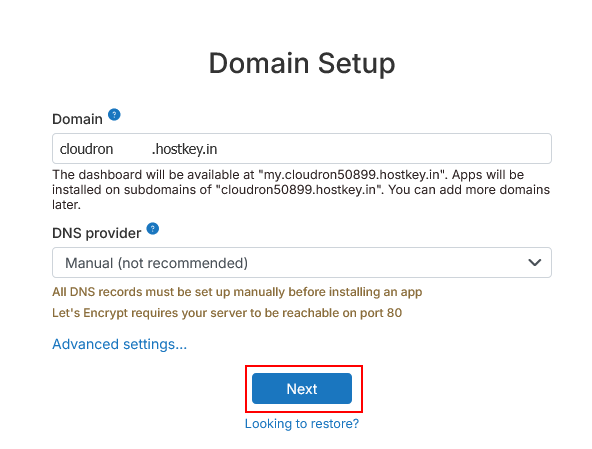
-
In the window that opens, enter the value from the webpanel tag in the Domain field without
https://(e.g.,cloudron{Server_ID_from_Invapi}.hostkey.com). -
In the DNS Provider dropdown list, select Manual. Click the
Nextbutton. -
Wait a moment while Cloudron completes the setup.
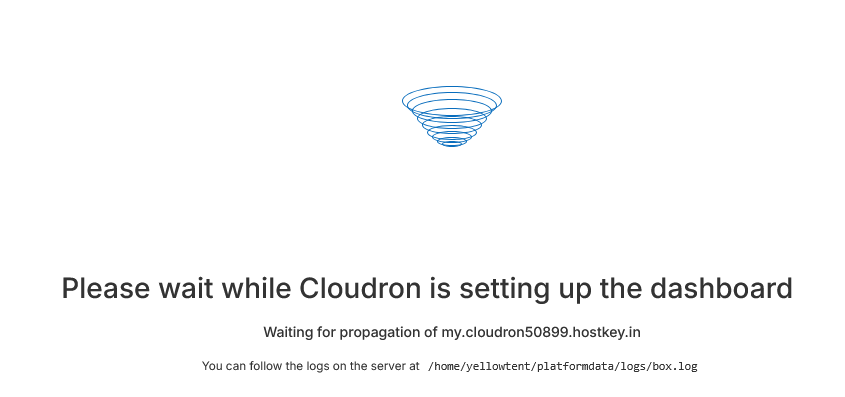
-
Once the setup is complete, the admin account creation window will open. Enter the required data. In the Password field, enter the password from the server readiness email. Click
Create admin.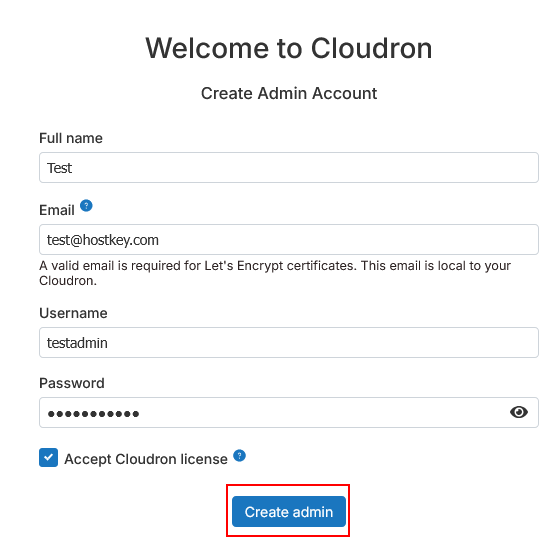
To change user information, click the Profile** button under the username:
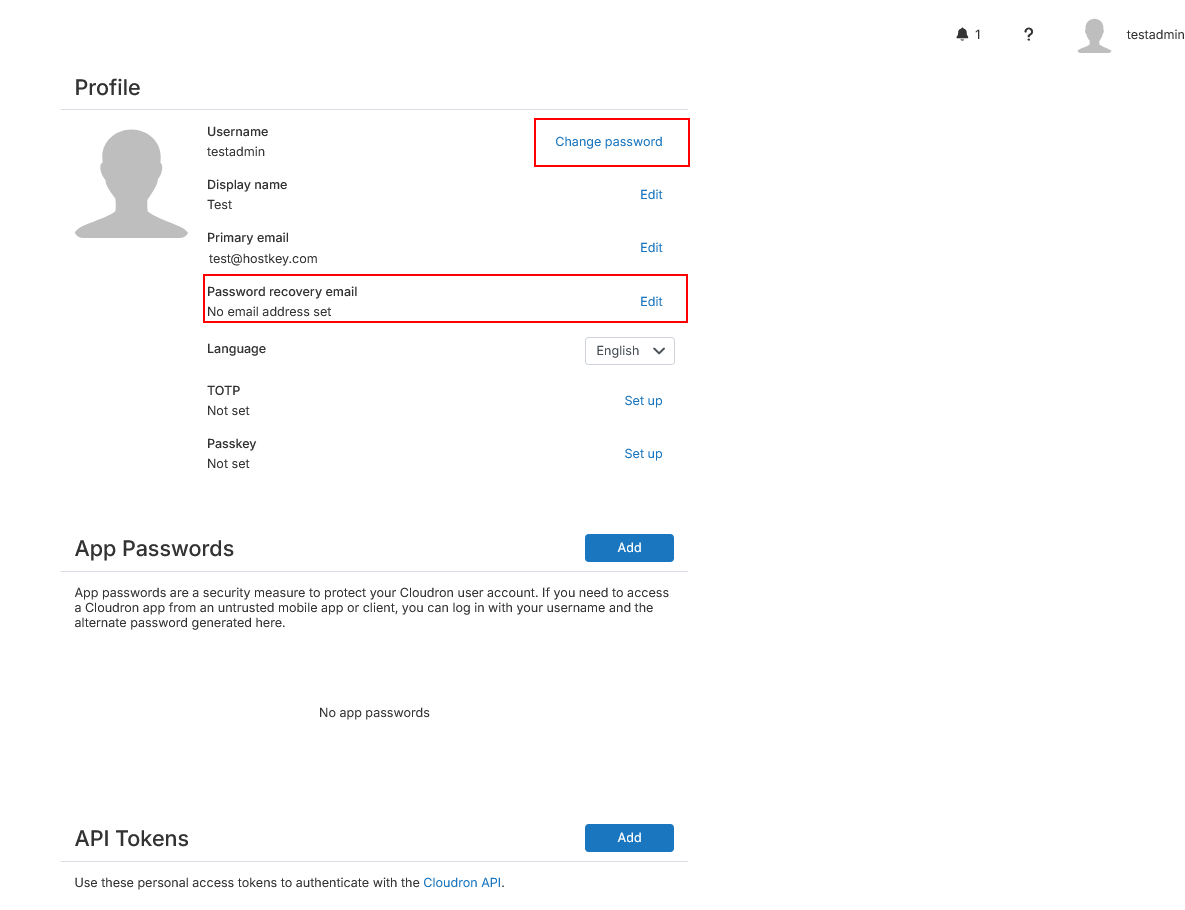
We recommend changing your password immediately using the Change password button. In this same section, you must enter an email address to be used for password recovery. In the Password recovery email field, click Edit and set the desired value.
Main Menu
After successful authorization, the system will redirect you to the Cloudron admin interface home page. The left side of the screen contains links to the main sections of the admin panel for accessing key settings:
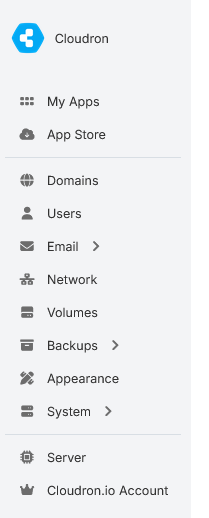
The menu content depends on the user role: regular users only see the applications assigned to them, while administrators have access to full system settings.
The main sections of the Cloudron panel menu include:
- My Apps - the central section for installing, configuring, and managing applications.
- App Store - supports installation from the official App Store, adding third-party apps (Community apps), external links, and setting up App proxy for external services.
- Domains - management of domain names, subdomains, DNS records, and automatic issuance/renewal of SSL certificates (via Let's Encrypt) for all hosted applications.
- Users - management of user accounts and groups. Here, the administrator can create users, reset passwords, and assign access rights to specific applications.
- Email - configuration of the built-in full-featured mail server. Includes support for multiple domains, mailbox management, SPF, DKIM, DMARC configuration, and access to webmail (SnappyMail or Roundcube).
- Network - management of network parameters, including firewall configuration, port forwarding, and network interface configuration.
- Volumes - management of external data storage. Allows connecting local disks or remote file systems (NFS, CIFS, SSHFS) and mounting them into application containers for storing large volumes of data.
- Backups - Backup and recovery management. Allows configuring backup schedules, choosing storage locations (locally or in cloud storage, e.g., Minio, S3), and restoring individual applications or the entire system.
- Appearance - a section for customizing the look of the control panel (available only to super-administrators). Allows changing the platform name, logo, color scheme, and footer text.
- System - configuration of system parameters: viewing and basic management of Docker engine settings (used by the platform for application and service isolation), viewing status and configuring common services used by applications (e.g., MySQL, PostgreSQL, MongoDB, Redis databases), and general platform parameters such as timezone, default update settings, and other global configurations.
- Server - real-time server status monitoring: graphs for CPU, RAM, disk space, and network usage. System logs of the platform are also available here.
- Cloudron.io Account - management of subscriptions, licenses, and linking the server to your account on cloudron.io.
Note
Detailed information on core Drupal settings can be found in the developer documentation.