Paperless-ngx
In this article
Note
Paperless-ngx is a free, open-source Document Management System (DMS). It is designed for digitizing, storing, and organizing physical documents (receipts, invoices, contracts, letters, medical reports, etc.). Today, it is considered one of the best solutions for creating a home or corporate digital archive. You scan a paper document (or save a PDF/photo from your phone) into a specific folder. Paperless-ngx automatically picks up this file, performs text recognition (using OCR technology), analyzes the content, identifies the author (correspondent), document type, and applies tags. After that, you can discard the original.
Paperless-ngx Key Features
- Full-text search and Optical Character Recognition (OCR): enables searching for individual words within files through deep recognition, including images and PDFs.
- Machine Learning and Automation: the system learns your manual sorting procedures and automatically sorts similar documents in the future.
- Complete Control and Privacy (Self-hosted): unlike other cloud services, the control panel is limited to your server's storage space, ensuring data privacy.
- Flexible Organization System: documents are sorted by metadata (correspondent, document types, tags, creation dates) rather than folders.
- Folder Monitoring: the control panel settings allow you to monitor changes in user-defined folders and perform scheduled actions on documents, such as moving them to specific sections.
- Free and Open Source: the panel is completely free, with no limits on the number of uploaded documents, database size, or number of users.
Note
You can deploy Paperless-ngx as a Managed Application. To do this, select Managed Applications in the Invapi server control panel.
## Deployment Features | ID | Name of Software | Compatible OS | VM | BM | VGPU | GPU | Min CPU (Cores) | Min RAM (GB) | Min HDD/SDD (GB) | Custom Domain | Active | |----|--------|---------------|----|----|------|-----|-----------------|--------------|------------------|----------|--------| | 617 | Paperless-ngx | Ubuntu 22.04 | + | + | + | + | 2 | 2 | 5 | No | ORDER |
Information
You can find information regarding the deployment features of this software at this link.
Note
Unless otherwise specified, we install the latest release version of the software from the developer's website or the operating system repositories by default.
Getting Started after deploying Paperless-ngx as a Managed Application
After deploying Paperless-ngx as a managed application on the My Applications tab of the server control panel, you will find:
- an application link;
- login and password for access;
- information regarding service usage and management.
For more details on working with managed applications, read this guide.
Getting Started after deploying Paperless-ngx from the Marketplace
After completing your order, a notification will be sent to the email address provided during registration once the server is ready. It will contain the VPS IP address as well as the login and password for connection. Customers can manage their equipment via the server control panel and API — Invapi. Authorization credentials can be found in the Info >> Tags section of the server control panel or in the sent email:
- Link to access the Paperless-ngx web interface: in the webpanel tag;
- Link: in the webpanel tag;
- Username and Password (same as your server management login/password): sent via email once the server is ready after software deployment.
The web interface will be available at: https://paperless-ngx{Server_ID_from_Invapi}.hostkey.com
Paperless-ngx Dashboard
-
After clicking the link from the tag, you will be prompted to log in to the panel. Enter your server login and password for initial authorization.
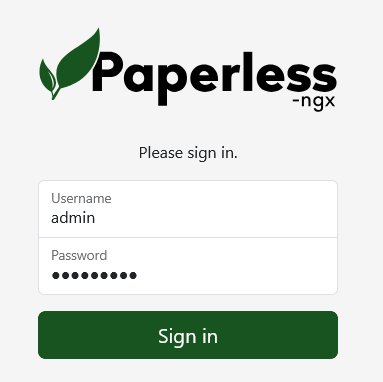
-
Once authorized, you will be redirected to the dashboard. First, use the User Profile menu to change your password.
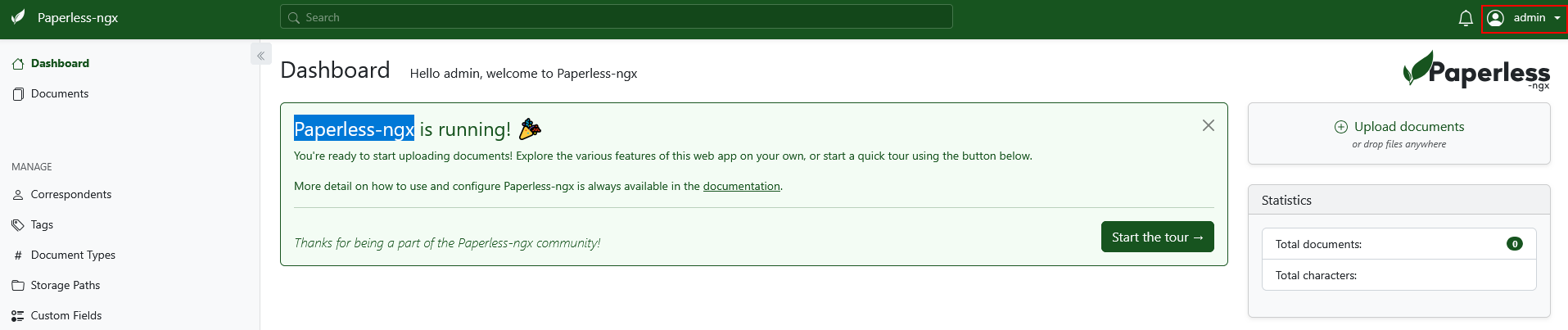
-
Go to the Edit Profile menu. Here you can change your password, set up two-factor authentication, and enter personal data for the Administrator.
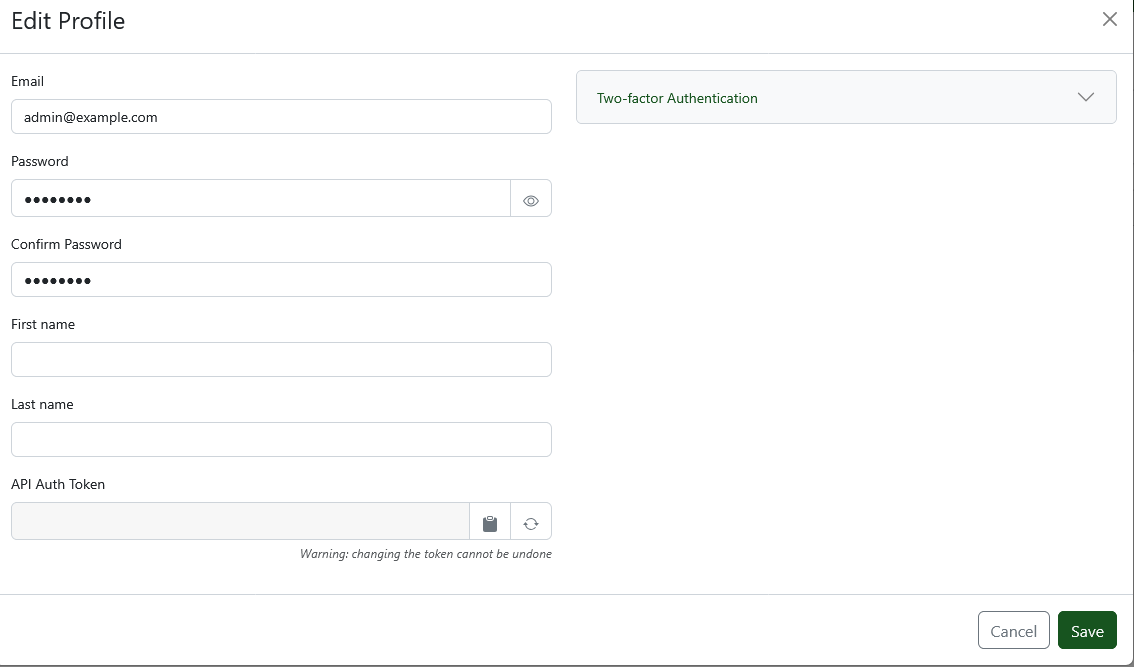
-
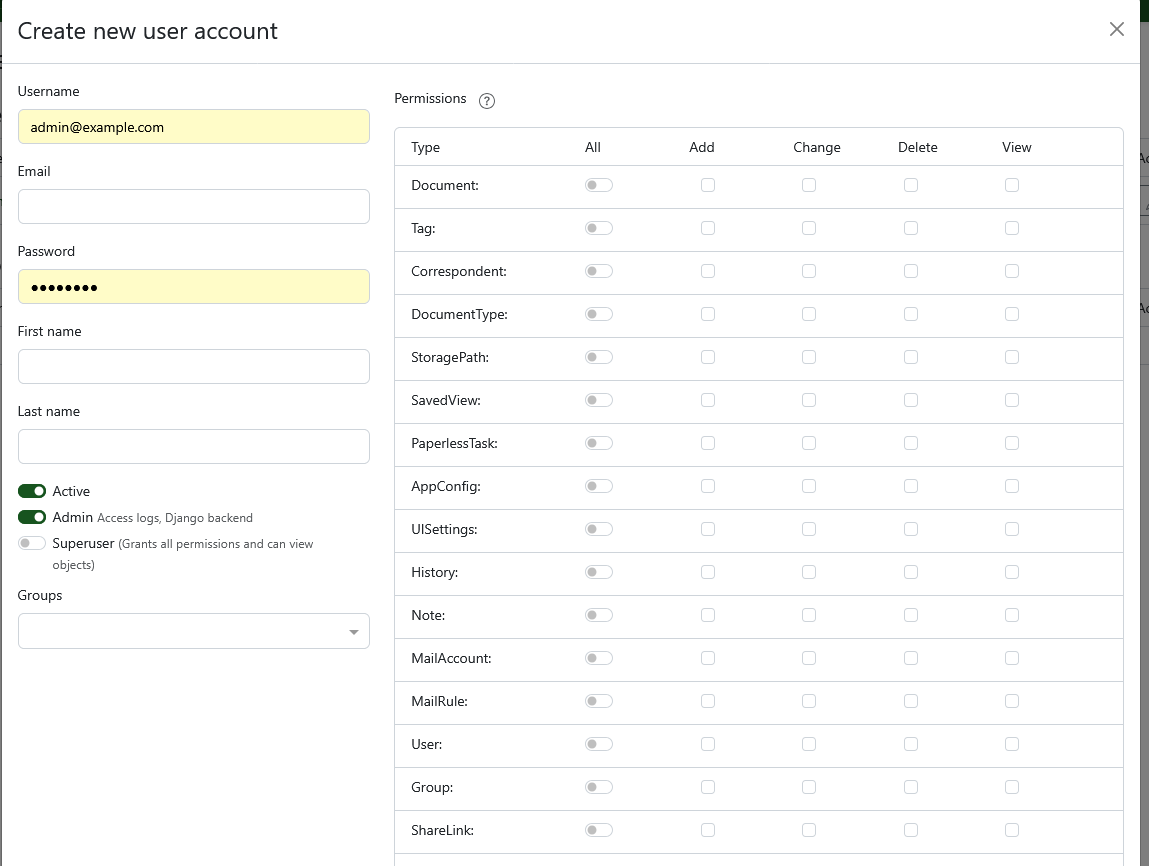
To add new users, use the Users & Groups menu in the right sidebar.
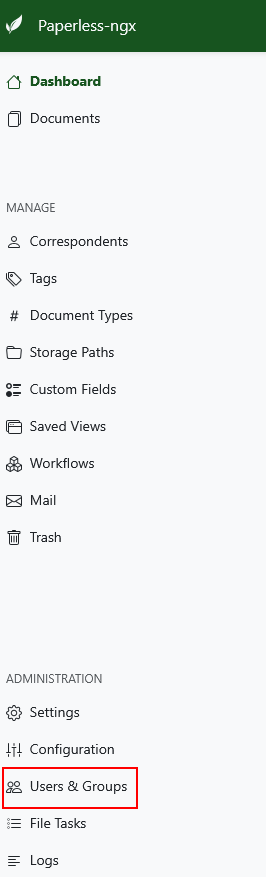
-
When adding a user, you can manage access settings and possible actions.
-
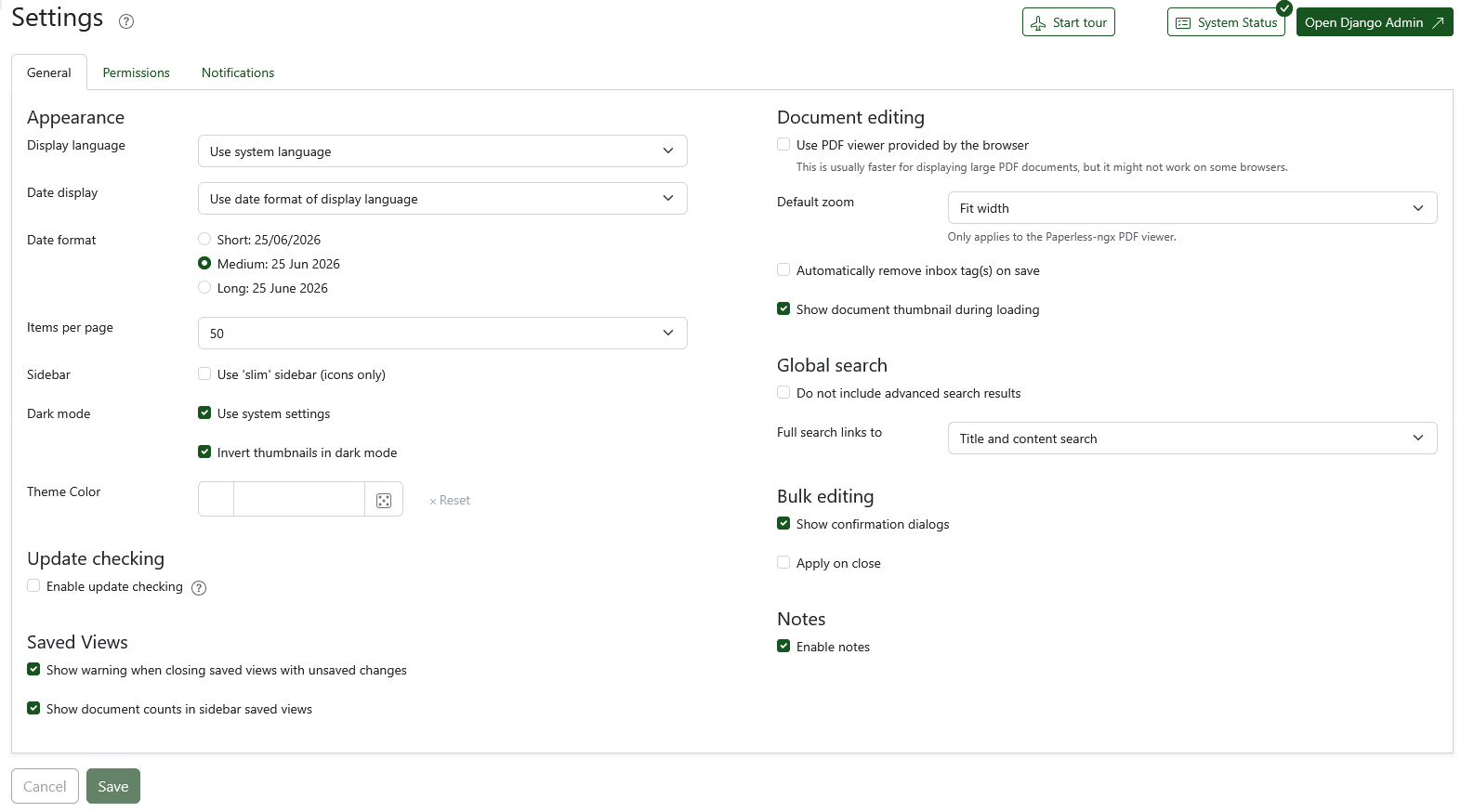
You can manage panel settings using the Settings menu — configure date formats, sorting parameters, and notifications according to your preferences.
Note
Detailed information on the main Paperless-ngx settings is available in the developer documentation.
Ordering Paperless-ngx via API
To install this software using the API, follow these instructions.