Rescue Mode
Why use Rescue Mode:
- Lost access: root password forgotten, SSH key deleted, or firewall blocked SSH.
- System fails to boot: broken GRUB after a kernel update, corrupted file system, or an error in
/etc/fstab. - Data recovery: the system cannot be restored, but the data is intact.
- Hardware diagnostics: checking disks (SMART), RAID, or memory without affecting the running system.
- Maintenance: resizing partitions, cloning disks, or performing non-standard OS installations.
How it differs from similar tools
- Reinstallation erases everything; Rescue preserves data.
- A Snapshot rolls back to a previous state, provided it was created beforehand.
- ISO works via the web console and requires manual image selection. Rescue is a single button and standard SSH.
Attention
Rescue Mode is available on all Bare Metal (BM) servers, as well as for Virtual Machine (VM) servers with at least 3GB of RAM.
Launching Rescue Mode
-
To use Rescue Mode, go to the server card, navigate to the Rescue Mode tab, select the required image, and click
Enable Rescue and reboot. The server will reboot. It will remain in Rescue Mode until the next reboot.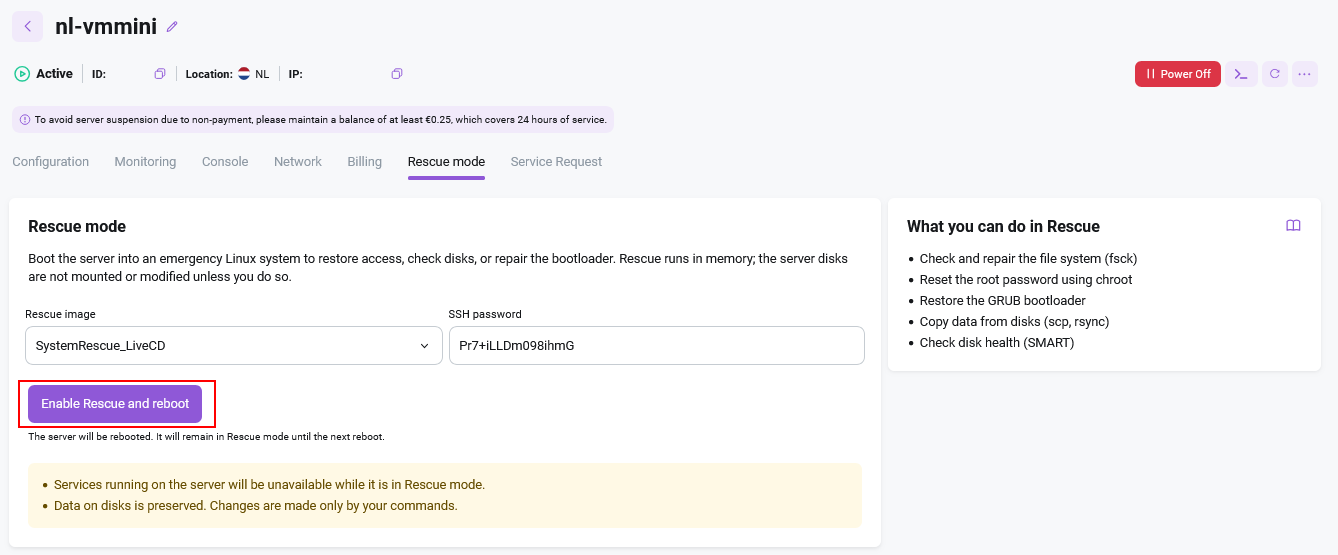
-
Once the reboot is complete, go to the Console tab, open the console, and perform the necessary repair operations.
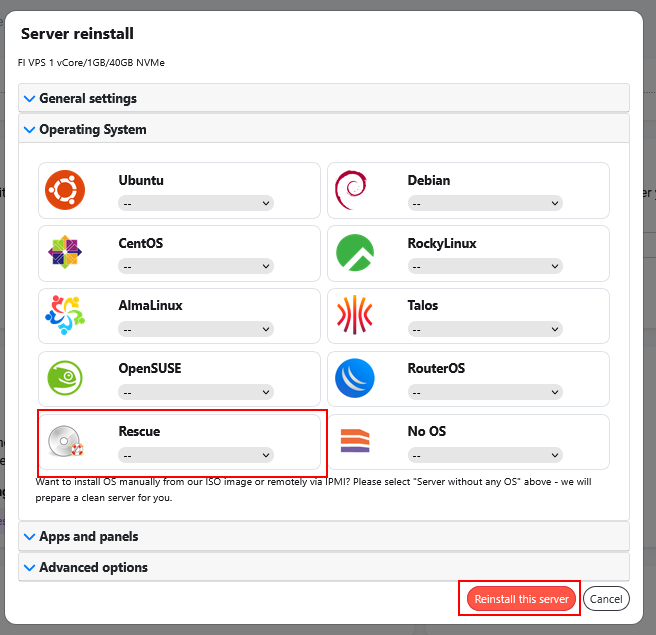
-
Reboot your server. You may continue using it as normal.
Information
Currently, Rescue Mode is only available for Linux-based operating systems. Feature expansions are planned in the near future. Available Rescue images:
- Rescue-rhel - a recovery image based on RHEL.
- SystemRescue - based on systemrescue-13.02 on Arch Linux with built-in system recovery utilities.