Server Assistance (Remote Hands Request)
The Remote Hands Request functionality is designed to resolve issues with a leased server (dedicated or virtual) that cannot be addressed remotely over the network. It enables the engagement of technical specialists located in the data center to perform tasks such as connecting external storage devices, diagnosing hardware, and troubleshooting equipment failures.
Attention
The Remote Hands Request functionality should only be used when the server's remote management module is non-functional or unavailable. If the remote management module is operating normally, it is recommended to use it to resolve any issues.
Requesting "Remote Hands" Functionality**
To access the Remote Hands Request functionality, you must:
Navigate to the Invapi hardware control panel. In the server card, click ... on the right side of the information line (with the red button), then select Server Assistance:

In the menu that opens, describe the problem as fully and accurately as possible, then click the Send button:
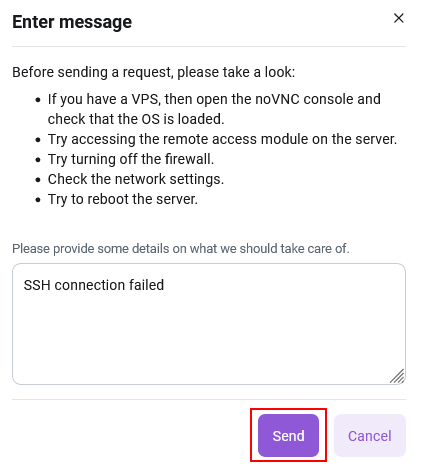
After this, the AI assistant will respond and suggest a solution to the problem.
Note
The AI assistant's response may take up to 2 minutes due to searching through our entire documentation base.
If the AI assistant's response resolves your problem, click the Problem Resolved button. If not, click Continue.
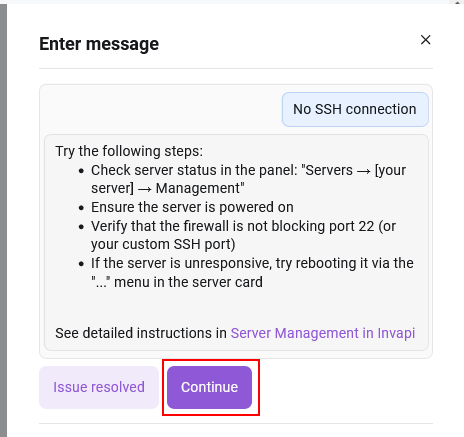
A ticket will then be created to address this issue. You can track the status of the request and communicate with technical support specialists via the Support menu at the top of the Invapi server control panel.
When a specialist accepts the request for processing, its status will change from pending to active.
Notifications about new messages from technical support specialists will be sent to the email address specified during account registration.