Residential Proxy
In this article
Information
Residential Proxy is a service that allows you to interact with web resources as if you were located in another country or city. Residential proxies help verify advertisements, search engine results pages (SERP), prices, page availability, and local content. This is ideal for marketing, e-commerce, SEO, QA, analytics, market monitoring, and other tasks where connection geography is critical.
Use Cases
- Data Scraping and Collection: Safely extract pricing and competitive information from international websites.
- Ad Verification: Verify how advertisements are displayed in different countries and regions. This helps identify geo-targeting errors, landing page issues, and discrepancies in local campaigns.
- Marketing and SEO: Check rankings, snippets, local results, and page availability in specific target regions.
- QA and Service Availability: Test how your websites, applications, and APIs load from different countries. This is useful for testing CDNs, localization, and regional availability.
- Account Management: Work with multiple profiles on social media and marketplaces while avoiding IP redirection and blocks.
- Brand Protection: Automate the monitoring of reviews and brand mentions (SERM), avoiding suspicious request volumes from a single address.
How to Order
The service can be ordered via the client area in Invapi under the Residential Proxy section.
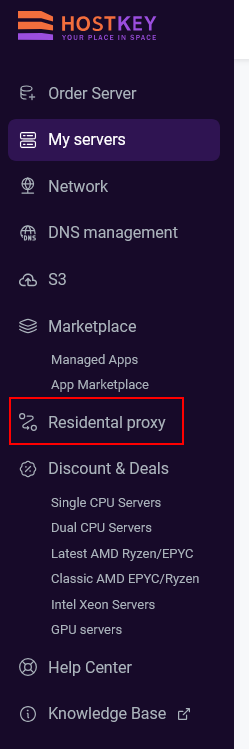
Ordering steps:
Selecting a Plan and Creating a Proxy
-
In the Tariff plans window, select the desired plan and click the
Buybutton. The service fee will be automatically deducted from your account balance.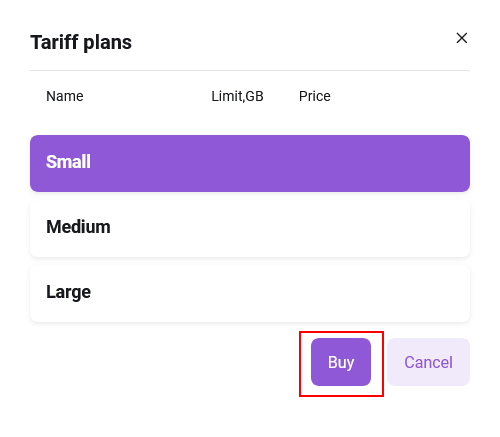
-
Once you have purchased traffic, proxy creation for specific regions will become available. Click the
+ New configbutton.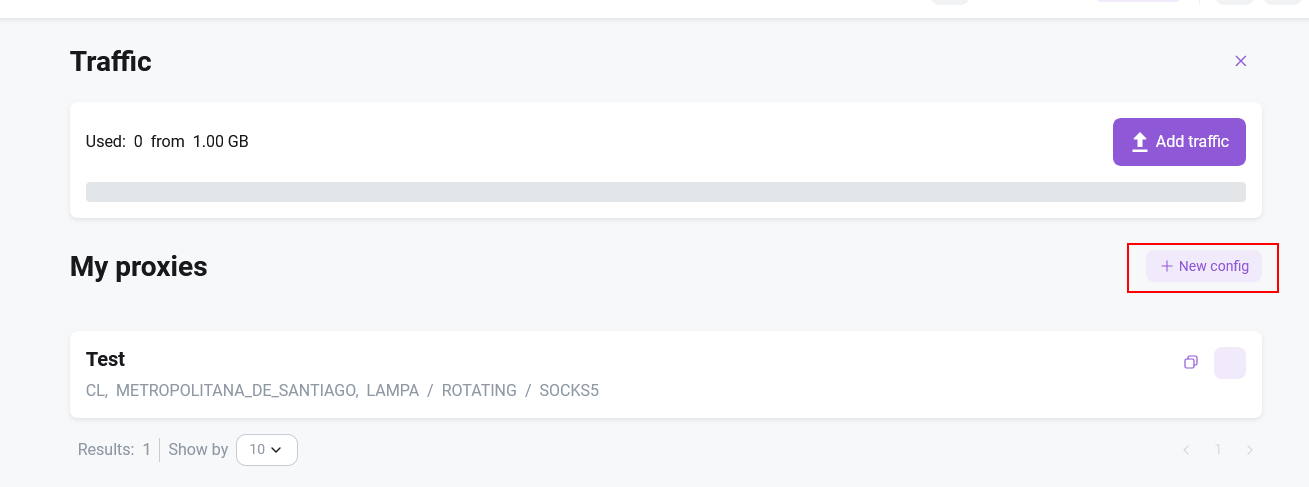
-
The Create new proxy window will open. Select the required type.
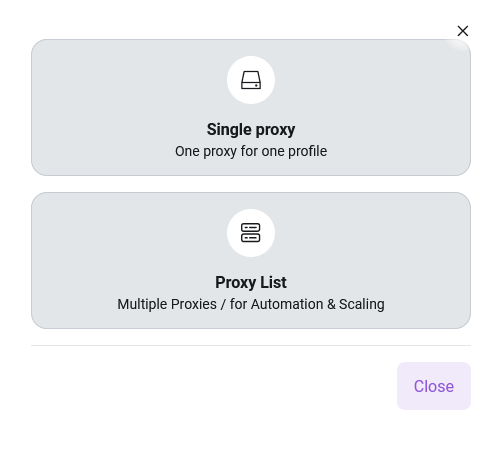
-
In the Create new proxy window, set the following parameters:
- Name
- Country
- Region
- City (if supported in the selected region)
- Session Type (Permanent IP/Rotating IP)
- Protocol (HTTP/SOCKS5)
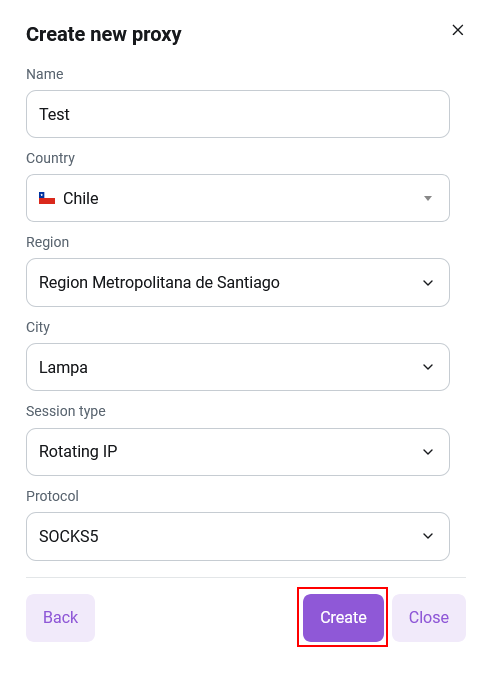
-
After clicking
Create, you will be redirected to the list of created proxies.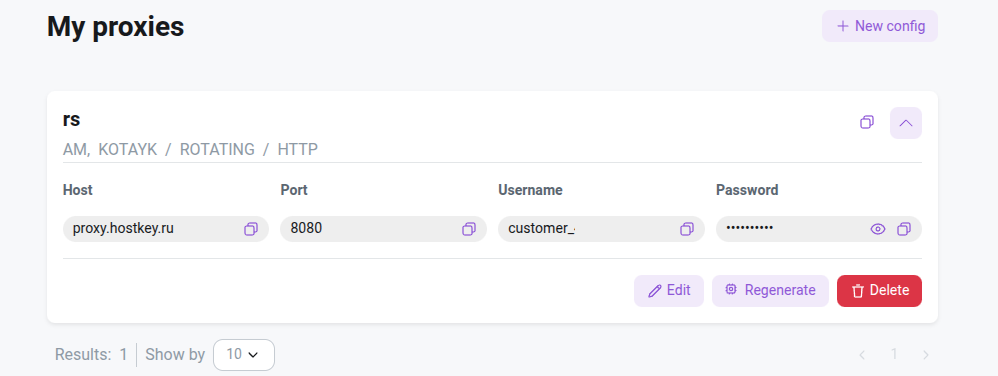
-
The credentials for use (port, login, and password) are displayed directly on the proxy card.
Information
If your plan's traffic is exhausted and you wish to continue using the service, go to the Traffic section and click the Add traffic button. The traffic package purchase window will open, allowing you to purchase the required amount. 
Canceling the Service
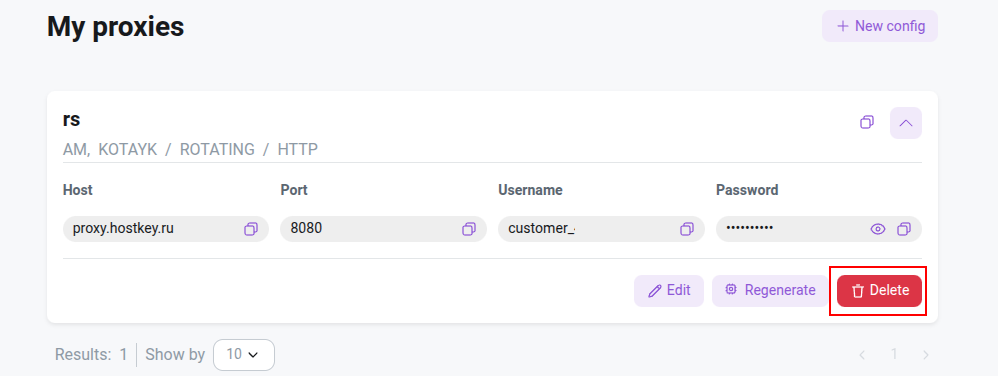
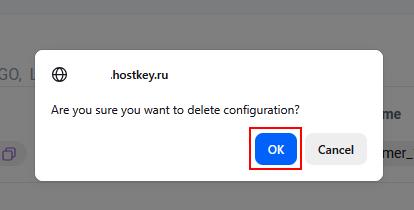
Clicking the Delete button opens a "Cancel Order" confirmation window. Important: after confirming the proxy and all its data will be deleted without the possibility of recovery. To complete the cancellation, click the OK button in the confirmation window.
Billing
At the time of ordering, funds will be deducted from your account balance according to the terms of the selected tariff plan. Subsequently, payments for additional usage packages will also be made from your account balance.
To view your transaction history, go to the Billing and Payments menu in your user profile at Invapi and navigate to the Transaction Details section.

In the Transaction Details section, you can view the history of charges for all additional services on this account (Managed Applications, S3), as well as the total amount charged to the account. Charges for each service are listed separately in the monthly billing cycle.