Network settings management
In this article
Network Interface and Port Configuration and Diagnostics
The Network tab allows you to block and unblock specific IP addresses, view port usage graphs, access network configuration details, and manage PTR (rDNS) records.
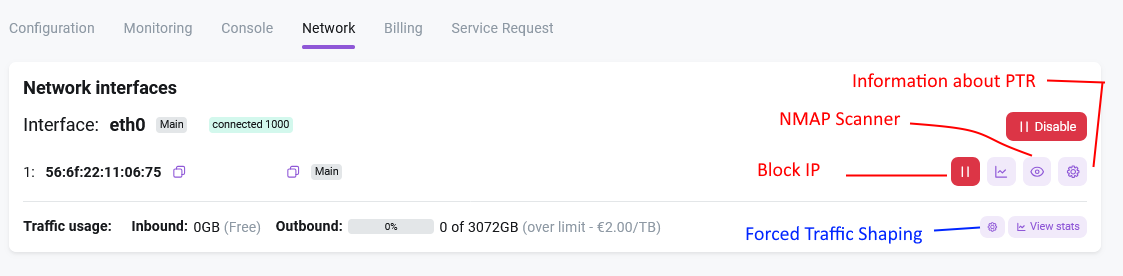
When navigating to the Network tab in the Invapi server control panel, you can view the IP addresses assigned to the server:
Note
If multiple IP addresses are assigned to the server, the automatic installation of our system will configure only one address; the remaining addresses must be configured manually. Typically, this is the first IP address in the list or any address in the list tagged with Main. In the event of a server reinstallation, the address with this tag will be used as the default in the operating system.
The following actions can be performed with addresses and interfaces:
- Enable and disable the interface;
- View the traffic graph for a port or IP address;
- Block and unblock an IP address;
- Perform a port scan using the Nmap utility;
- View subnet information;
- Manage reverse DNS records (PTR).
You can block a specific IP address at the network level on your side without logging into the server. To block, you must click the Block IP button and specify the reason:

Attention
Please note that the Unblock feature does NOT allow you to unblock an IP address in the following cases:
- The IP address was temporarily reset by DDoS protection due to an incoming attack. The system will unlock it automatically after 4 hours. If you want to remove the null route before the end of the 4-hour period, you must contact our support team.
- The IP was blocked by the abuse department due to an AUP violation. To remove the block, you must check your email for instructions from the Abuse Team, take the necessary action, and respond to the complaint by email.
The Tools icon allows you to check and manage your IP address settings.
View Statistics
Various display and calculation options are available for viewing usage statistics.

-
The Traffic field displays the total data consumption for the entire server, showing usage for the current billing period while accounting for limits.
-
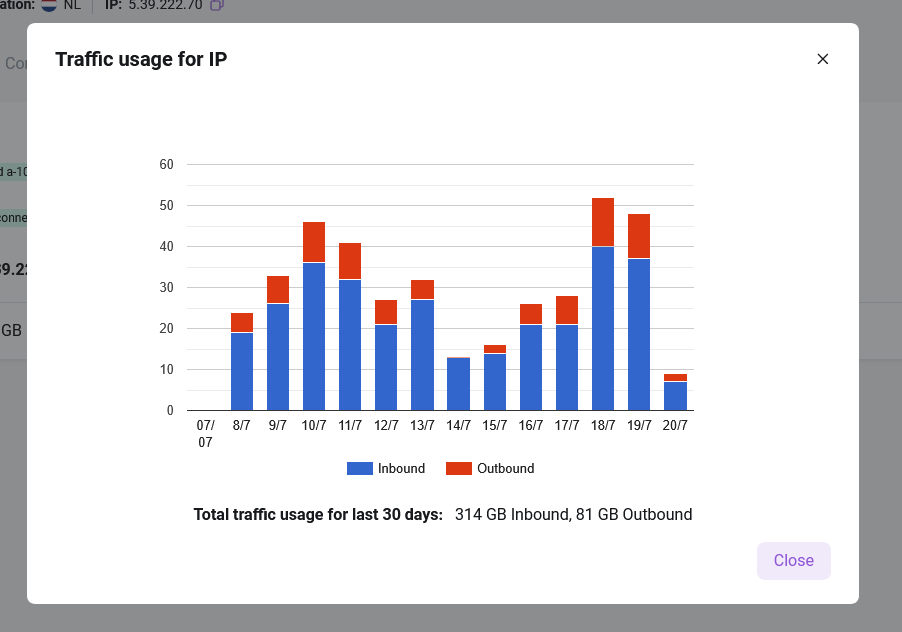
Clicking the button marked with number 2 in the diagram will provide a graphical representation of traffic consumption for a specific IP address over the last 30 days.
-
Clicking the button marked with number 3 in the diagram will provide a tabular view of traffic statistics for all IP addresses over the last 30 days.

-
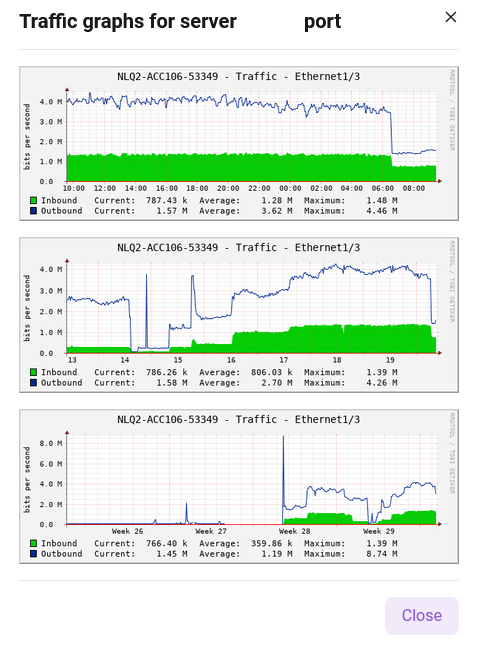
For bare metal servers, port-level traffic statistics are also available. This is indicated by number 4 in the diagram.
Setting up a PTR record
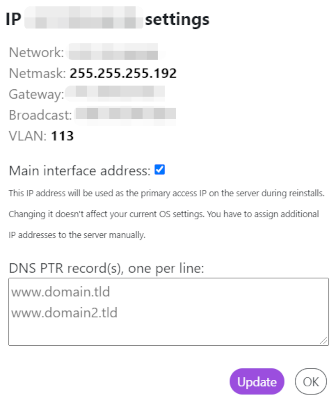
To set up a PTR record for an IP address, list the domains, one per line. Click the Update button after adding the list of domains.
If there are several IP addresses on the server, it is necessary to mark the main one. The main address is configured on the server during automatic installation, additional addresses are configured by the client inside the OS on their own.
An example of filling out a form of PTR settings:
To check the added domain should be:
- Run CMD or Powershell on the workstation;
-
Use one of these two commands:
Information
Forced Traffic Shaping
When the option Force traffic shaping on overusage is enabled:
- No additional invoices are generated for traffic exceeding the plan's included volume;
- Instead of billing for overages, the port speed is automatically throttled to 100 Mbps (regardless of the original port speed of 1 Gbps or 10 Gbps);
- Shaping is applied only to the specific server where this option is enabled.
This feature helps control traffic costs and avoid unexpected invoices when limits are exceeded by automatically limiting the connection speed.